Livescribe
™
Desktop for Windows User Guide 55
Sharing Content Using Livescribe Online
Emailing Content to a Friend
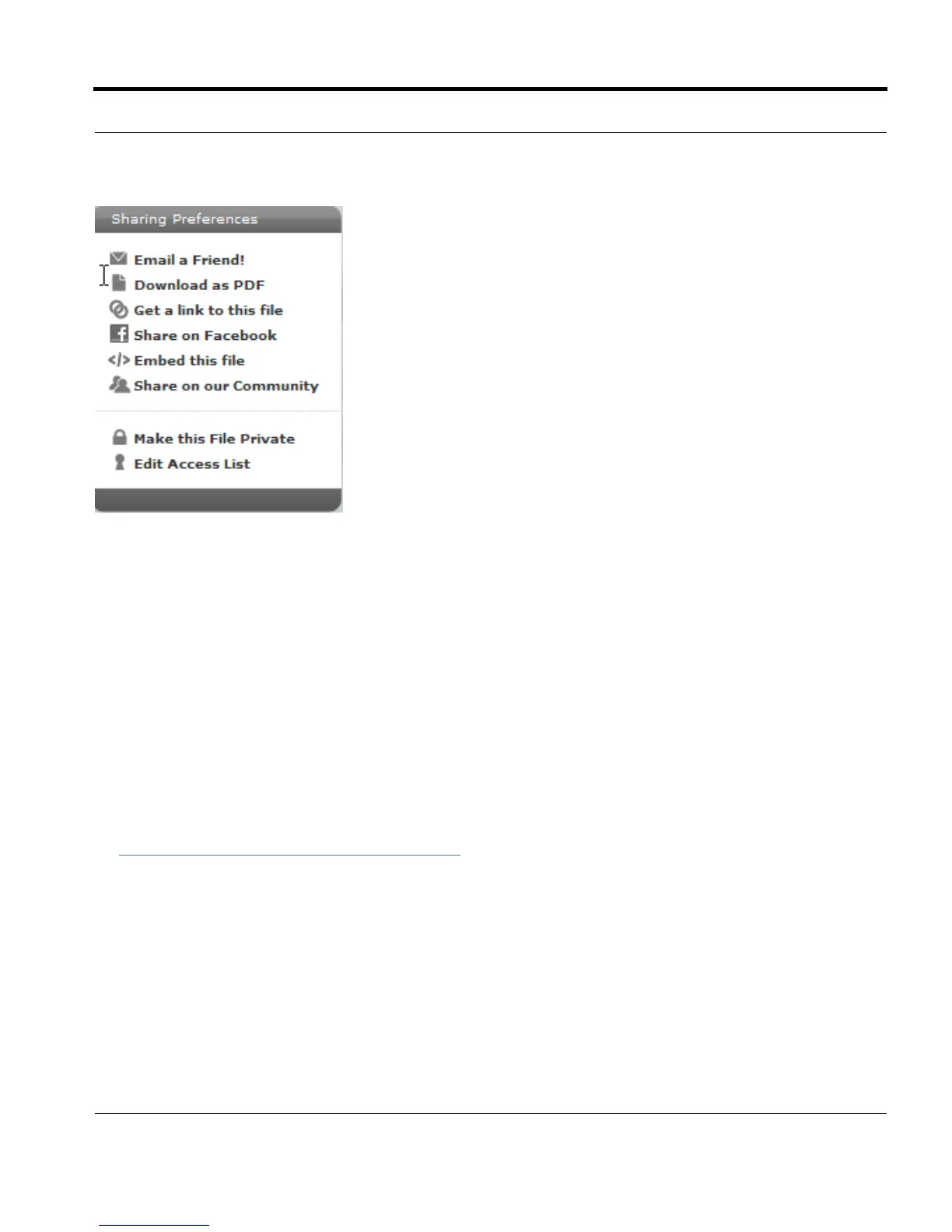
Choose the Email a Friend preference to share content with a friend via email:
1. Select a file. To select a file from the Livescribe Online Community, click the file’s thumbnail to view
it. To select a file from your personal myLivescribe space, click the file’s thumbnail in the My Files
area to view it.
2. On your myLivescribe page, click on Email a Friend.
3. Enter your friend’s email address in the To field.
4. Optionally, add a message in the Personalize It section.
5. Click Send. Your friend will receive an email that links him or her to your file on Livescribe Online. If
your content is private, your friend will be required to create a Livescribe Online account (See
Setting Up a Livescribe Account
on page 60). Their username must be the email address you sent
the invitation to.
N
OTE: To select multiple friends to send a file to, just check the box next to each friends email address
in your Address Book before clicking the Send button.
When you send the invitation, Livescribe Online will automatically add your friend to your Contact list
for future ease of sharing. As you share more files, your Address Book contact list will grow. Use the
gray Edit a Contact button to add a friend’s name or edit an email address. Use the red Delete a
Contact button to remove an email address from the list.



 To Next Page