Livescribe
™
Desktop for Windows User Guide 34
Viewing and Working with Pages
1. In Pages View, view pages as thumbnails (see Viewing Thumbnails on page 24)
2. Use Control-click to select multiple, non-sequential thumbnails. Use Shift-click to select a
sequential set of thumbnails.
3. In the Menu, choose File > Print. On the print dialog, choose a printer and click the Print
button.
By default, the page will print showing the page background. To print the page without the back-
ground, uncheck the Print Page Background checkbox. If you choose to include the background,
the printed pages will include anything shown on the pages of the actual notebook. For example,
the college-ruled notebook the printed pages will contain ruled lines.
Converting Handwriting to Text
You can use MyScript
®
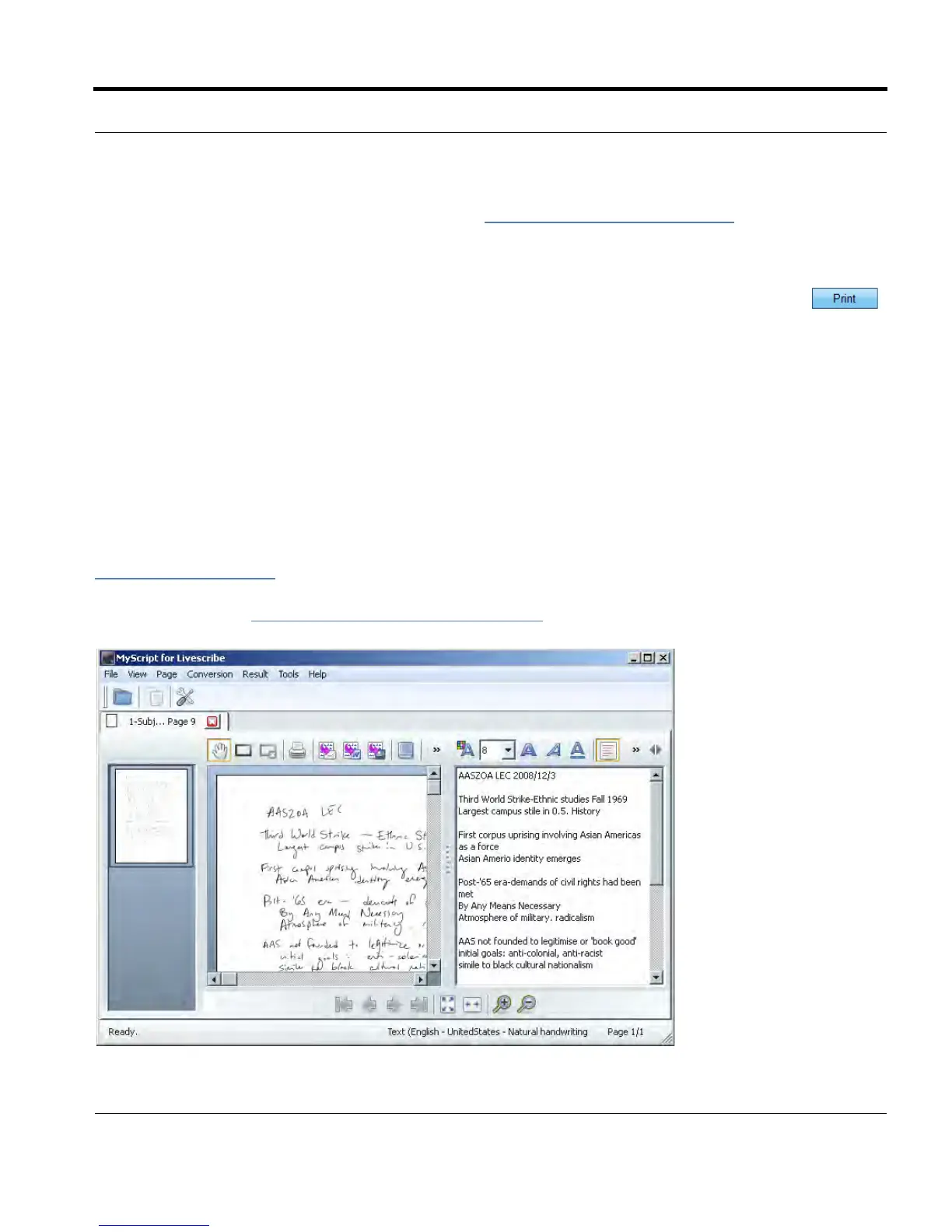
for Livescribe to convert your handwritten notes to digital text. MyScript for
Livescribe is a desktop application from Vision Objects
®
that is sold separately (visit
www.visionobjects.com
). After you have purchased and installed MyScript for Livescribe, you can
export your pages to it using the sharing dialog of Livescribe™ Desktop using the With MyScript...
sharing option. See Sharing Pages and Audio
on page 46.



 To Next Page