Livescribe
™
Desktop for Windows User Guide 73
Getting New Applications
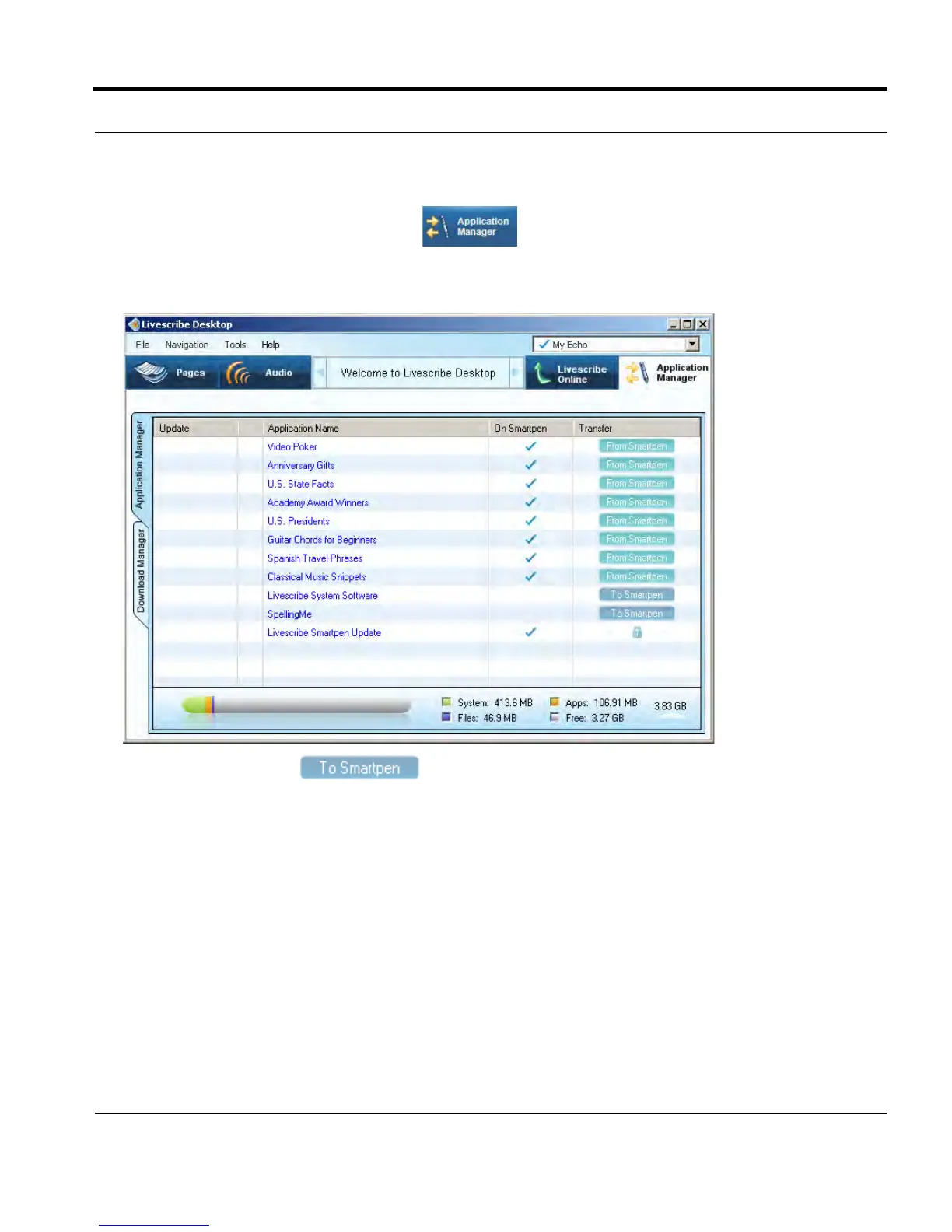
2. Click the Application Manager button in the Main Toolbar.
You will see a list of all the applications you have downloaded, including those you have already
installed to your smartpens and those waiting to be installed.
3. Click the To smartpen button next to the application to install. This starts the
installation process for the smartpen you have docked.
4. The Application Manager shows the progress of the installation.
5. After installation completes, the Application Manager indicates the application has been installed by
displaying a checkmark in the On Smartpen column.
Uninstalling an Application
To uninstall an application:
1. Dock the smartpen on which you want to un-install the application.



 To Next Page