Livescribe
™
Desktop for Windows User Guide 71
Getting New Applications
2. Click the Log In button to go to Livescribe account.
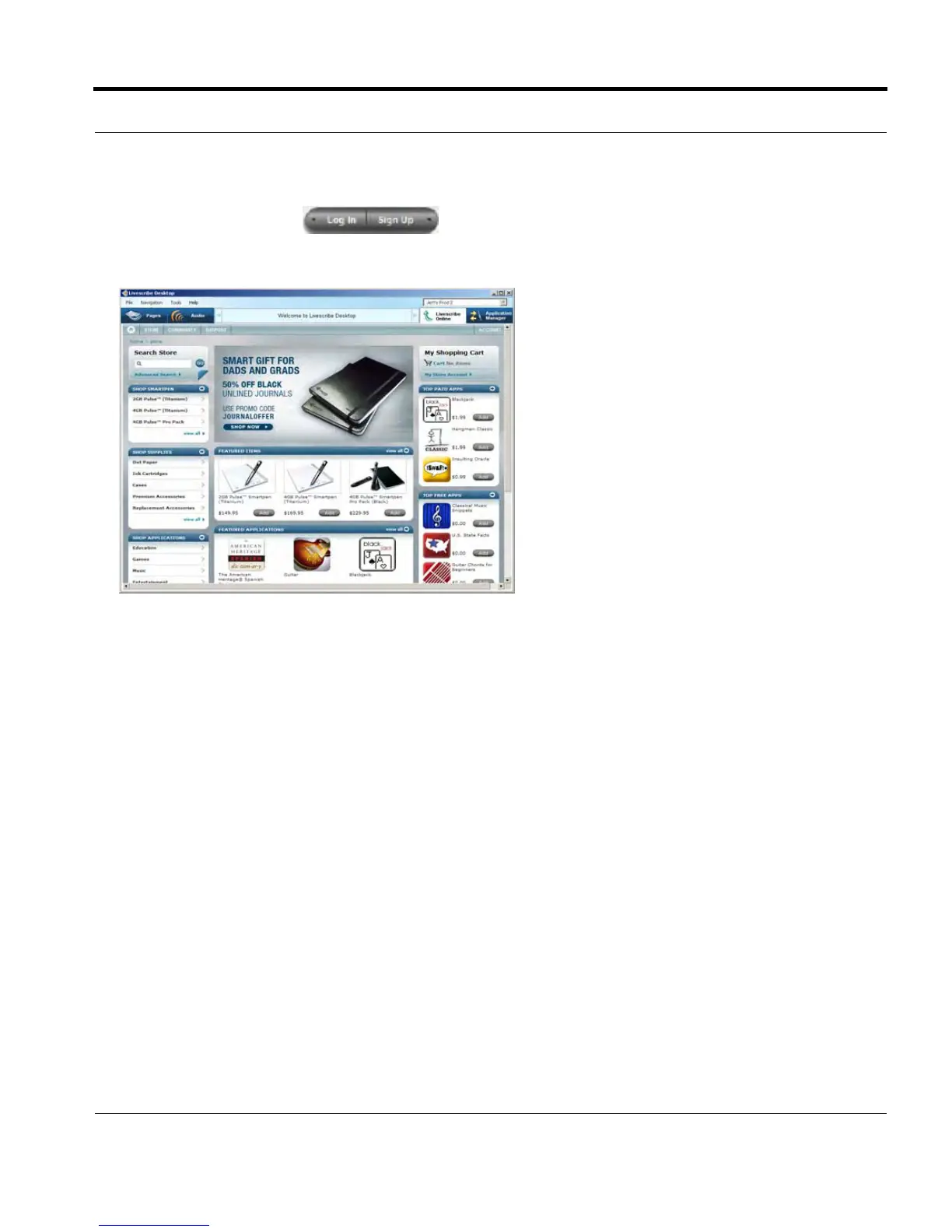
3. Click on the Store tab. From the store page, you can browse and purchase applications.
4. Select and application to purchase by clicking its Add button. Optionally, look at the applications
details page.
N
OTE: From the details page, you can download documentation for the application.
5. Click Add to Cart to add the application into your shopping cart. This opens your shopping cart and
begins the four-step purchasing process. Click the Continue to Checkout button.
6. Add or confirm your billing and shipping information.
7. Confirm your purchase.
8. Place your order. After placing your order, your application(s) will display as ready for downloading
in the Download Manager tab.
Downloading an Application
1. After purchasing an application, click the Download Manager tab in the Livescribe Online view of
Livescribe™ Desktop.



 To Next Page