Livescribe
™
Desktop for Windows User Guide 32
Viewing and Working with Pages
2. Type the search text into the Search dialog. By default, this search method finds whole words in the
current notebook or journal.
If desired, you can choose to search for partial words. To search for partial words, uncheck the
Match Whole Word checkbox. For partial word searches, entering “top” would find “top” and other
words that contain the search string like “topographic”, and “mountaintop”. Because Search is not
case sensitive, “Top”, “top”, and “TOP” return the same results.
3. Choose which notebooks to search: the currently-open notebook, all notebooks, or selected
notebooks that you have checked.
4. Click Search to initiate the search.
Viewing Search Results
When you perform a search in the current notebook or journal, Livescribe™ Desktop searches through
all its pages.
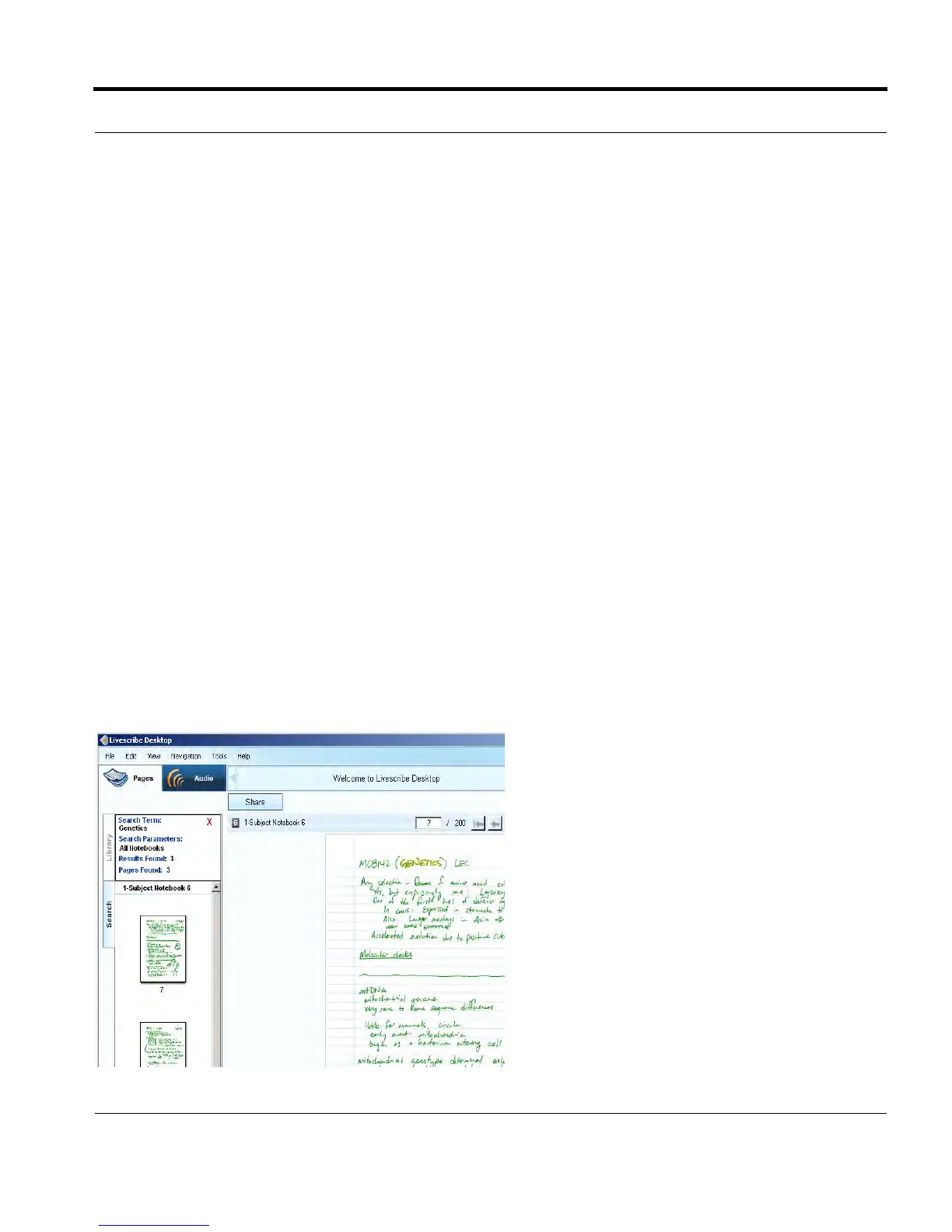
When Search finds one or more hits (text matches), it displays the results in the Search tab in the
Navigation Pane. Livescribe™ Desktop shows thumbnails of the pages where it found the search text.
The results remain within the Search tab until you either initiate another search or close the tab. The
Search tab holds one set of search results at a time.
To view one of the search result pages, click on its thumbnail in the Search tab. This will open the page
in Single Page mode in the Central Viewing Pane with the search hits highlighted yellow.



 To Next Page