Livescribe
™
Desktop for Windows User Guide 26
Viewing and Working with Pages
• Using Paging Controls bottom of the Central Viewing Pane, click the first page button or last
page button. Or, choose View > First Page or View > Last Page from the Main Toolbar.
Using Paging Controls
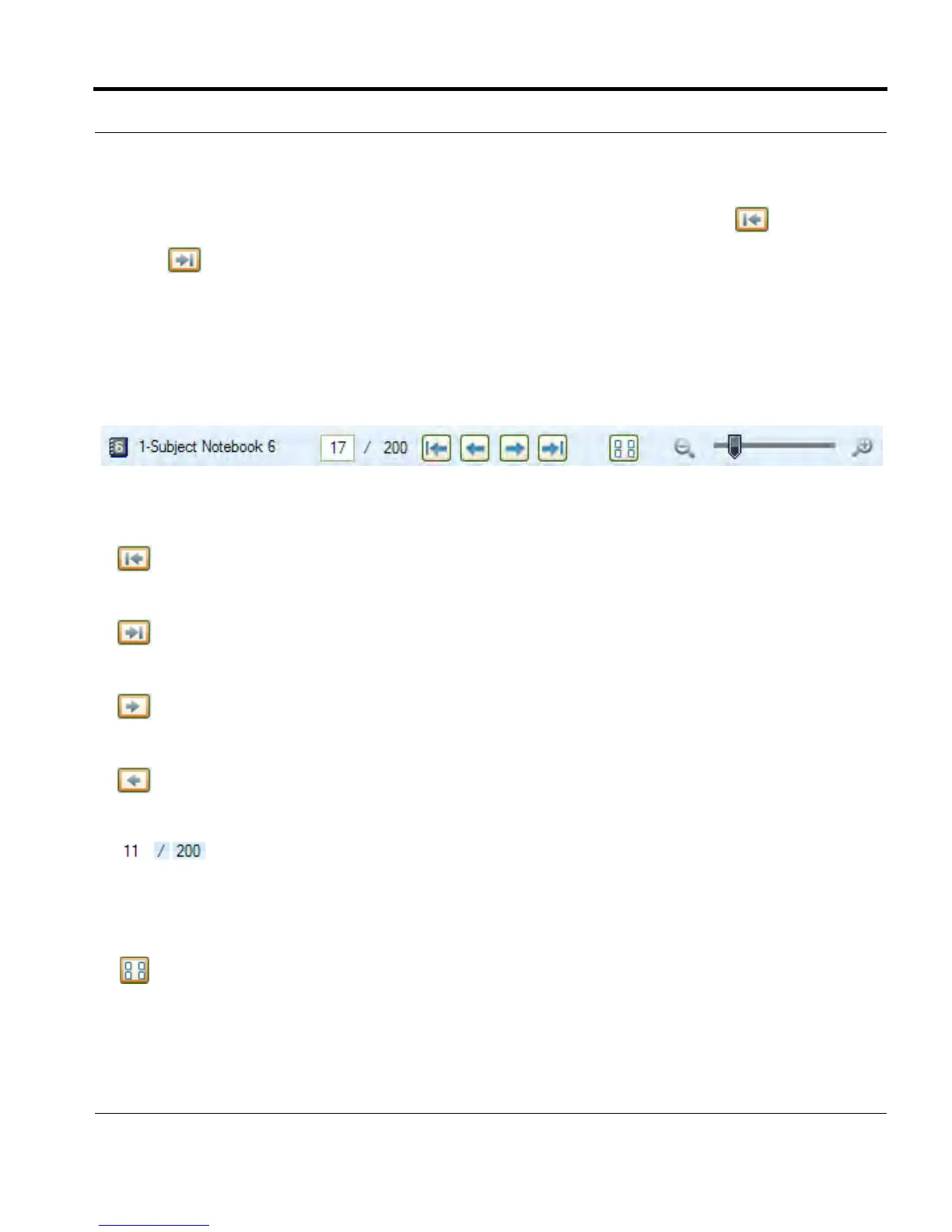
In Pages View, Livescribe™ Desktop displays Paging Controls. You can use these controls to page
through your notebook, go to specific pages, activate thumbnail or single page modes, and zoom into
or out of a viewed page.
This toolbar has the following buttons and controls:
First page: Displays the first page
in your notebook that contains
notes.
Last page: Displays the last page
in your notebook that contains
notes.
Next page: Displays the next page
in your notebook that contains
notes.
Previous page: Displays the
previous page in your notebook
that contains notes.
Current page number: Displays
the currently displayed page. You
can also type a page number in
the number field and press the
Enter key to go to that page.
Thumbnail mode: Switches Pages
View to view pages as thumbnails.



 To Next Page