Livescribe
™
Desktop for Windows User Guide 43
Adding Pages to a Custom Notebook
To add pages using a menu commands:
1. Navigate to a notebook in your library and select one or more pages.
2. Choose File > Custom Notebooks... > Add pages to...
In the Select Notebooks dialog, check the target Custom Notebook name, then click Done.The
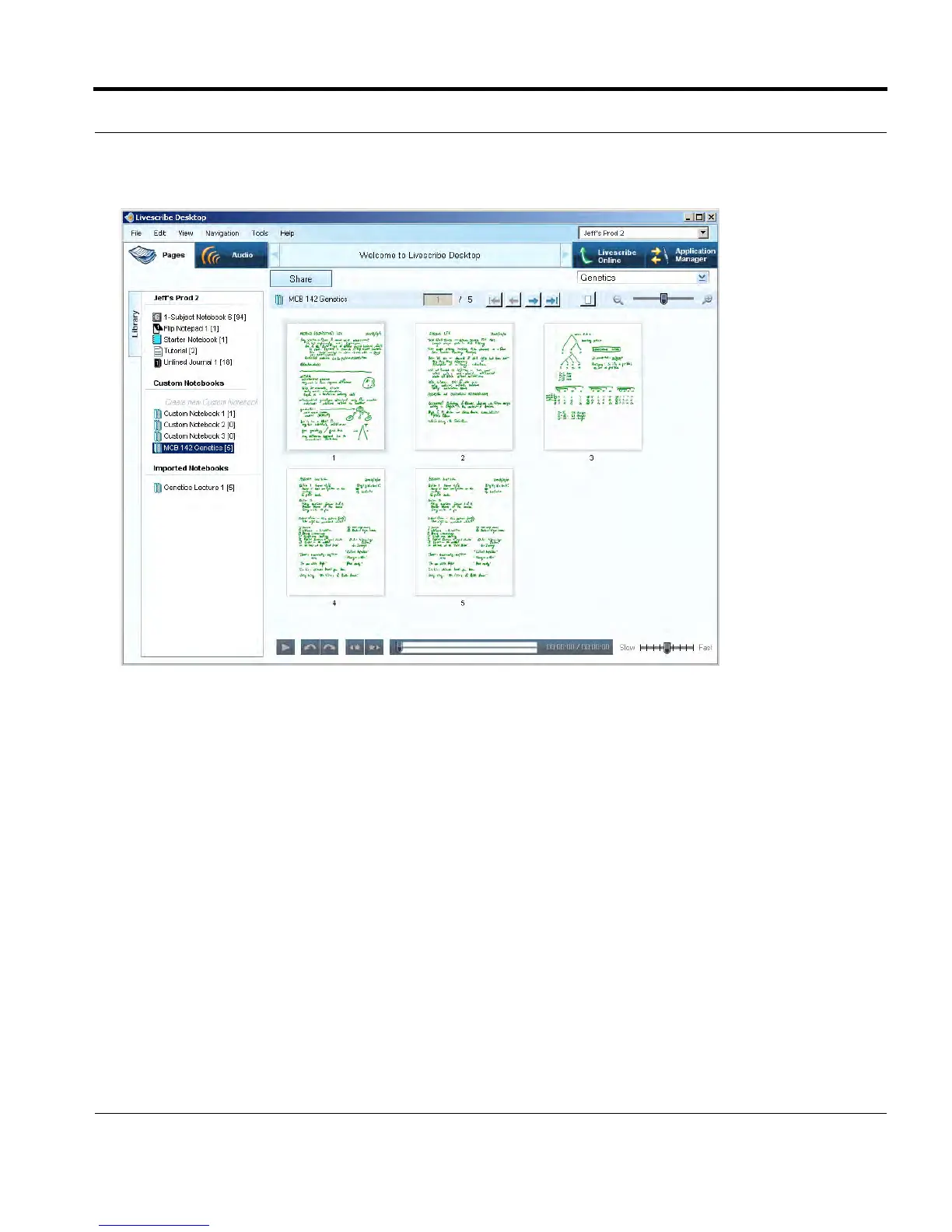
pages you selected appear in the Custom Notebook.
You can instead choose to create a new Custom Notebook from this dialog by clicking Create. After
the new notebook is created, check the new notebook name in the Select Notebook area and click
Done to add the selected pages.



 To Next Page