Livescribe™ Smartpen User Guide 24
Charging a Pulse™ Smartpen
Charging a Pulse™ Smartpen
The USB connector for a Pulse smartpen is located on its side. The connector is designed to fit into a
compatible Livescribe USB charging cradle. Follow these steps to charge your smartpen
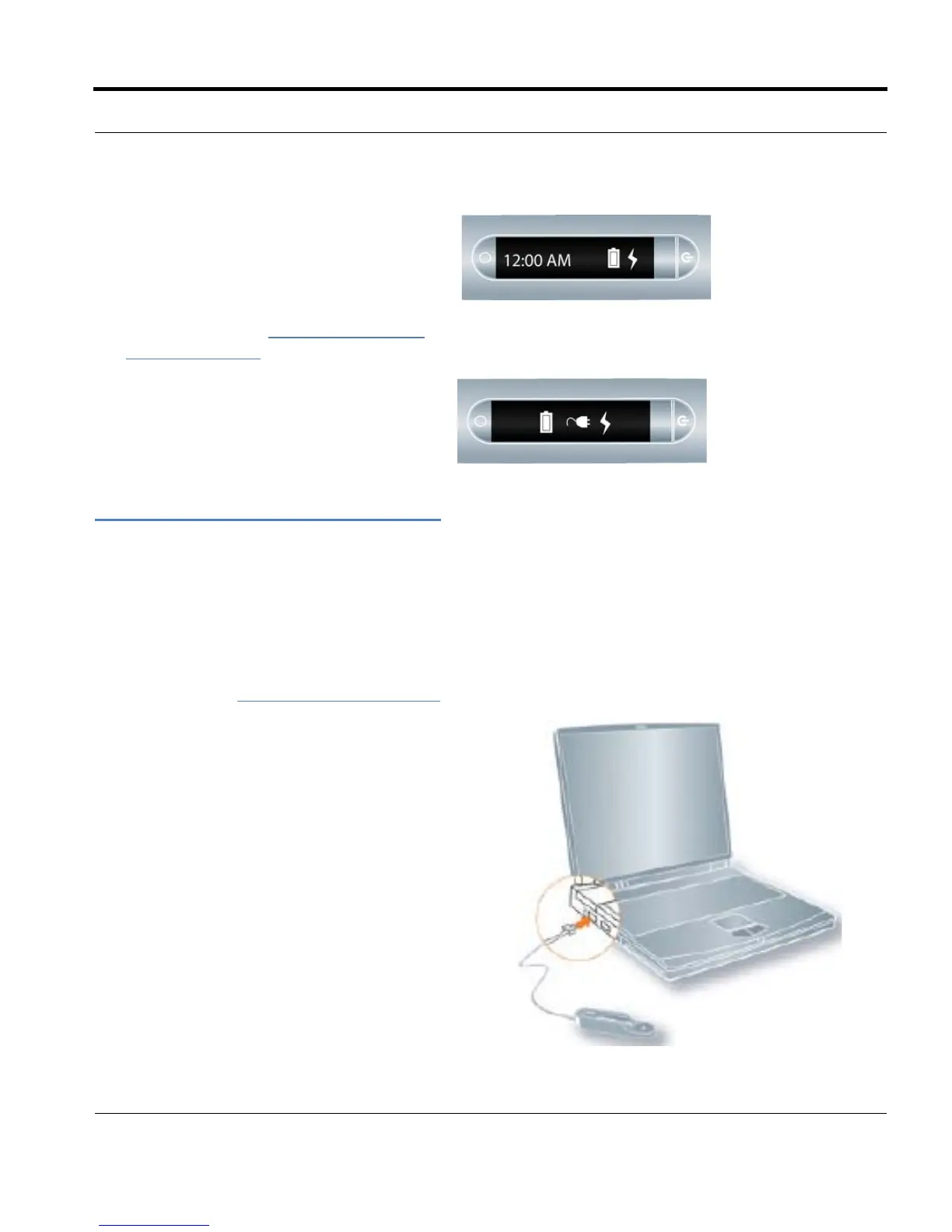
A battery and lightning bolt symbol will
b
e displayed on your Livescribe smart-
pen when it is charging.
A full charge can take up to 2.5 hours. To
de
termine if your Livescribe smartpen is
fully charged, see
Viewing the Battery
Level on page 36.
TIP: The plug and blinking battery indicator
means your Livescribe smartpen needs
to be charged.
1. Before charging your Pulse™ smartpen,
download and install the Livescribe Desktop
software from
www.livescribe.com/install.
2. Plug your USB mobile charging cradle into the
USB port on your computer. The smartpen will
charge directly from your computer’s USB port
when the computer is on. The USB connection
(located on the side of the Pulse smartpen) is
designed to dock into the compatible Livescribe
USB mobile charging cradle.
NOTE: You can also charge the Pulse smartpen
directly from an electrical outlet with the Pro
Charging Cradle or the Universal USB AC
Wall Adapter.


 To Next Page