Livescribe™ Smartpen User Guide 7
New Features
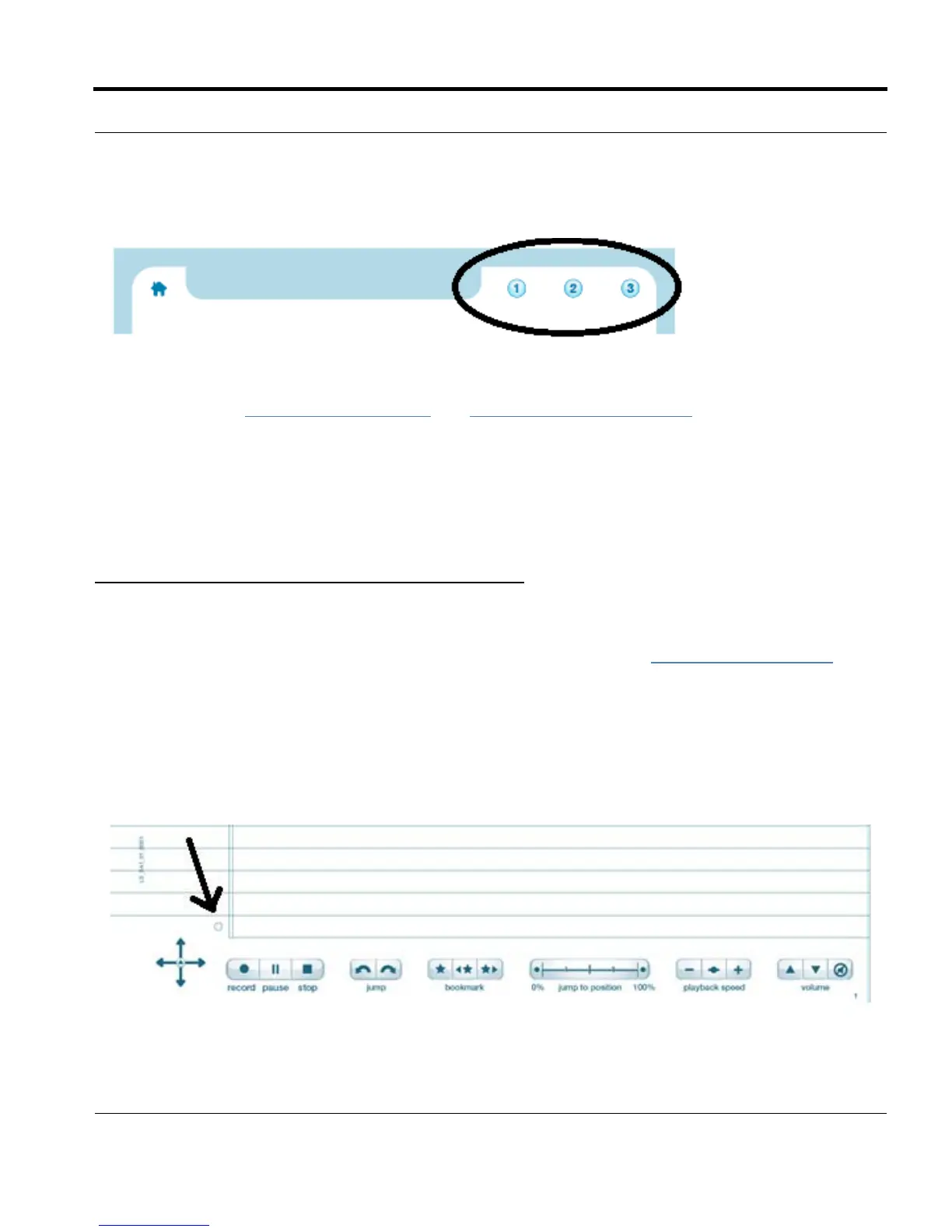
The three Shortcut Buttons have functionality that you assign to them.
To learn more, see Home Button on page 7 and Shortcut Buttons on page 10.
Home Button
Tapping on the Home Button stops the currently running smartpen application and returns the smart-
pen to its default mode: The current time is showing
on the display and the smartpen is ready to store
whatever you write on Open Paper.
Home Button in New and Old Livescribe Notebooks
On Livescribe Sticky Notes and newer Livescribe notebooks and journals, the Home Button is repre-
sented by the icon of a house. For an illustration of the hous
e icon, see New Buttons on page 6.
Although new in this version, the Home Button fu
nctionality is available on older Livescribe notebooks
as well. Instead of a house, however, look for a faintly printed circle to the right of the pre-printed Nav
Plus in the corner of each page. The black arrow in the following illustration points to the circle that acts
as the Home Button.


 To Next Page