Livescribe™ Smartpen User Guide 86
Using Background Recording
Using the Delete Current Session Shortcut
You can use a shortcut to delete the current session. In this context, the current session is the most
recently accessed session. This is the last session that was either played or recorded.
To activate the Delete Current Ses
sion shortcut:
:
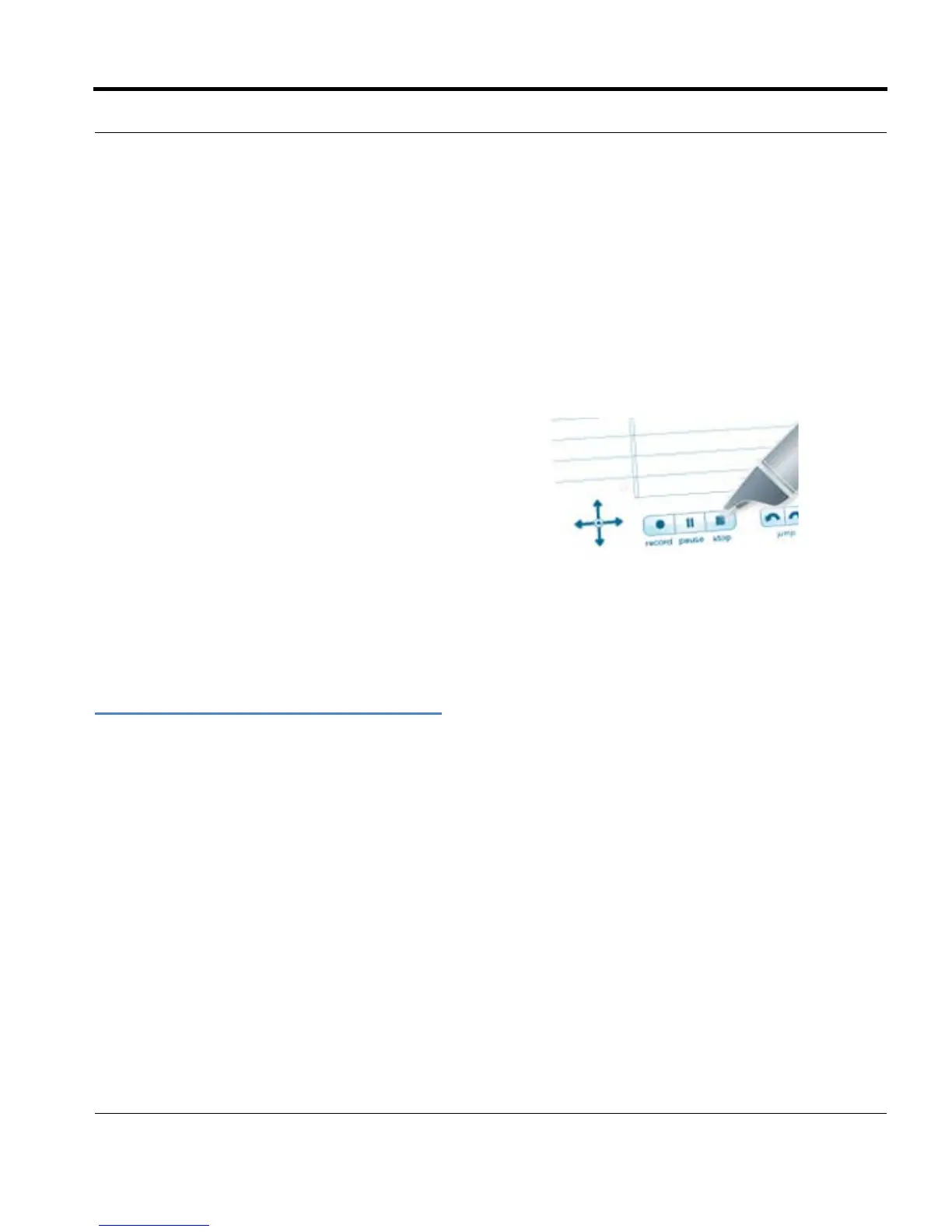
1. On any Paper Replay Stop button, tap and hold for
three seconds. Your smartpen will instruct you to tap
again to delete the current session.
2. Tap Stop again to confirm the deletion.
Using Background Recording
With background recording, you can launch and run another Livescribe smartpen application (such as
a calculator) while continuing to run Paper Replay™. Paper Replay™will continue audio recording in
the background However, your smartpen will not link your notes to the audio while the other application
is running. This is because the new application receives your smartpen input (ink and strokes). The
newly-launched application has the focus of the Livescribe smartpen, and has control of your display
and audio output.
If you want to stop or pause recording, or add new ind
ex points to your recording, you must reactivate
Paper Replay™ as the dominant application. There are several ways to make the Paper Replay™
application reactivate (also known as snap back) to receive input from the Livescribe smartpen:
• Tap on any of the printed Paper Replay™ controls, or on any Paper Replay™ notes you have
written.


 To Next Page