Livescribe™ Smartpen User Guide 51
Scrolling with Flick and Scrub
To use Flick and Scrub scrolling:
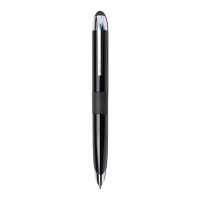
1. Navigate to a list of vertical menu items, such
as Main Menu or one of its submenus, such as
Applications or Settings.
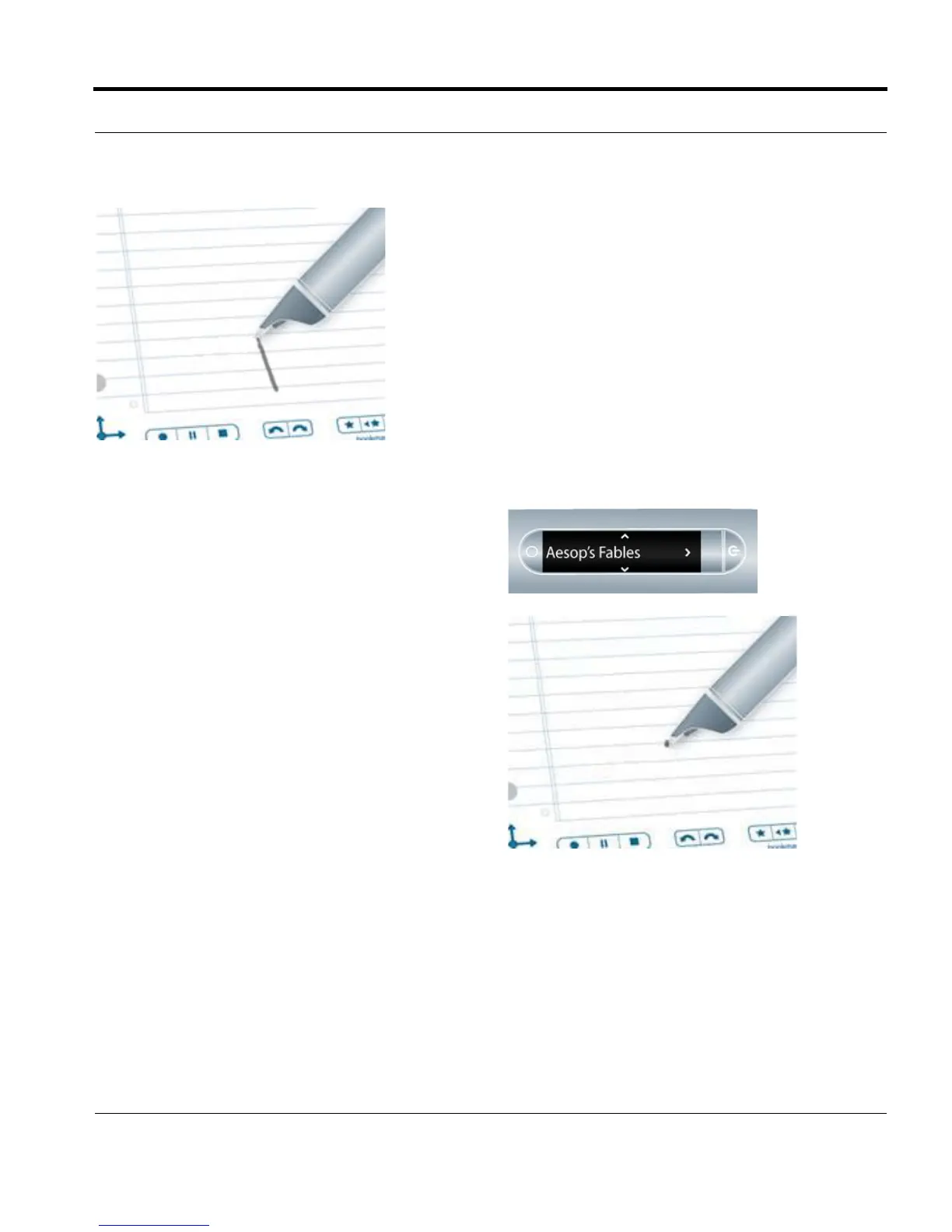
1. On any unused paper region, press the tip of
your smartpen down for one-half (1/2) second.
2. Wait until you hear a short beep, then without
lifting your smartpen tip off the paper, draw a
horizontal or vertical line.
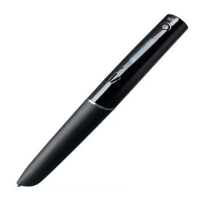
Your smartpen assigns the area you draw as a
F
lick and Scrub control area for any applica-
tion.
TIP: Instead of drawing a line, you can draw a rect-
angular box as the Flick and Scrub control
area. You may find the box easier to use
because it provides a wider area than a
straight line.


 To Next Page