The User Interface
133
o Gain
The currently set P gain, Q gain and RF gain options are displayed. These options are
set up in the Learn Setup screen for each product.
Product
Purpose
The Product screen is displayed by tapping on the Product icon in the Diagnostics
screen.
The screen is used to display the current detector settings, display communications statistics between
the detector head and the control panel and to capture and display raw data from the detector head
for analysis.
Screen Contents
The screen displays seven separate screens, accessed through a drop down list as described below.
It also contains other items also described below.
The following information is displayed at the top of the screen:
Capture / P,QvT / PvQ / PhasevT / CompvT
These fields display the time that the detector has taken to capture the set of data and then
the time taken to redraw each screen using the new data.
The following information for Panel to Head Messages is displayed in the top right hand corner of the
screen:
Success / Retries / Corruptions / Tx fails / Rx fails / Max message length / Max
message dataset
These fields contain values for the messages that have passed between the detector head
and the control board from the time that the metal detector was powered up.
If there are values in the Retries, Corruptions, Tx fails or Rx fails fields you are advised to
contact Loma Service for assistance.
The following items and information are displayed at the bottom of the screen:
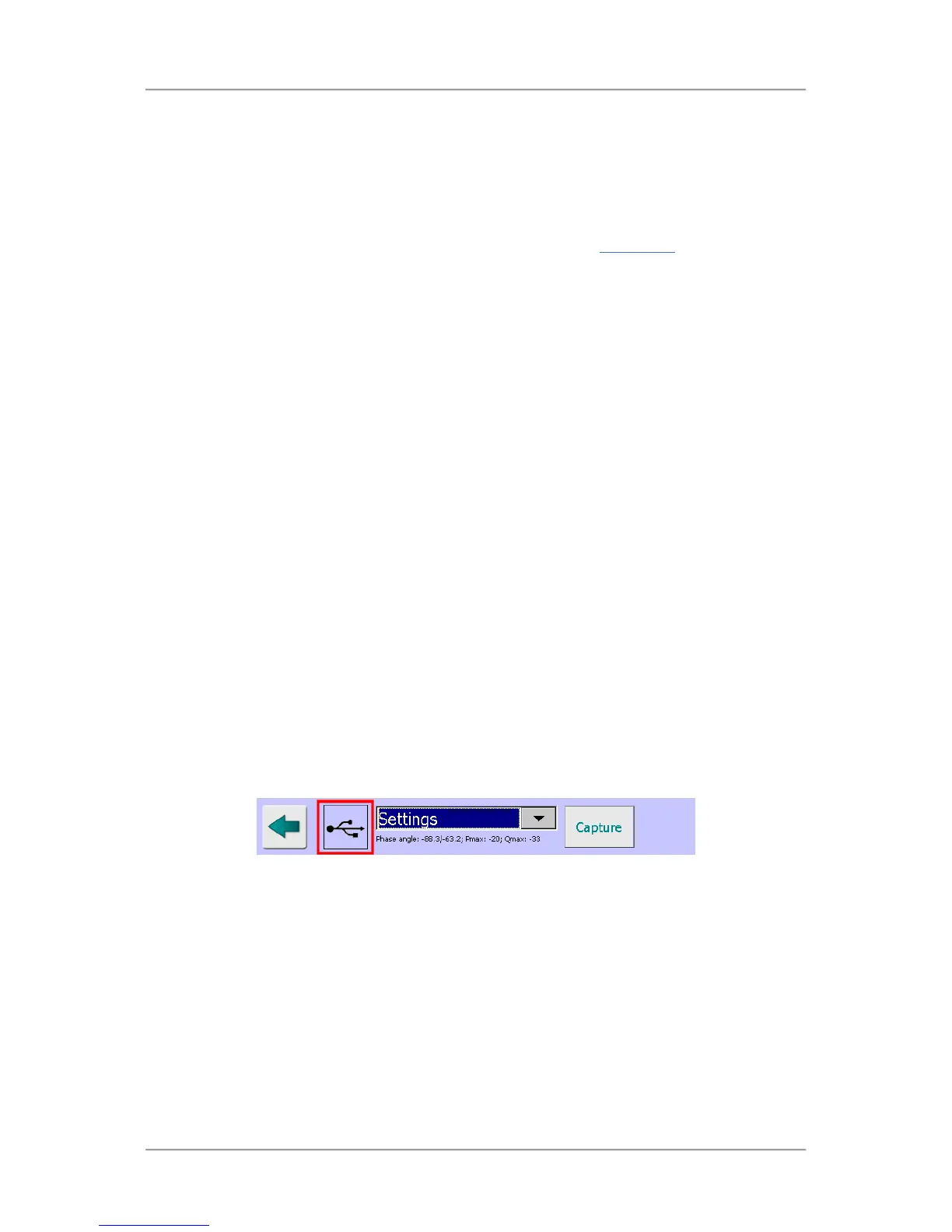
USB icon
When a USB memory stick is installed in the port provided on the side of the control panel a
standard USB icon is displayed. Tapping on the icon saves the graph currently being
displayed onto the memory stick.
When the Capture button is selected, on completion of the data capture process a copy of the
data is saved onto the USB memory stick as a .csv file. The file is saved in the location \Hard
Disk\LomaIQ3\Diagnostics\Product in the format ‘2014-08-29 07_43_53.csv’, showing the
date and time that the file was saved. Note that the USB memory stick is called the ‘Hard
Disk’.
A very useful feature, particularly when demonstrating the diagnostics features of the metal
detector when it is not possible to run product through the detector, is to load previously
captured data from the USB memory stick so that it can be used to show how data is
displayed in each screen.
This is achieved by selecting the Service Options screen, selecting the USB stick option from
the Capture drop down list and then tapping on the Capture button.



 To Next Page