Logs and Reports
212
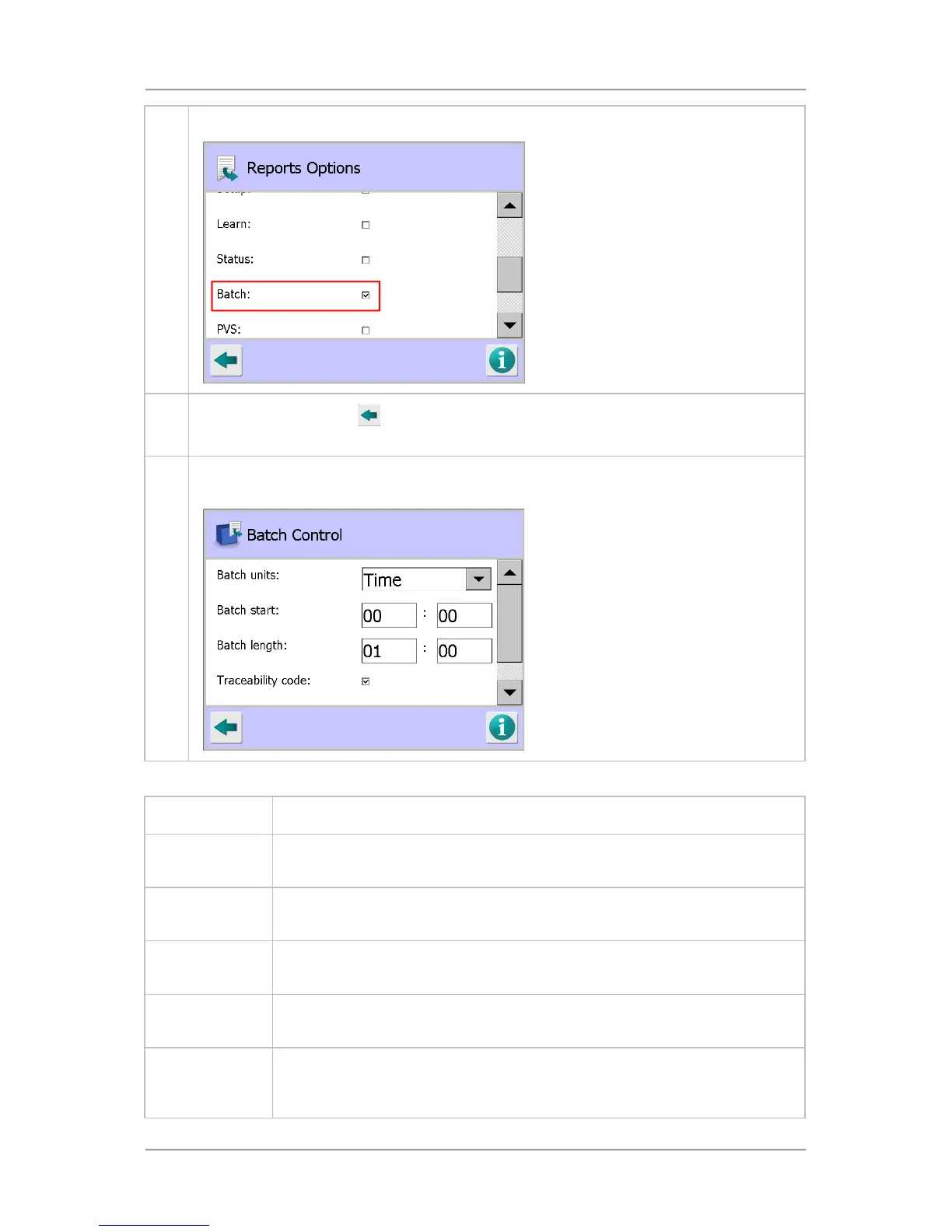
2. Use the scroll bar to navigate to and select Batch option.
3.
Tap on the Back button
to display the Save Settings pop-up screen. Then tap on the
green tick 'OK' button to save the changes and close the screen.
4. Tap on the Batch Control icon in the System Settings screen to display the Batch Control
screen.
Enter the batch details in the fields provided as described in the table below.
Parameters Description
Batch units
This field will only appear if a product registration photo-
eye is in use. Select the
units (Packs or Time) which determine a batch.
Batch packs
This field will only appear if Batch units are set to Packs. Enter the number of
packs which make up a batch.
Batch start
This field will only appear if Batch units are set to Time (or if the Batch units
selection field is not available). Set the time at which the batch is to start.
Batch length
This field only appears if Batch units are set to Time (or if the Batch units
selection field is not available). Set the length of time that makes up a batch.
Traceability code
If this option is enabled, a unique 15-character trace code will be added to
every batch report. Whenever a new batch is started, the operator will be
prompted for a new trace code.



 To Next Page