PROFXV3+ MULTI-CHANNEL ANALOG MIXERS WITH ENHANCED FX, USB RECORDING MODES, AND BLUETOOTH®
37
From here, rotate the knob again to tweak the selected parameter’s value to your liking. Once a desired setting has been
reached, push the knob in again to confirm.
Time – This knob sets the current delay time in milliseconds, from 20 ms to 000 ms.
Feedback – This controls how much of the delayed signal is routed back to the input of the delay section to create
multiple echoes. Each time the signal is fed back, the delayed signal becomes quieter (so the echo won’t go on forever).
It ranges from 0 to 3.
Hi Cut – This applies a low-pass filter to the delayed signal and rolls o the higher frequencies on the output.
It ranges from 0 to 00.
FX EQ
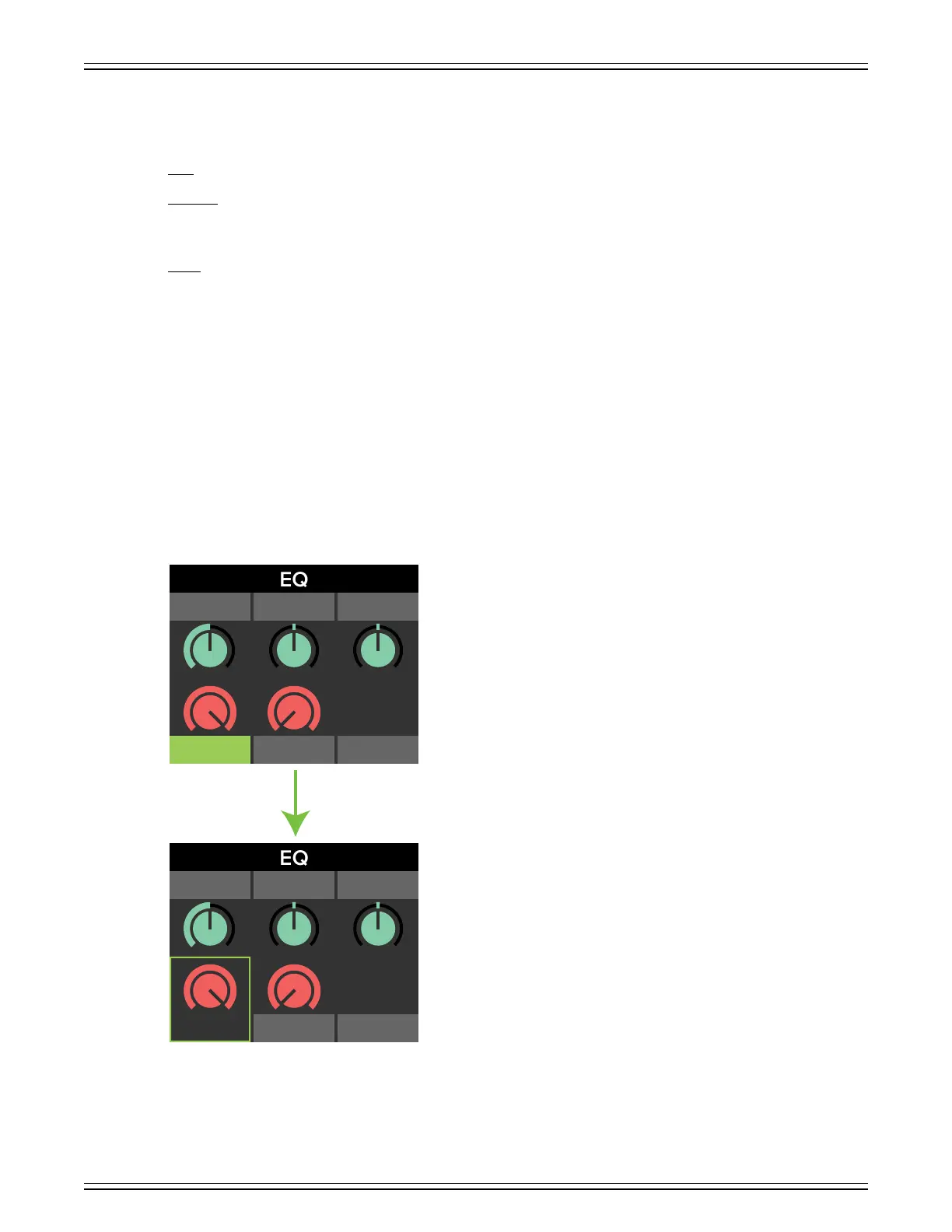
Now let’s take a look at the EQ section. As before, rotate the knob until EQ is highlighted, then push in to reveal the EQ screen.
The EQ parameters that may be changed here include frequency, width, gain, LPF and HPF.
Now keep in mind that this is the EQ of the selected eect!
As before, rotate the Studio Command Control Knob between the five selections located above the virtual knobs.
When frequency, width, gain, LPF or HPF is highlighted, simply push the knob in to select the parameter.
Notice how LPF is highlighted in the first screenshot below. But in the second screenshot, LPF has been selected (by pressing
in the Studio Command Control Knob), resulting in the value of the parameter and corresponding border turning green.
WIDTH
LPF HPF
RESET
GAINFREQ
WIDTH
GAIN
FREQ


 To Next Page