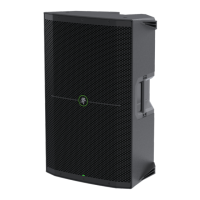
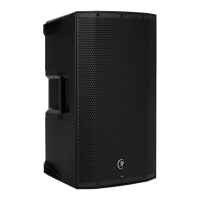
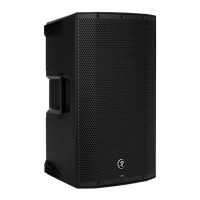
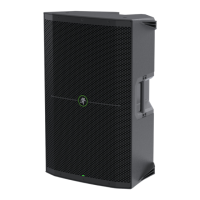
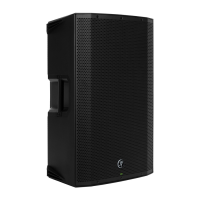
THUMP210XT 10" 1400W ENHANCED COMPACT POWERED LOUDSPEAKER
6
Final Thoughts
Just a few final thoughts before we dive into a little more boring “techy”-type stu. For starters, we would like to remind
you once again that ThumpXT works great on its own, but when paired and connected with a device using the Thump
Connect 2 app, your world of possibilities really opens up!
Factory Reset
Let’s also talk factory resets. Since settings may be changed via Thump Connect 2, it may be necessary to reset
the ThumpXT to its factory settings.
There are two kinds of resets:
Sof Reset:
Just a simple power cycle will reset all settings that were previously set via the rear panel and/or app back to their default
settings (except for Bluetooth and linked speakers that are stored within ThumpXT).
Hard Reset:
A hard reset resets the entire unit to its factory default, including auto-connect and auto-link. A hard reset may be accomplished
by pressing and holding down the ‘Voicing Modes’ and ‘Outdoor Mode’ buttons simultaneously for approximately five seconds
on boot up. Release the buttons when multiple voicing mode LEDs light up simultaneously, as this indicates success.
Please keep in mind that this erases all settings, including any levels, EQs, etc. that may have been set.
Be sure to power down any amps and/or powered speakers before resetting ThumpXT.
If you use the factory default key combination, you are also wiping the ThumpXT’s memory of previously
paired devices. To remedy this, on your phone, tablet or other Bluetooth device, you will need to ‘forget device’
in the Bluetooth settings, then re-pair in order to regain communication and functionality.



 To Next Page