116 Working with Color, Strokes, and Fills
4. To select a stroke weight, click the triangle next to the Weight pop-up menu and set the
slider at the weight you want.
5. Specify a stroke height by doing one of the following:
■ Select one of the preset values from the height pop-up menu. Preset values appear in
points.
■ Type a value from 0 to 200 in the height text box, and press Enter.
6. Select the Stroke Hinting check box to enable stroke hinting. Stroke hinting adjusts line
and curve anchors on full pixels, preventing blurry vertical or horizontal lines.
7. Select a Cap option to set the style for a path end:
None is flush with the path’s end
Round
Square extends beyond the path by half the stroke width
8. (Optional) If you are drawing lines using the Pencil or Brush tools with the drawing mode
set to Smooth, you can specify the degree to which Flash smooths the lines you draw using
the Smoothing pop-up slider.
By default, the Smoothing value is set to 50, but you can specify a value from 0 to 100.
The greater the smoothing value, the smoother the resulting line.
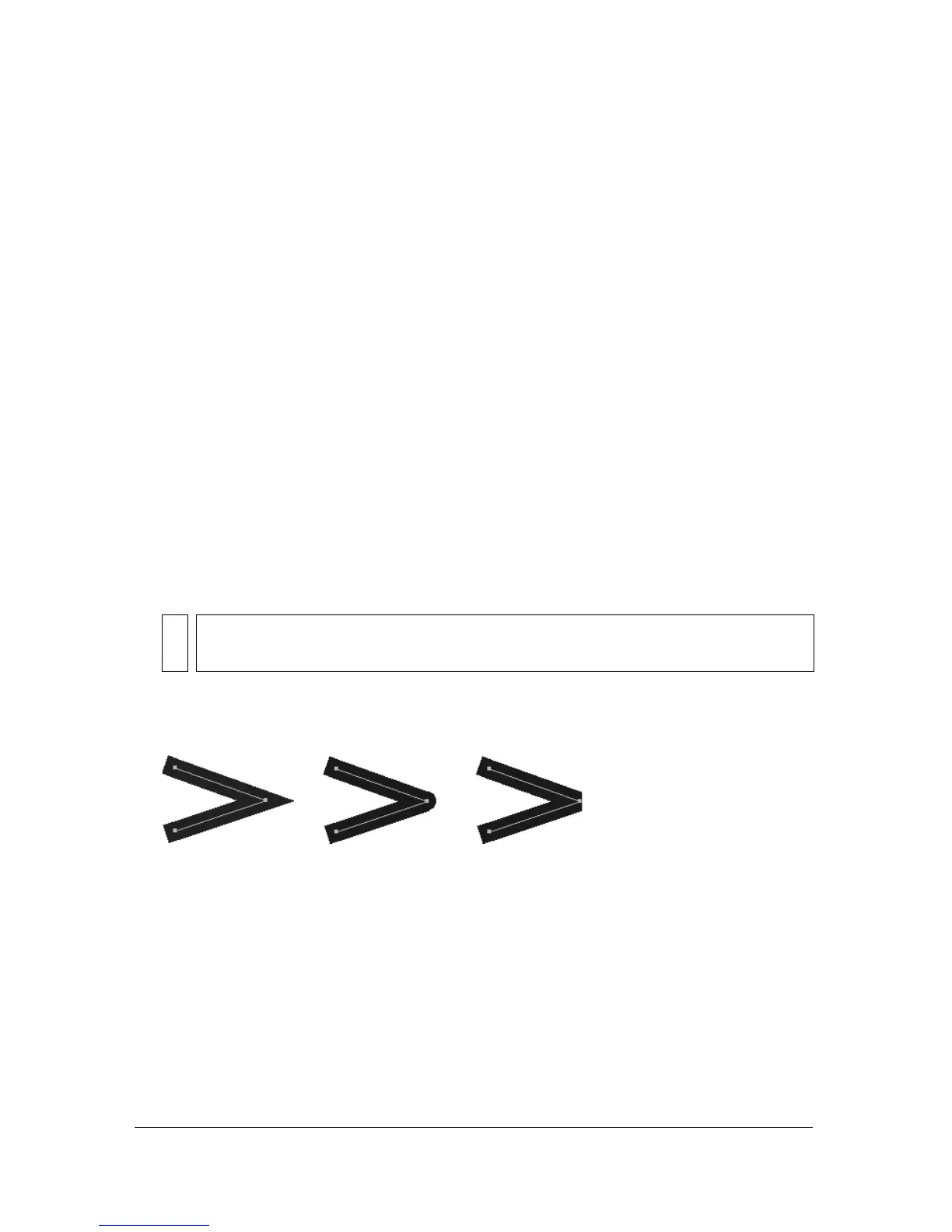
9. Select a Join option to define how two path segments meet: Miter, Round, or Bevel. To
change the corners in an open or closed path, select a path and select another join option.
NOTE
When the drawing mode is set to Straighten or Ink, the Smoothing pop-up slider is
disabled.



 To Next Page