124 Working with Color, Strokes, and Fills
Copying strokes and fills with the
Eyedropper tool
You can use the Eyedropper tool to copy fill and stroke attributes from one object and
immediately apply them to another object. The Eyedropper tool also lets you sample the
image in a bitmap to use as a fill. See “Breaking apart groups and objects” on page 222.
To use the Eyedropper tool to copy and apply stroke or fill attributes:
1. Select the Eyedropper tool and click the stroke or filled area whose attributes you want to
apply to another stroke or filled area.
When you click a stroke, the tool automatically changes to the Ink Bottle tool. When you
click a filled area, the tool automatically changes to the Paint Bucket tool with the Lock
Fill modifier turned on. See “Locking a gradient or bitmap to fill the Stage” on page 124.
2. Click another stroke or filled area to apply the new attributes.
Locking a gradient or bitmap to fill the
Stage
You can lock a gradient or bitmap fill to make it appear that the fill extends over the entire
Stage and that the objects painted with the fill are masks revealing the underlying gradient or
bitmap. For information on applying a bitmap fill, see “Applying a bitmap fill” on page 203.
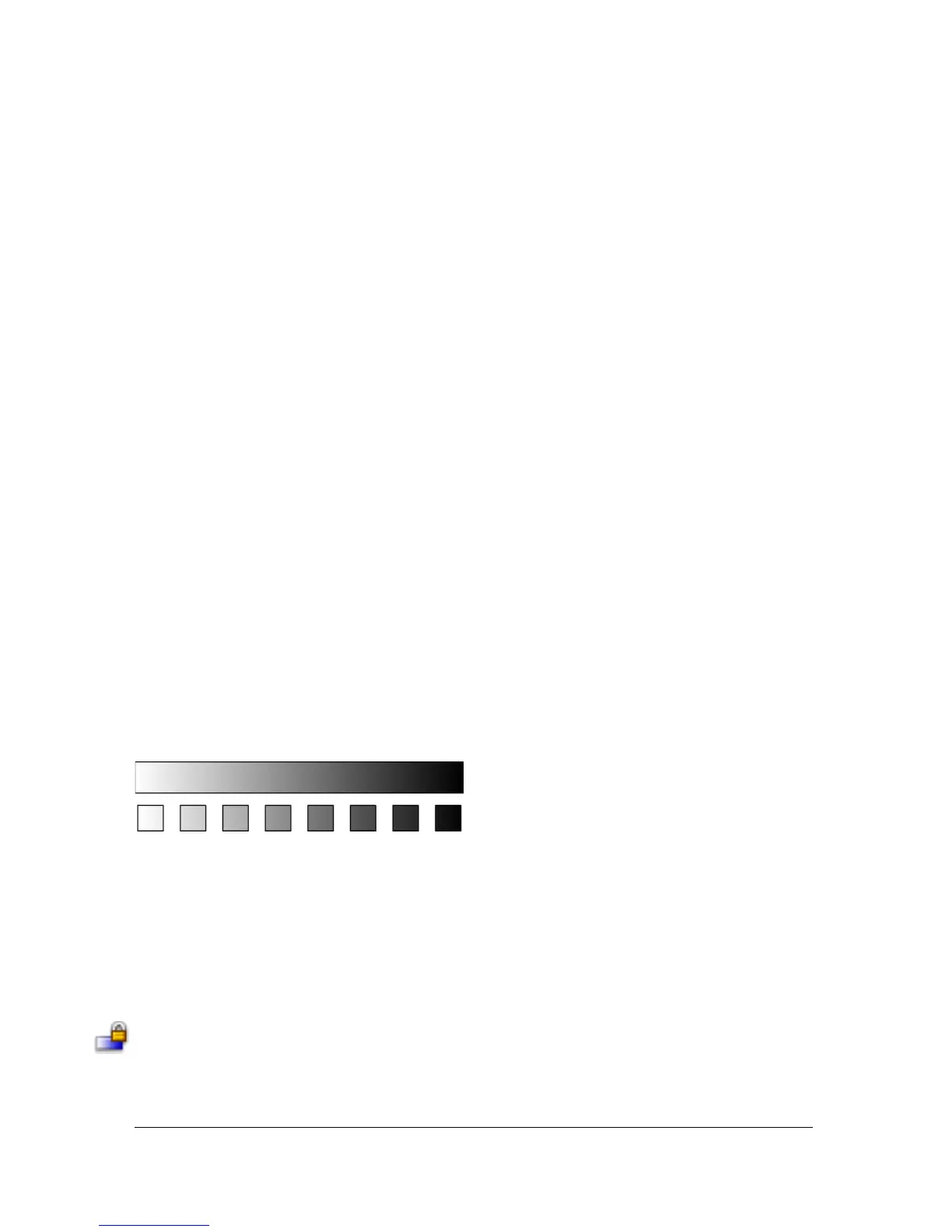
When you select the Lock Fill modifier with the Brush or Paint Bucket tool and paint with
the tool, the bitmap or gradient fill extends across the objects you paint on the Stage.
Using the Lock Fill modifier creates the appearance of a single gradient or bitmap fill being applied
to separate objects on the Stage.
To use a locked gradient fill:
1. Select the Brush or Paint Bucket tool and select a gradient or bitmap as a fill.
2. Select Linear or Radial from the Type pop-up menu in the Color Mixer and then select the
Brush or Paint Bucket tool.
3. Click the Lock Fill modifier.
4. First paint the areas where you want to place the center of the fill, and then move to other
areas.



 To Next Page