80 Using Symbols, Instances, and Library Assets
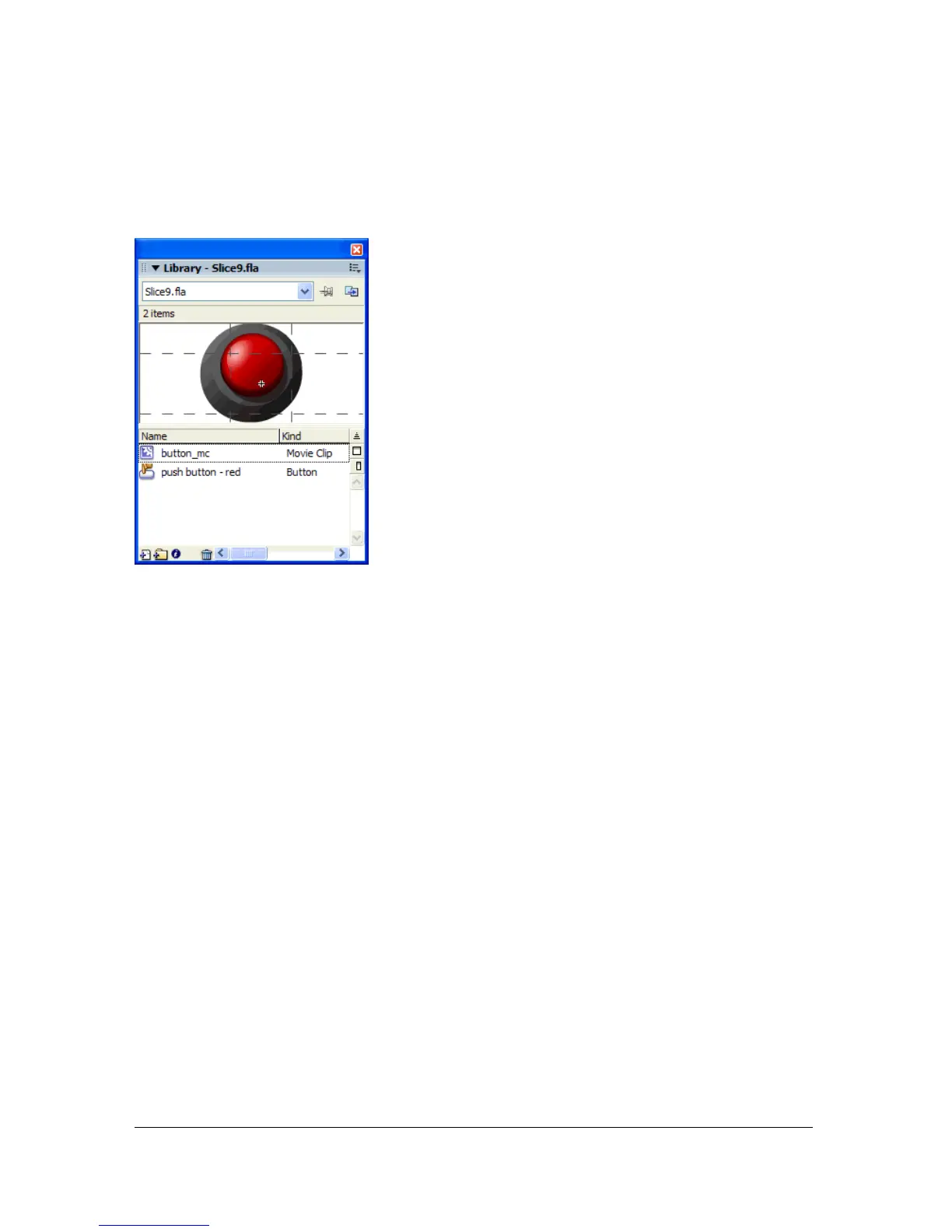
When a movie clip symbol has 9-slice scaling applied, it appears in the Library panel preview
with the guides displayed. 9-slice scaling is visible only in the Test Movie window; you cannot
view 9-slice scaling on the Stage.
Editing movie clip symbols with 9-slice
scaling
By default, slice guides are placed at 25% (or 1/4) of the symbol’s width and height from the
edge of the symbol. When you are in symbol-editing mode, the slice guides appear with
dotted lines superimposed on the symbol on the main Stage. The guides do not appear when
the symbol is in edit-in-place mode. Slice guides don’t snap when you drag them in the
workspace.
To enable 9-slice scaling for an existing movie clip symbol:
1. With the source document open, select Window > Library to display the Library panel.
2. Select a movie clip, button, or graphic symbol in the Library panel.
3. Select Properties from the Library options menu.
4. Select the Enable Guides for 9-slice Scaling check box.
The slice guides are superimposed on the symbol on the Stage.



 To Next Page