Applying filters (Flash Professional only) 229
Applying filters (Flash Professional only)
You can apply one or more filters to selected objects using the Property inspector. Each time
you add a new filter to an object, it is added to the list of applied filters for that object in the
Property inspector. You can apply multiple filters to an object, as well as remove filters that
have been previously applied.
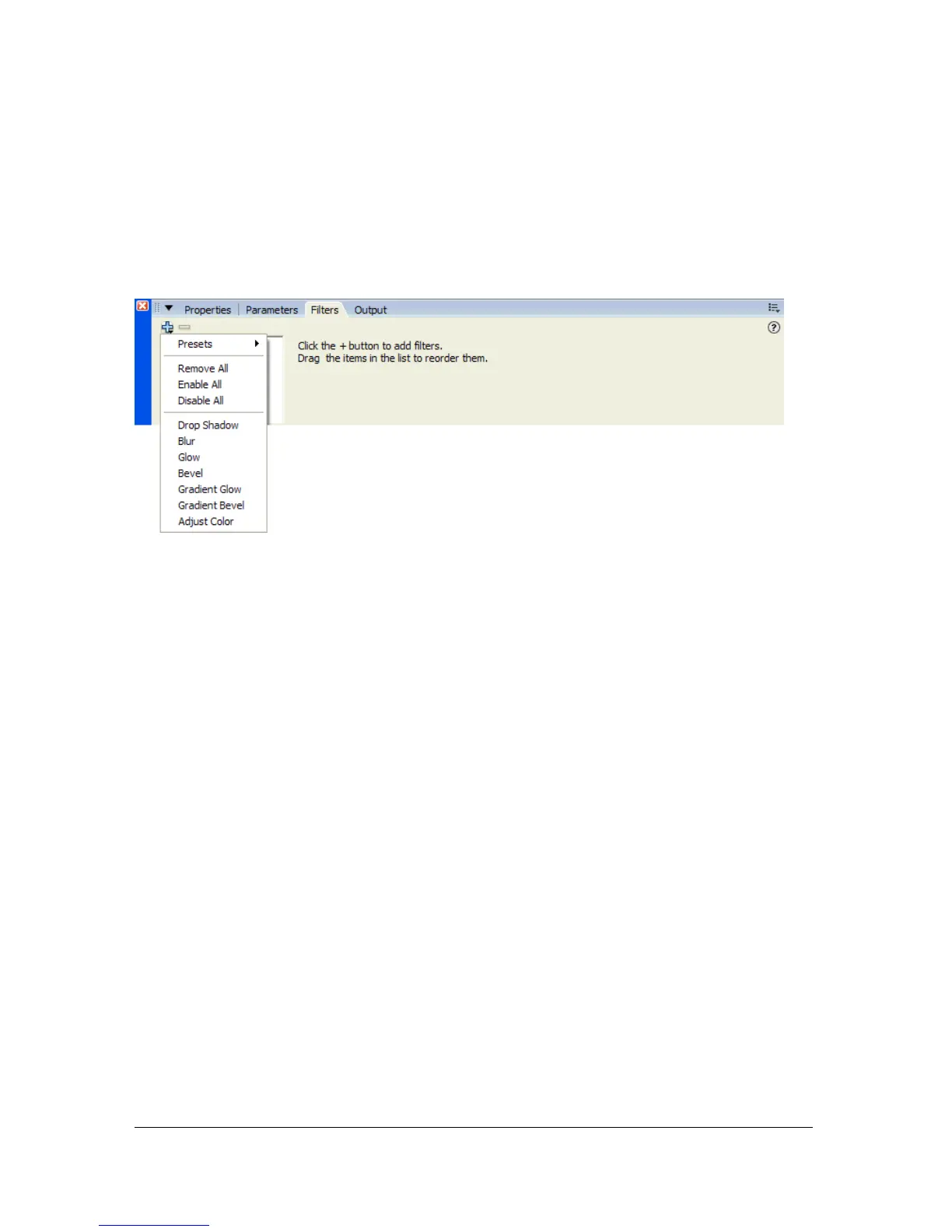
The Add Filter menu in the Property inspector.
To apply a filter:
1. Select a movie clip, button, or text object on the Stage that you want to apply a filter to.
You can apply filters only to text, button, and movie clip objects.
2. Select the Filter tab in the Property inspector.
3. Click the Add Filter (+) button and select a filter from the Filters pop-up menu.
The filter you select is applied to the object, and the controls for the filter settings appear
in the Property inspector. Experiment with the settings until you get the look you want.
For details about the settings available for each filter, see the following sections:
■ “Applying a drop shadow” on page 232
■ “Applying a blur” on page 233
■ “Applying a glow” on page 234
■ “Applying a bevel” on page 235
■ “Applying a gradient glow” on page 236
■ “Applying a gradient bevel” on page 237
■ “Applying the Adjust Color filter” on page 238



 To Next Page