About Flash drawing and painting tools 133
When you paint on top of shapes and lines, the portion underneath is replaced by whatever is
on top. Paint of the same color merges together. Paint of different colors remains distinct. You
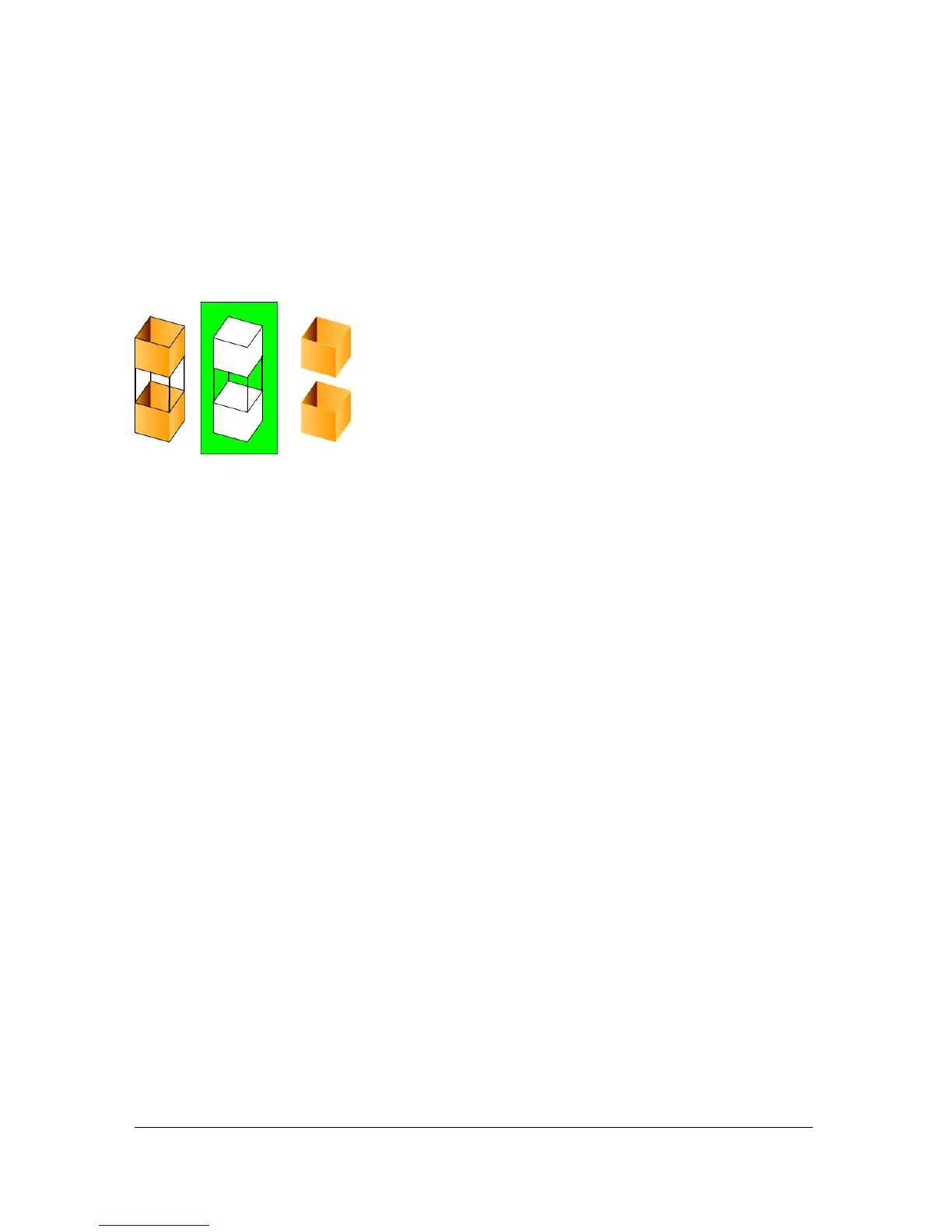
can use these features to create masks, cutouts, and other negative images. For example, the
cutout below was made by moving the ungrouped kite image onto the green shape,
deselecting the kite, and then moving the filled portions of the kite away from the green
shape.
To avoid inadvertently altering shapes and lines by overlapping them, you can group the
shapes or use layers to separate them. See “Grouping objects” on page 211. For more
information on layers, see “Using layers” in Getting Started with Flash.
About Flash drawing and painting tools
Flash provides various tools for drawing freeform or precise lines, shapes, and paths, and for
painting filled objects.
■ To draw freeform lines and shapes as if drawing with a real pencil, you use the Pencil tool.
See “Drawing with the Pencil tool” on page 136.
■ To draw precise paths as straight or curved lines, you use the Pen tool. See “Using the Pen
tool” on page 138.
■ To draw basic geometric shapes, you use the Line, Oval, and Rectangle tools. See
“Drawing straight lines, ovals, and rectangles” on page 137.
■ To draw polygons and stars, you use the PolyStar tool. See “Drawing polygons and stars”
on page 138.
■ To create brushlike strokes as if painting with a brush, you use the Brush tool. See
“Painting with the Brush tool” on page 144.
When you use most Flash tools, the Property inspector changes to present the settings
associated with that tool. For example, if you select the Text tool, the Property inspector
displays text properties, making it easy to select the text attributes you want. For more
information on the Property inspector, see “Using panels and the Property inspector” in
Getting Started with Flash.



 To Next Page