142 Drawing
By default, selected curve points appear as hollow circles, and selected corner points appear as
hollow squares.
To convert segments in a line from straight segments to curve segments or the reverse, you
convert corner points to curve points or the reverse.
You can also move, add, or delete anchor points on a path. You move anchor points using the
Subselection tool to adjust the length or angle of straight segments or the slope of curved
segments. You can nudge selected anchor points to make small adjustments.
Deleting unneeded anchor points on a curved path optimizes the curve and reduces the file
size.
To move an anchor point:
■ Drag the point with the Subselection tool.
To nudge an anchor point or points:
■ Select the point or points with the Subselection tool and use the arrow keys to move the
point or points.
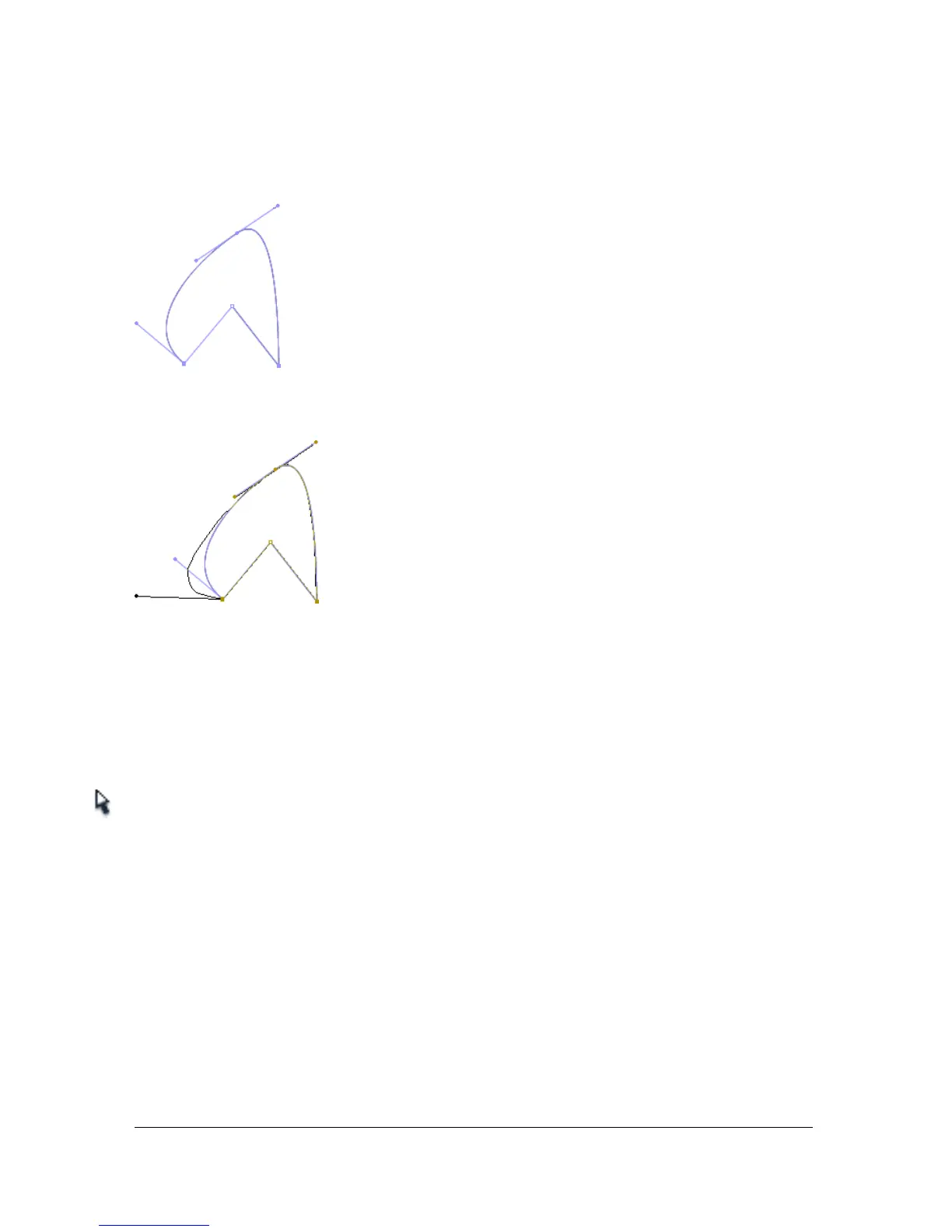
To convert an anchor point, do one of the following:
■ To convert a corner point to a curve point, use the Subselection tool to select the point,
then Alt-drag (Windows) or Option-drag (Macintosh) the point to place the tangent
handles.
■ To convert a curve point to a corner point, click the point with the Pen tool.



 To Next Page