232 Using Filters and Blends (Flash Professional only)
Applying a drop shadow
The Drop Shadow filter simulates the look of an object casting a shadow onto a surface, or
cutting out a hole in the background in the shape of the object.
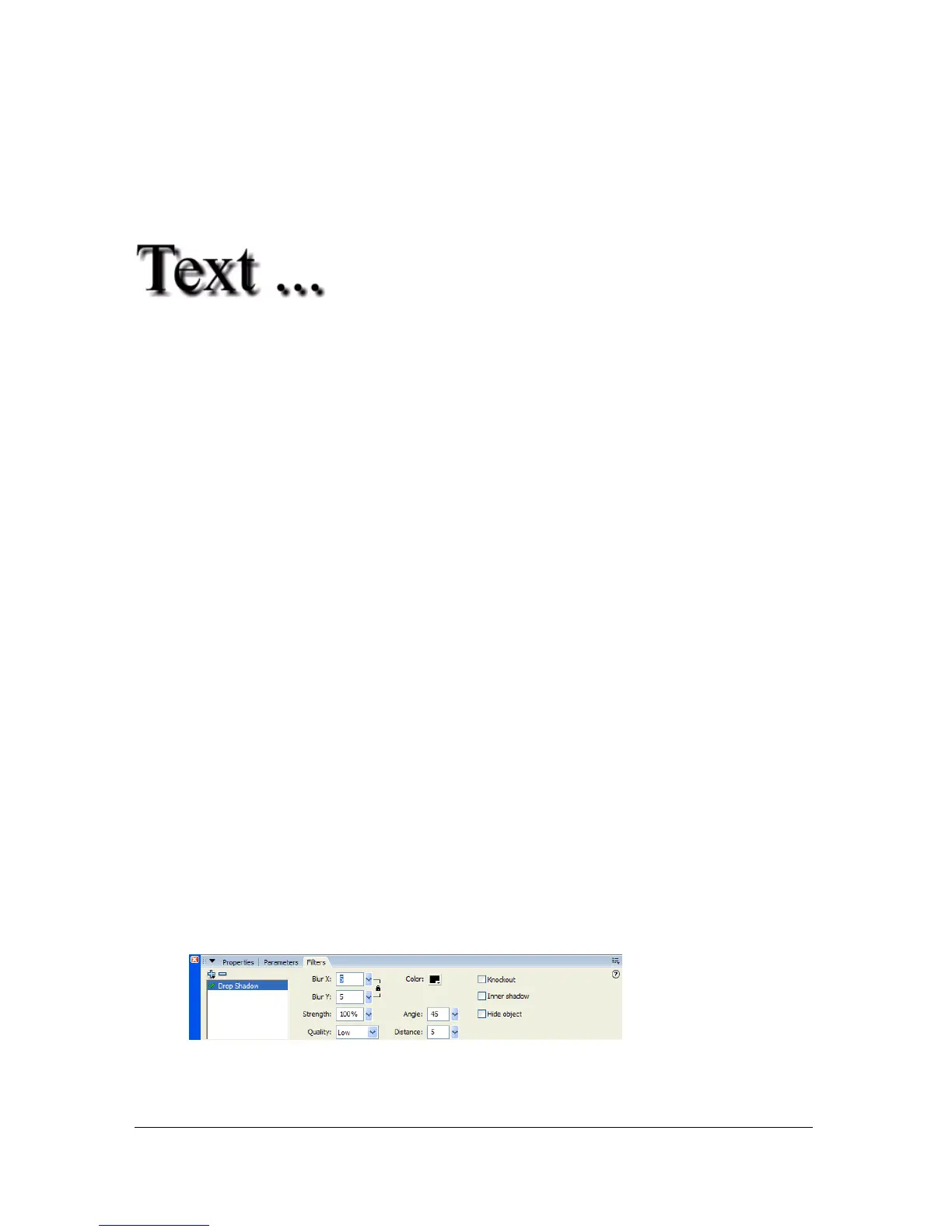
Text with the Drop Shadow filter applied.
To apply a drop shadow to an object:
1. Select the movie clip or text object that you want to apply a drop shadow to.
2. Select the Filters tab in the Property inspector.
3. Click the Add Filter (+) button, and select Drop Shadow from the Filters pop-up menu.
4. Edit the filter settings on the Filter tab of the Property inspector:
■ Drag the Blur X and Y sliders to set the width and height of the drop shadow.
■ Drag the Distance slider to set the distance of the shadow from the object.
■ Click the Color box to open the Color pop-up window and set the shadow color.
■ Drag the Strength slider to set the darkness of the shadow. The higher the numerical
value, the darker the shadow.
■ Enter a value to set the angle of the shadow, or click the angle selector and drag the
angle dial.
■ Select the Knockout check box to knock out (or visually hide) the source object and
display only the drop shadow on the knockout image.
■ Select the Inner shadow check box to apply the shadow within the boundaries of the
object.
■ Select the Hide Object check box to hide the object and display only its shadow. The
Hide Object option lets you more easily create a realistic shadow. For more
information, see “Creating a skewed drop shadow” on page 233.
■ Select the quality level for the drop shadow. Setting the quality level to High is
approximate to that of a Gaussian blur. Setting the quality level to Low is
recommended to maximize playback performance.



 To Next Page