234 Using Filters and Blends (Flash Professional only)
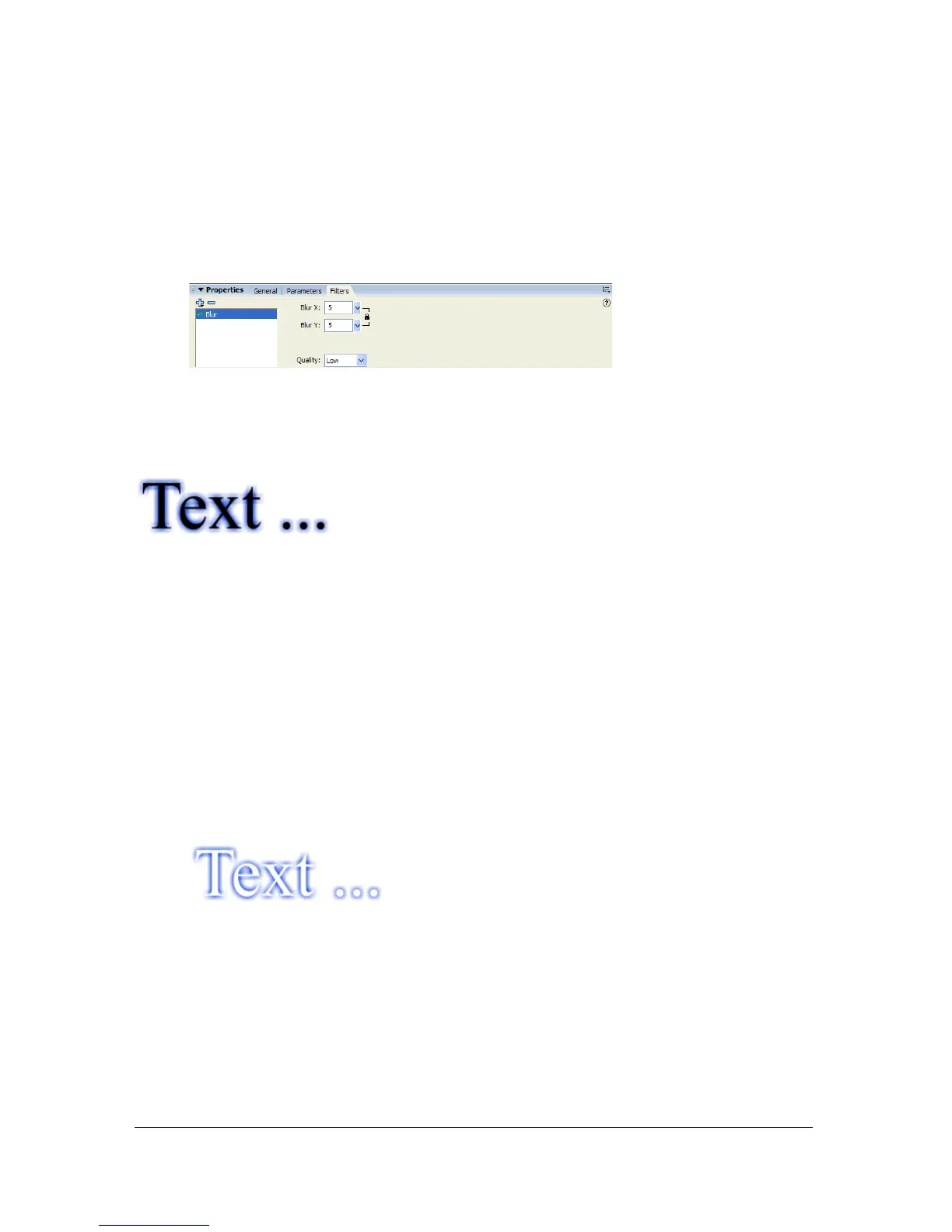
4. Edit the filter settings on the Filter tab of the Property inspector:
■ Drag the Blur X and Y slider to set the width and height of the blur.
■ Select the quality level for the blur. Setting the quality level to High is approximate to
that of a Gaussian blur. Setting the quality level to Low is recommended to maximize
playback performance.
Applying a glow
The Glow filter lets you apply a color all around the edges of an object.
To apply a glow to an object:
1. Select a movie clip or text object that you want to apply a glow to.
2. Select the Filters tab in the Property inspector.
3. Click the Add Filter (+) button and select Glow from the pop-up menu.
4. Edit the filter settings in the Filter tab of the Property inspector:
■ Drag the Blur X and Y slider to set the width and height of the glow.
■ Click the color box to open the color pop-up window and set the glow color.
■ Drag the Strength slider to set the sharpness of the glow.
■ Select the Knockout check box to knock out (or visually hide) the source object and
display only the glow on the knockout image.
Using the Glow filter with the Knockout option.
■ Select the Inner Glow check box to have the glow applied within the boundaries of the
object.



 To Next Page