518 Creating Accessible Content
Shortcut is used to describe keyboard shortcuts to the user. The text entered in this text
box is read by the screen reader. Entering keyboard shortcut text here does not create a
keyboard shortcut for the selected object. You must provide ActionScript keyboard
handlers in order to create shortcut keys. For more information, see “Creating a keyboard
shortcut” on page 522.
Tab Index (Flash Professional only) creates a tab order in which objects are accessed
when the user presses the tab key. The tab index feature works for keyboard navigation
through a page, but not for screen reader reading order. For information on how to use
this field, see “Creating a tab order index for keyboard navigation in the Accessibility
panel (Flash Professional only)” on page 526.
For more information, see the Macromedia Flash Accessibility web page at
www.macromedia.com/go/flash_accessibility/.
Selecting names for buttons, text fields, and entire
Flash applications
You can use the Accessibility panel to assign names to buttons and input text fields so that
they are identified appropriately by the screen reader. There are two ways of doing this:
■ Use the auto label feature to assign text adjacent or within the object as a label.
■ Enter a specific label in the Accessibility panel name field.
Using automatic labeling
Flash automatically applies the name that you place on top of, inside, or near a button or text
field as a text label. Labels for buttons must appear within the bounding shape of the button.
For the button in the following illustration, most screen readers would first read the word
button, then read the text label Home. The user can press Return or Enter to activate the
button.
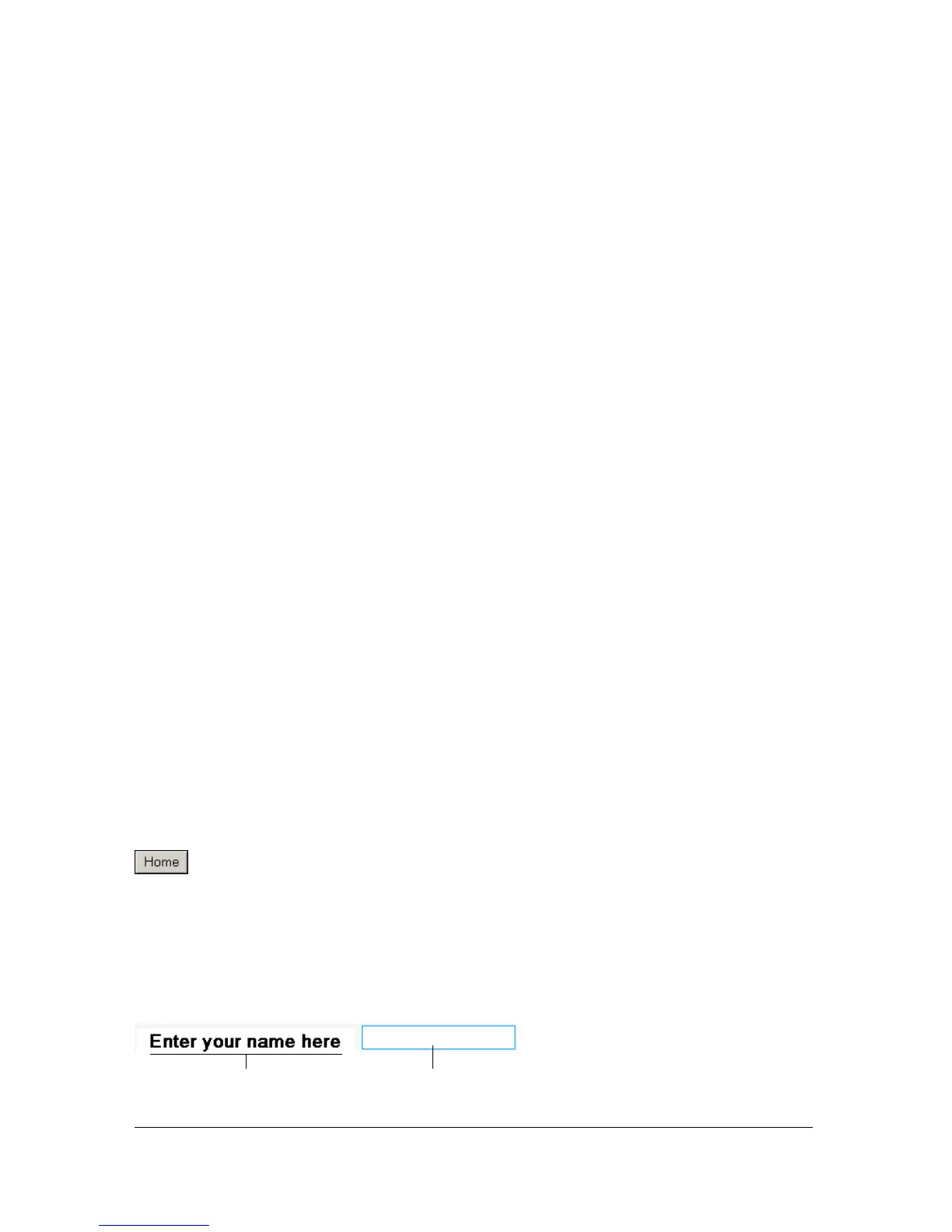
A form might include an input text field where users enter their names. A static text field,
with the text Name appears next to the input text field. When Flash Player discovers such an
arrangement, it assumes that the static text object is a serving as a label for the input text field.
For example, when the following part of a form is encountered, a screen reader reads “Enter
your name here.”
Static text Input text field



 To Next Page