Creating a tab order index for keyboard navigation in the Accessibility panel (Flash Professional only) 527
When you move user-defined tab indexed objects around in your document, or to another
document, Flash retains the index attributes. You should then check for and resolve index
conflicts (for example, two different objects on the Stage that have the same tab index
number).
To create a tab order index:
1. Select the object in which to assign a tab order and do one of the following:
■ Select Window > Properties if the inspector is not visible. In the Property inspector,
click the Accessibility button.
■ Select Window > Other Panels > Accessibility.
2. If you’re providing an index for the selected object only, in the Tab Index text box, enter a
positive integer (up to 65535) that reflects the order in which the selected object should
receive focus.
To view a tab order:
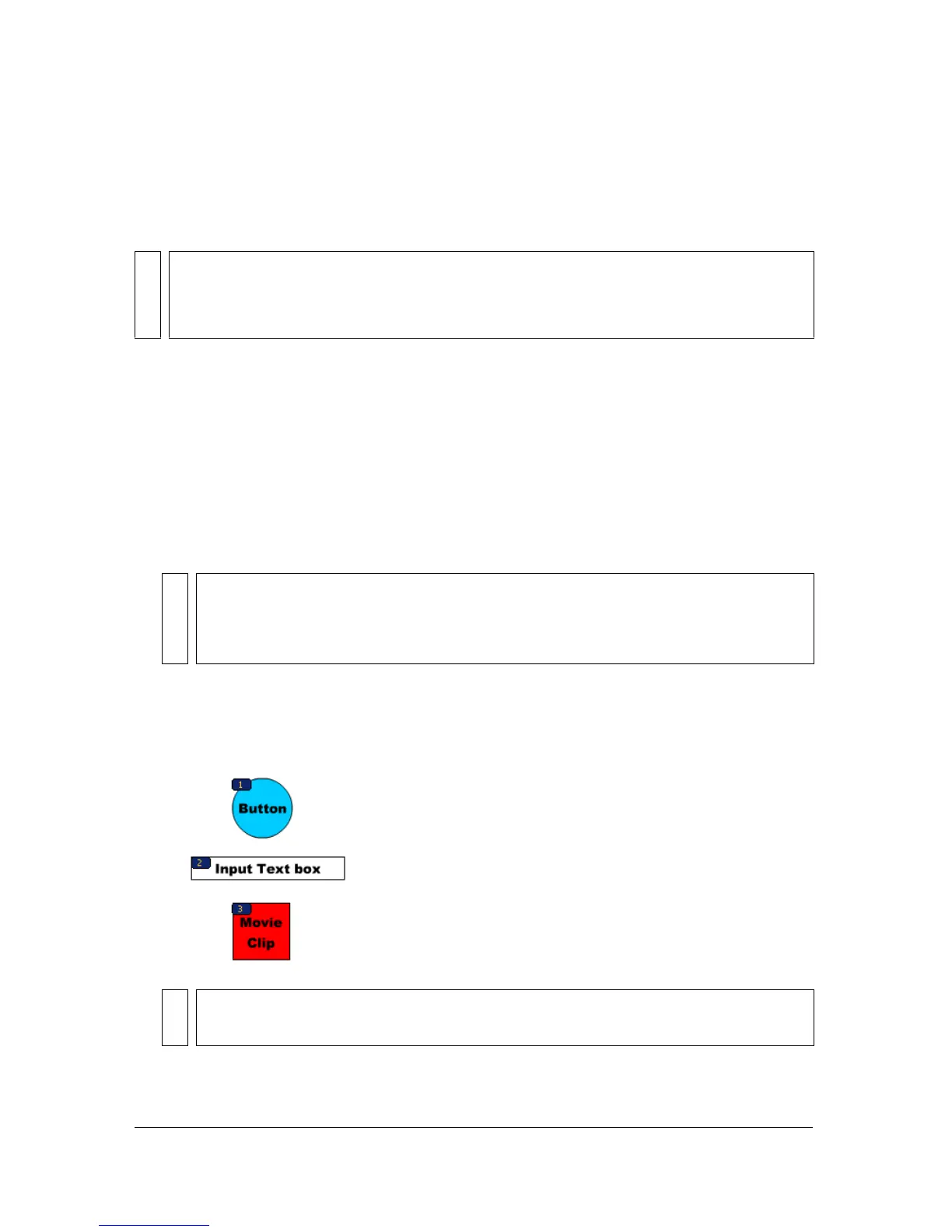
■ Select View > Show Tab Order.
Tab index numbers for individual objects appear in the upper left corner of the object.
CAUTION
If two or more objects have the same tab index in any given frame, Flash follows the
order in which the objects were placed on the Stage. Therefore, you should resolve all
tab index conflicts to be sure the desired tab order index is achieved.
NOTE
For information about creating a tab order using ActionScript, see “Using
ActionScript to create a tab order for accessible objects” on page 532. Tab indexes
created in ActionScript do not appear on Stage when the Show Tab Order option is
enabled.
NOTE
Tab order created with ActionScript code, rather than the Accessibility panel, does
not appear when you enable the Show Tab Order option.



 To Next Page