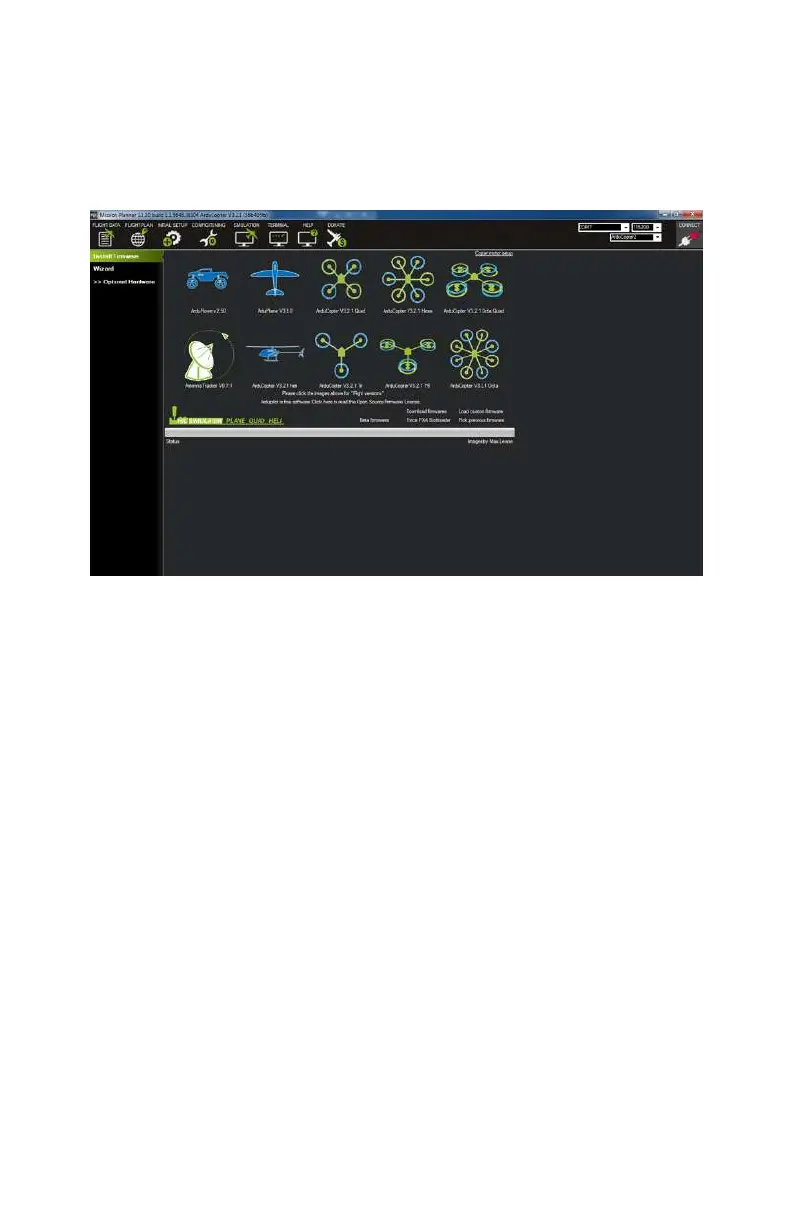
c. Go to the Initial Setup tab in Mission Planner and click Install
Firmware in the left-hand menu.
d. From the graphic buttons in the middle of the screen, select
ArduCopter vX.X Quad (where vX.X is your version number)
as the firmware type; see Figure 9-1.
Figure 9-1. Select the type of firmware you need to update
(ArduCopter Quad, in our case).
e.
You will be asked to confirm that you do want to update the
firmware. Click Yes to continue (see Figure 9-2).
f.
Mission Planner will locate the most recent version of the
APM firmware that is available for your hardware and start
the update process. Click OK to proceed (see Figure 9-3).
g.
Firmware uploading begins (see Figure 9-4).
h.
After the firmware is uploaded, it needs to be verified (see
Figure 9-5).
i.
After the update is complete, Mission Planner alerts you to
any additional steps that may need to take place as a result
of the update (see Figure 9-6).
132 Make: Getting Started with Drones



 To Next Page