MARV User Manual
34
Updating the Firmware
1.
From the website below, download FLIP 3.4.7 (Java Runtime Environment
included) to your computer and install it.
http://www.atmel.com/tools/ip.aspx
2.
Download the latest rmware from our website.
You can access the latest rmware here:
http://www.canon-bs.co.kr/cs/download.aspx
3.
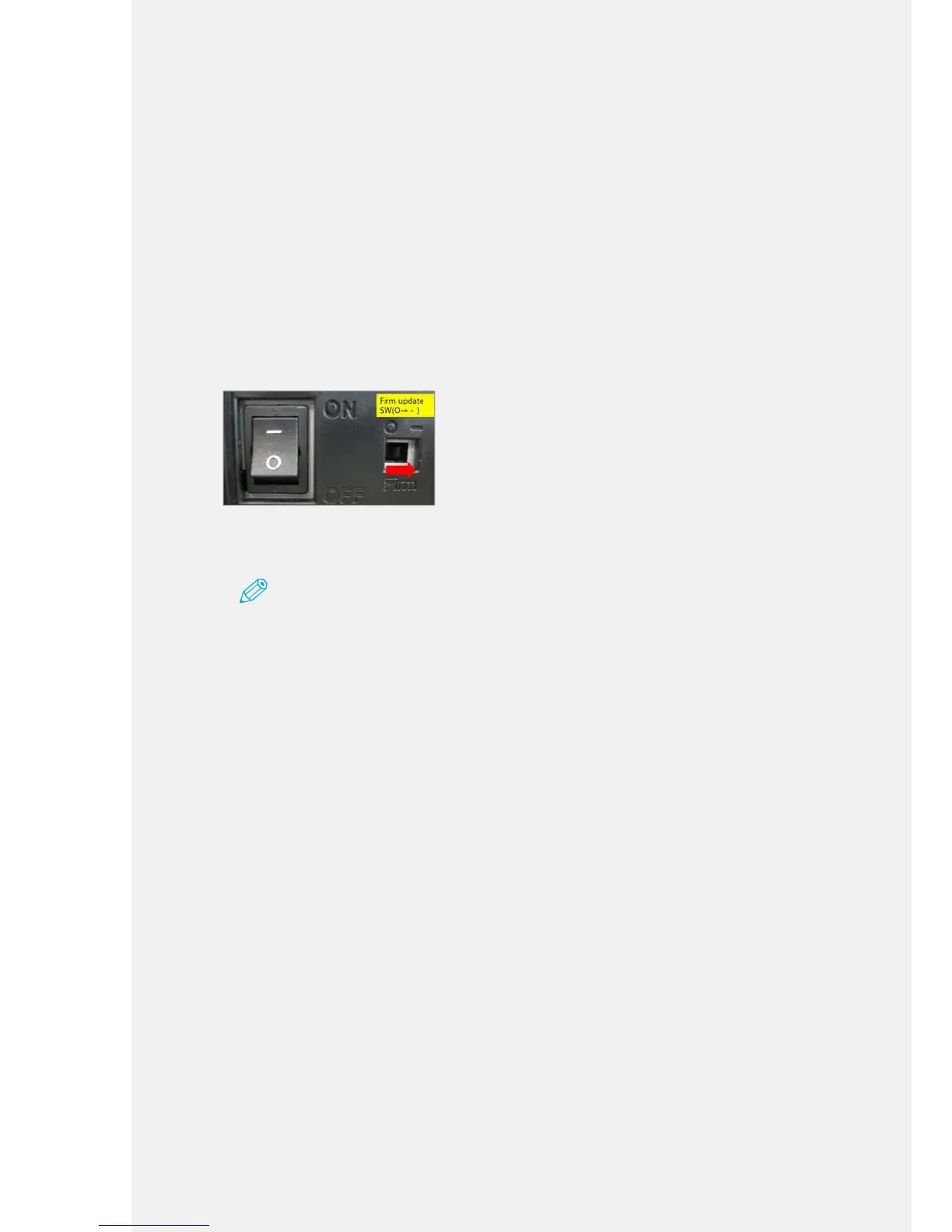
Locate the 'Firm update SW' on the right side of the machine, and slide the
switch to the right. (O → –)
4.
Turn on the machine.
Note
Ensure you slide the 'Firm update SW' switch to the right before you update the rmware.
5.
On your computer, click [System Properties] - [Hardware] - [Device
manager].
6.
Go to [Atmel USB Devices] and right-click on [AT90USB128]. Click
[Property] - [Hardware] - [Driver] - [Update Driver], and then select [Search
manually].
7.
Browse through the list that is displayed, select C:\Software Files\Atmel\
Flip 3.4.7, and then click [Install driver].
8.
Run Flip 3.4.7.
9.
When Flip 3.4.7 is running, connect your computer to the machine via the
USB cable.



 To Next Page