37
BepopPC EX Software Installation
TheprinterdoesnotprintandstatusMonitorisnotdisplayed
Thedriverinstallnishednormally,butwhentrying
toprinterthestatusMonitor(thewindowthatshows
theremainingink,sheets,ect…)isnotdisplayed.
Alsothetaskbar(bottomofcomputerscreen)
showsthenormalprinterbutnottheCPM-200icon.
CPM-200 icon:
Cause
The status Monitor is frozen, or during the driver
installation the status Monitor install failed. The
reason for the failure is the anti-virus software
interfering with the status Monitor. The actual copy
of les from the CD is complete.
Solution
1
Checkforproblems
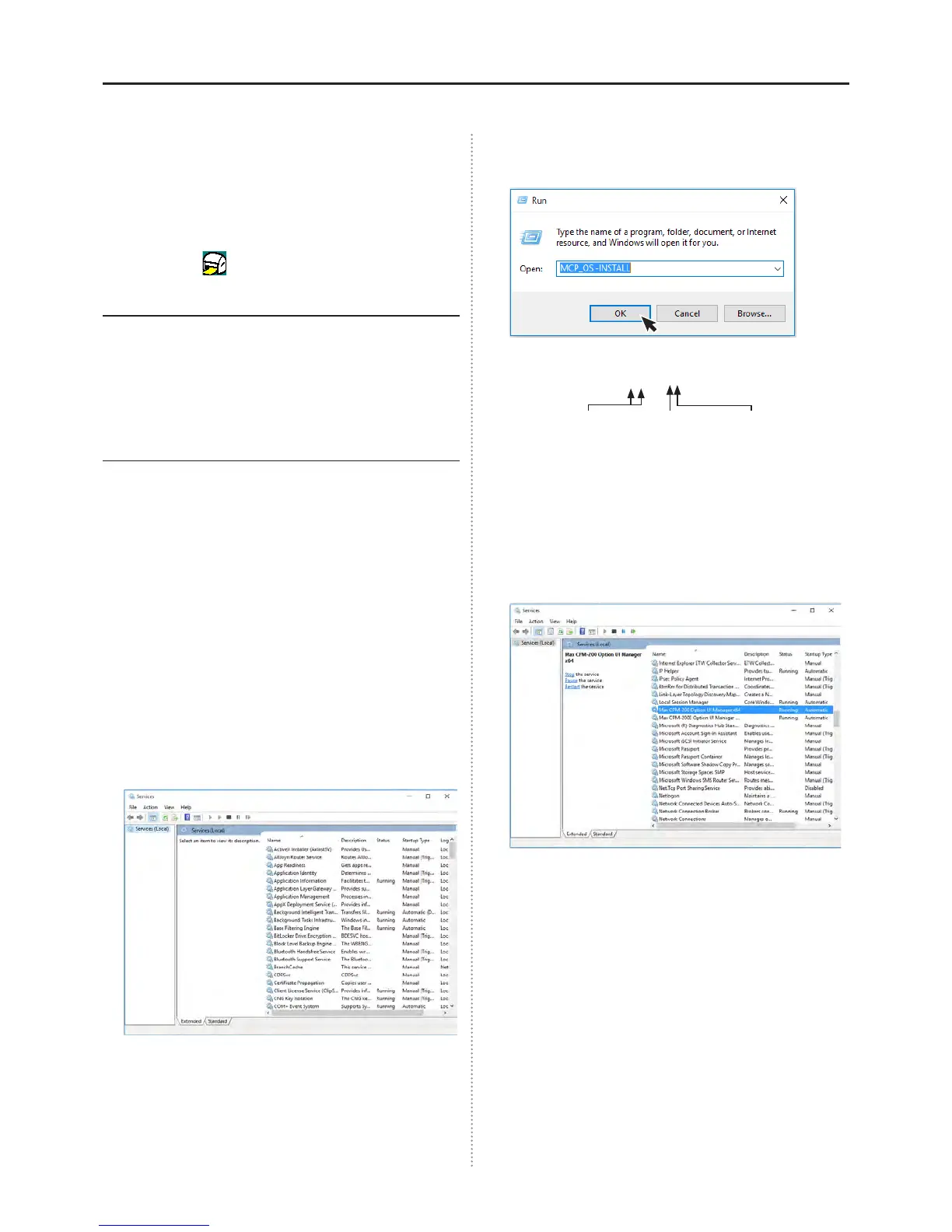
Open the serveice window: Start → (Control Pannel)
→ Performance and Maintanance → Administrative
Tools → Service.
* (Control Pannel) may or may not be displayed depending
on the software version.
Check that following is recorded under Name:
MAXCPM-200OptionUIManager
WhenthereisnonameitmaycausetheStatus
Monitortofail.
* If there is the correct printer name, check to see if the
status is set to start. If it is stopped, right click on the status
and select start.
2
Check to make sure that you are logged in as an
administrator.
3
Check to make sure that virus software(virus buster,
ect…) is not running. If it is running, close it.(Pausing
it is not enough. You must close it entirely.)
4
Install the status Monitor manually. Start → Select
le name.
Input the following name:
Click “OK”. The Status Monitor will begin installing.
* If an error message(File not found) is shown, it is possible
that the above name has been misspelled.
5
Howtocheck
While looking at the same service window from step
1
, check that
MAXCPM-200OptionUIManager
exists.
Status:StartStartuptype:Automatic
If the above settings are correct, the Status Monitor
has been installed.(In the event that you manual
installed the Monitor, renew the service window
before checking.)
In the event that it is not shown, after restarting,
retry steps
2
and
3
and uninstall the printer driver.
Restart after loading the printer driver, check
2
and
3
again, then do a normal driver install. If the
regual install fails again, retry the manual install in
step
4
.
6
After nishing the installation, restart your computer.
MCP__OS–INSTALL
Under bar Half-space Hyphin


 To Next Page