36
BepopPC EX Software Installation
Printerdriverinstallationproblems
■Whenattemptingtoinstall,“GRPSSUP.DLL
cannotbeused”isdisplayed.
Only Windows 10/8.1/8/7 are supported.
■
“Printdriverinstallfailed”isdisplayed,and
drivercannotbeinstalled.
1
Restart the computer.
2
Follow directions “Installation of the Printer Driver”
on page 32, and uninstall the printer driver.
3
Restart the computer.
4
In the event that virus scan software is in use, stop
the program.
5
Refer to “BepopPC EX Printer driver install” on
page 15.
■
Cannotuninstallorinstalltheprinterdriver.
(Thereisaremainingprintingjob)
1
Start → Printers and devices → Max CPM-200
(double click on the icon).
2
If there is a document printing, select “printer” →
“Errase all documents”.
3
Retry the uninstall.
■
Cannotuninstallorinstalltheprinterdriver.
(Thereisnotaremainingprintingjob)
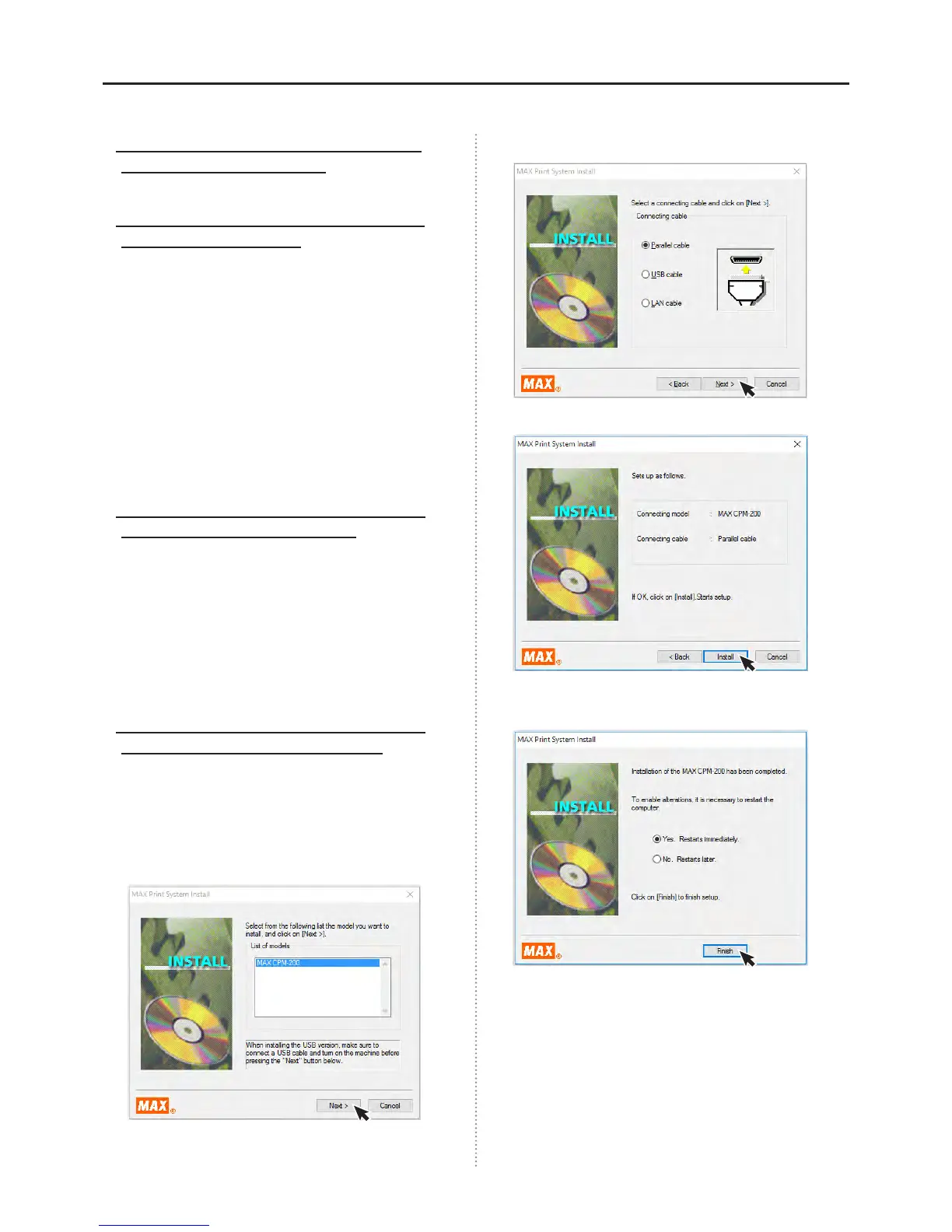
1
Follow the directions on page 15 for “BepopPC EX
and printer driver install”, continue untill prompted
to choose a printer type.
2
While holding the “Shift” and “L” key, click “Next”.
3
Select “Parallel Cable” and click “Next”.
4
Click “Install”.
5
Select “Yes, Restarts automatically”, and click
“Finish”. The computer will automatically restart.
6
Go to page 32 and select “Printer Driver Uninstall”
to uninstall the printer driver.
7
Restart the computer.
8
In the event that anti-virus software is running, stop the
software.
9
Follow the instructions on Page 15 “Bepop PC EX
printer driver install”.


 To Next Page