4.2.1.3 Network
4.2.1.3.1 Network
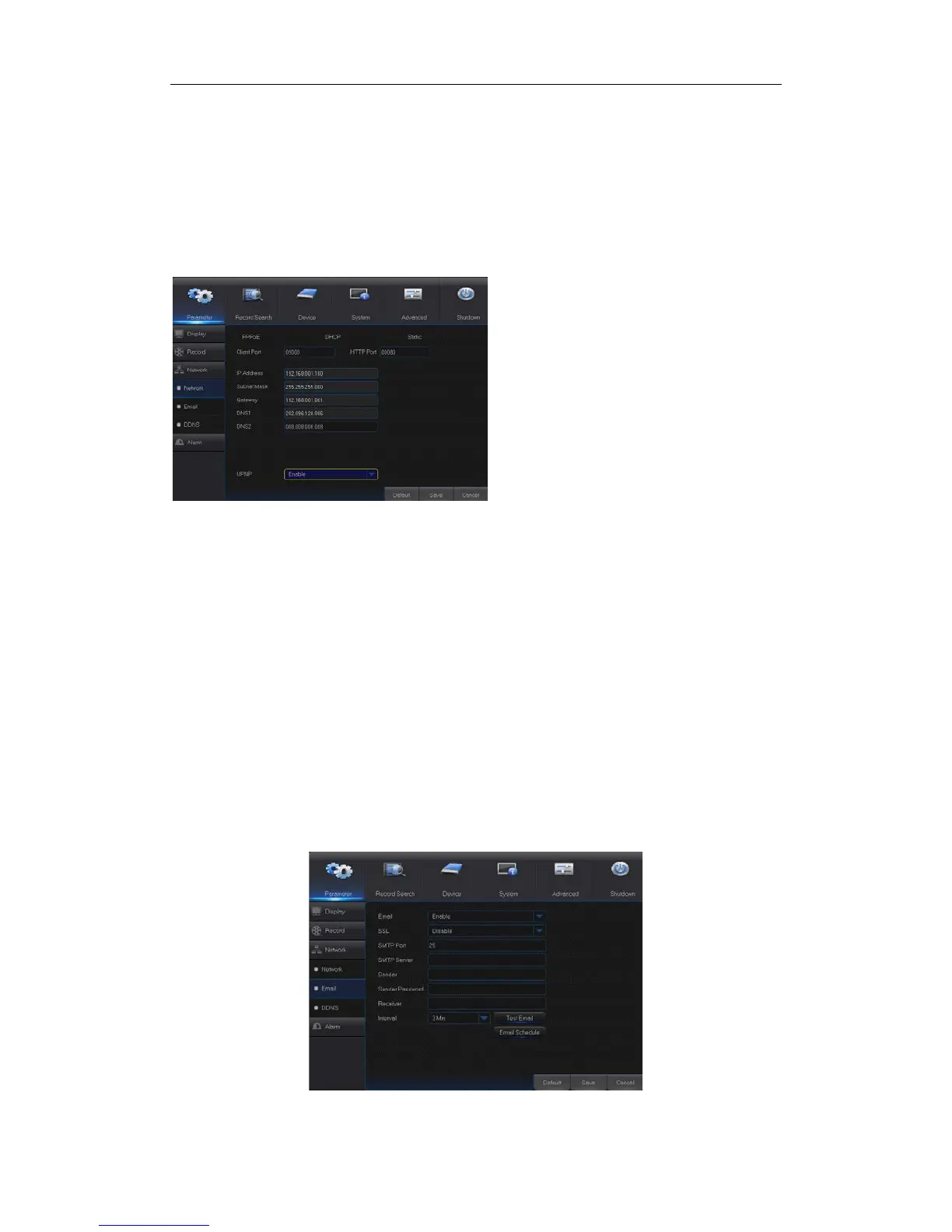
Go to “Main Menu” → “Parameter” → “Network” to enter into the interface shown as Picture
4-13.
Select a kind of network connection (PPPOE, DHCP, Static) and set Port, then user may
remotely control the monitoring, recording, playback or backup of NVR through network,
as shown in Picture 4-13.
Picture 4-13
4.2.1.3.2 E-mail
Go to “Main Menu” → “Parameter” → “Network” → “Email” to enter into the menu interface.
Receive or Send NVR alarm Email and set parameters like Email address, SSL, Email
Enable, Interval and Email Schedule. The related parameter setting should be consistent
with NVR local setting.
Picture 4-14
through public network.
Note: Save after setting to make effective. If there
are multiple NVR in a LAN, make sure their MAC
addresses are different (Refer to System).
Take DHCP as an example. In this mode, the
router automatically assigns IP address for
NVR. After restarting NVR or DHCP server, the
IP address obtained by NVR may be different.
As a result, user shall check IP address and
port number for each remote access of NVR.
The operation procedure is as follows:
1. Select DHCP, click Save and refresh NVR.
Input Client Port and HTTP Port (the two
values must not be the same).
2. Set obtained IP address of NVR and the
mapping port. Refer to section4.2.4.2.
3. Remotely visit NVR by IP address:
http://Public network IP: Web port number
(such as 00080)
http:// Intranet IP: Web port number(such as
00080)( Only available in the same LAN)


 To Next Page