18
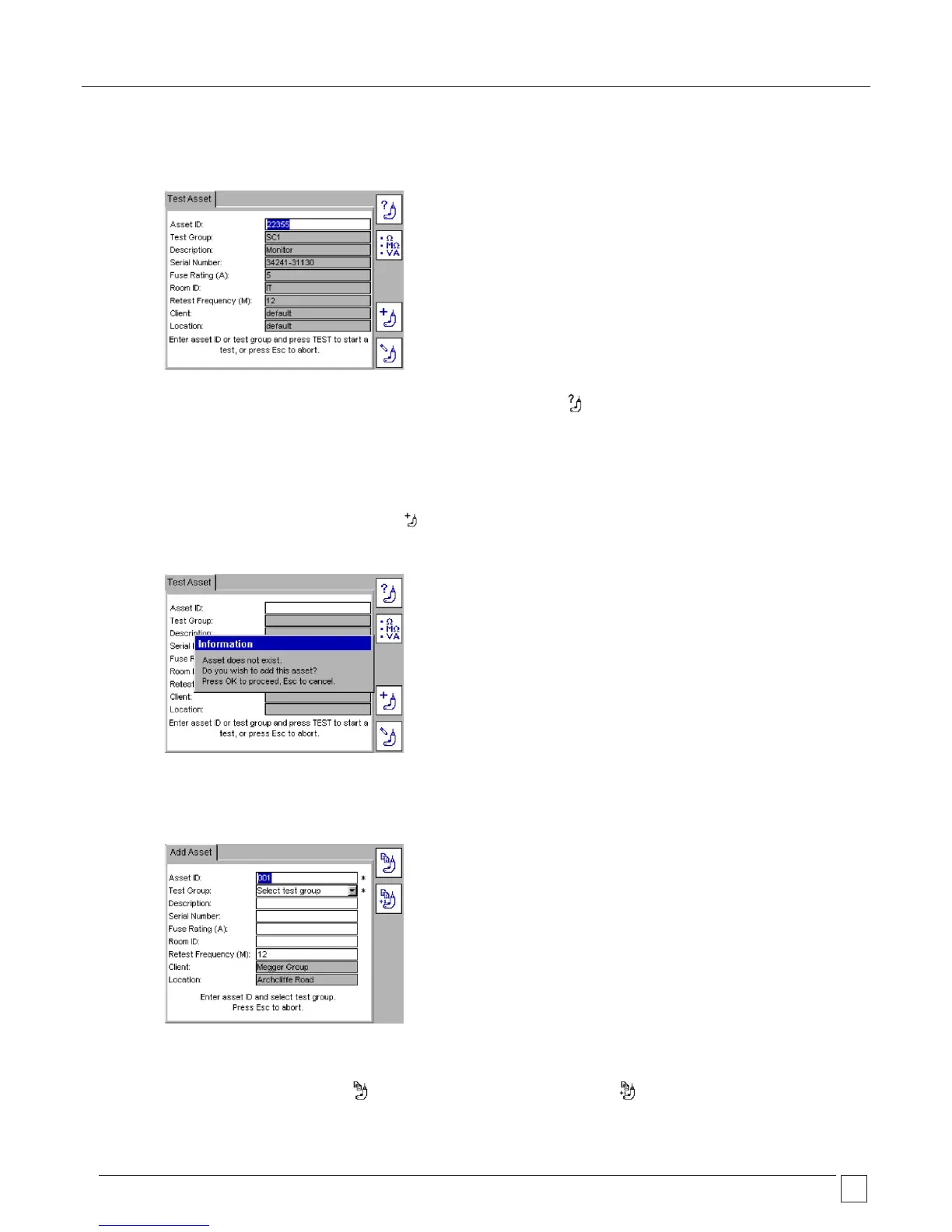
.2 Type in the “Asset ID” if available and press OK.
If the asset is already in the database the details of the asset will be displayed as below:
Press the TEST button and the test sequence will commence. Go to 3.3 TESTING PROGRESS.
Alternatively to search through the asset database, press the FIND ASSET Hotkey. A drop down box of Asset IDs will
appear.
If you know the Asset ID you wish to find, start typing in the Asset ID. The search engine will jump to the Asset IDs that start
with those characters.
To ADD an asset, simply press the ADD ASSET Hotkey.
.3 If the entered asset is not in the database, the following information box will appear:
Press OK to add a new asset.
A blank Add Asset screen will appear as below. This only contains the Asset ID entered in the previous screen, plus current client and
location.
If no client and location have been added, these will say “default”.
* Indicates mandatory fields that are required to save the asset data.
Further information on the COPY LAST ASSET Hotkey and COPY & INCREMENT ASSET ID Hotkeys can be found in section 5.
(A new asset ID can be added and saved at this stage, but it is recommended that this is added after testing is completed).



 To Next Page