40
7.3 Export results to CSV
Assets and test results can be exported to a CSV file format. This file can be opened with a CSV viewer.
To export data and test results to CSV:
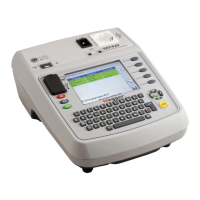
1) Connect a USB stick to either of the type A USB sockets on the front of the PAT400.
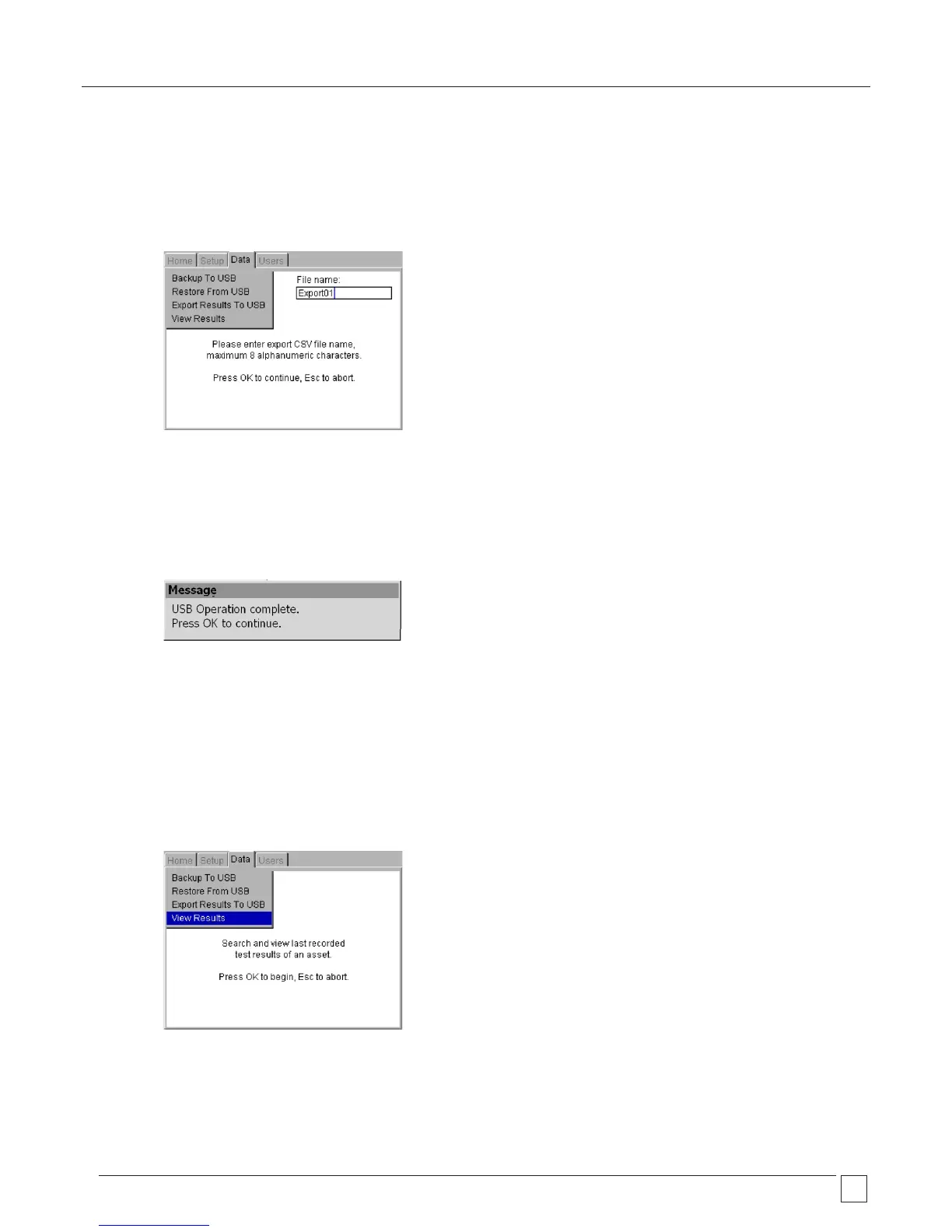
2) Select Export Results to USB and press OK. The following screen will appear.
3) Enter a name for the CSV file. Up to 8 characters can be used. Use letters and/or numbers. Press OK when ready.
4) The CSV file will be saved to the USB memory stick. On completion the following message will be displayed and the
buzzer will sound.
Note: Exporting large amounts of data to CSV can take a significant time to complete. Once started a CSV export
cannot be aborted.
7.4 Accessing test results
Test results for each asset can be viewed through the View Results menu option of the DATA tab as below.
Only test results belonging to the current Client and Location can be viewed.
7.4.1 To view a test result:
1) From the HOME screen, use the RIGHT ARROW key to select the DATA tab.
2) Use the DOWN arrow to select VIEW RESULTS and press OK
The ‘View Test Results’ screen will be displayed as below:



 To Next Page