38
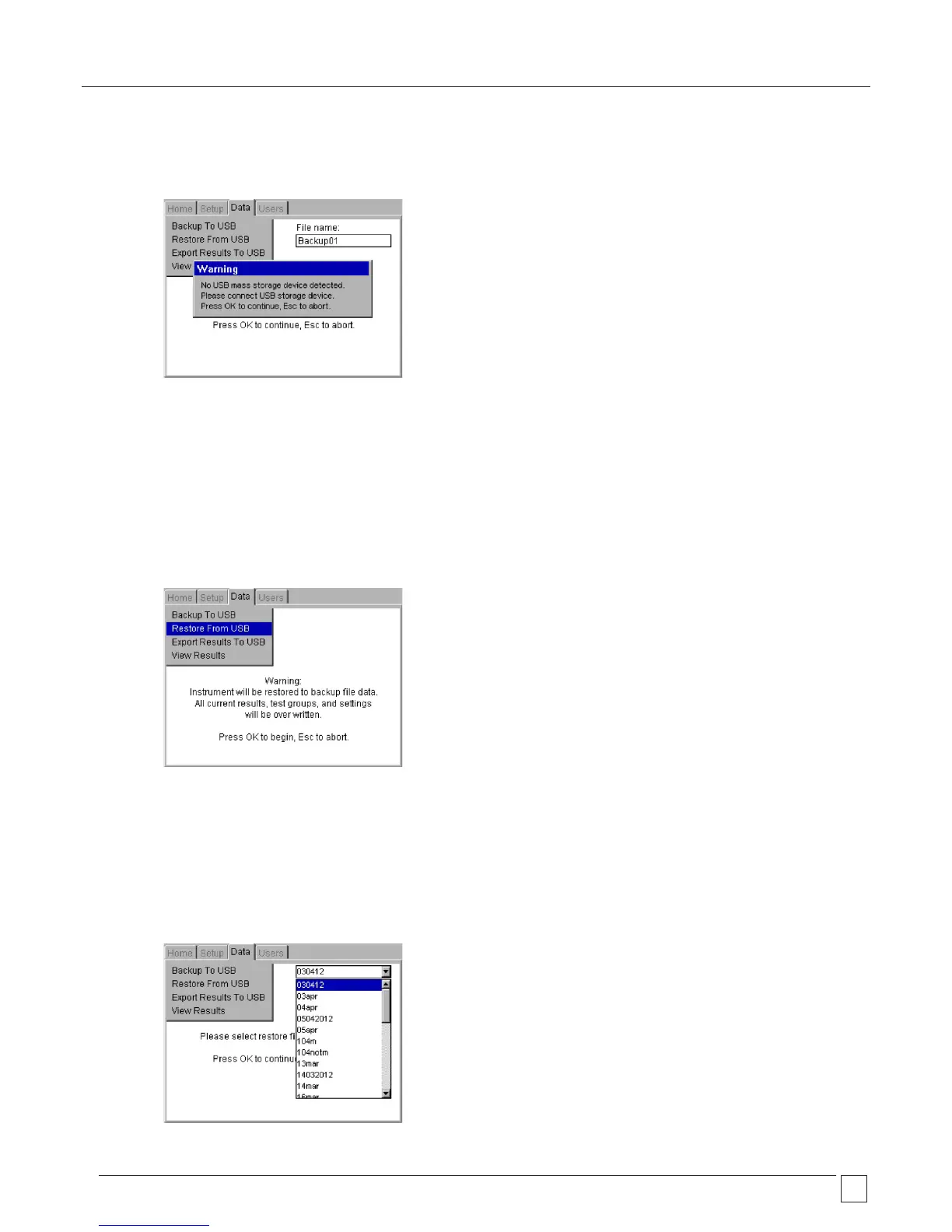
This error can be caused by a faulty USB stick. Replace the USB stick with another type and try again.
Note: A USB stick may take a few seconds to be recognised by the PAT400.
7.2 Importing / restoring data from USB memory stick
Importing data from PowerSuite to the PAT400 or restoring data from a saved file are the same. The file must be in a .db format and
located in the root directory of the memory stick. This would either have been created by the PAT400 as a backup file or created from
PowerSuite for import into the PAT400.
1) Connect a USB stick (containing the .db file) to either of the Type A USB sockets on the front of the PAT400
(Type A’ USB socket).
2) Select the “Restore From USB” option in the DATA menu, as below:
WARNING: Importing or restoring a file will overwrite the existing assets, results, test groups,
clients and locations in the database.
3) Press OK to continue.
4) The PAT400 will search for any database files in the root directory. A drop down box appears.
Press the OK key and then the DOWN arrow to scroll through the list, or use the RIGHT arrow key to page through the list.
OR
Type the desired file name to jump to the matching item in the list. The search engine will find the closest match as you type.



 To Next Page