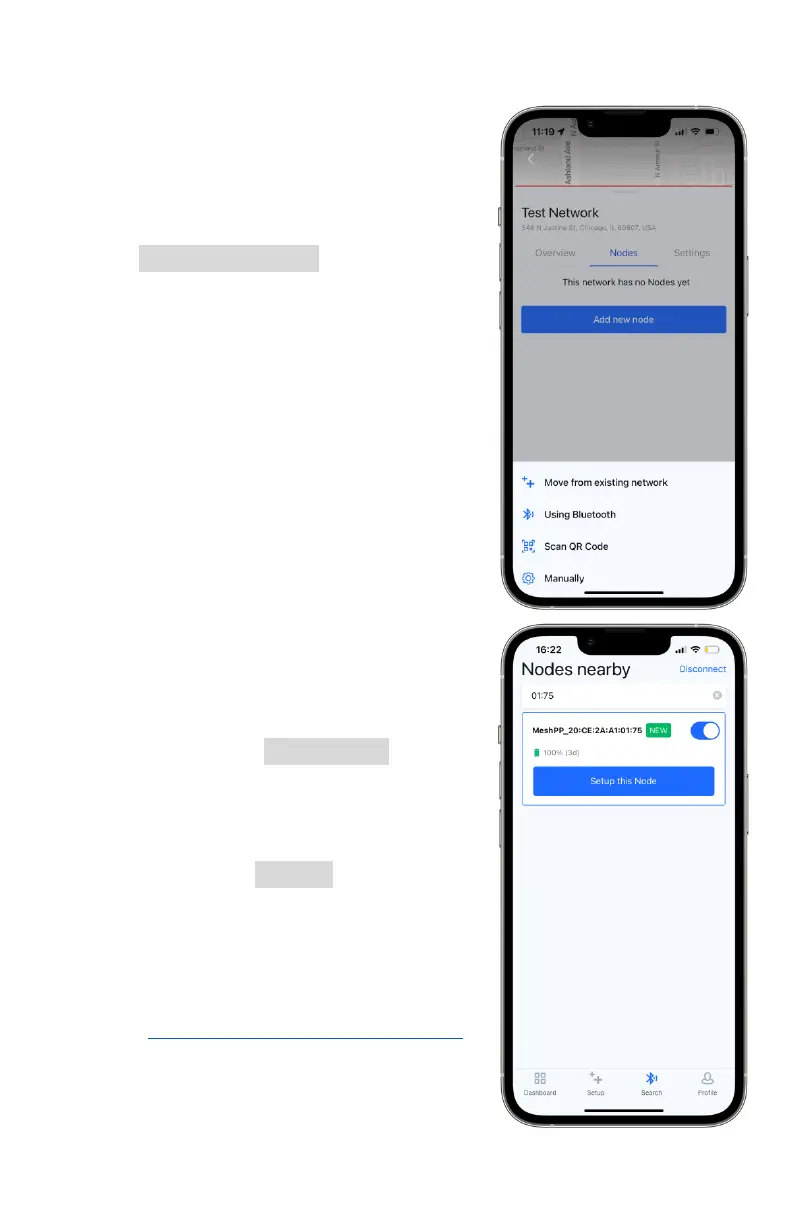
2. Using Bluetooth: use your mobile device to scan for local
nodes via Bluetooth
3. Scan QR Code: scan the QR
code on a node’s serial number
sticker located on its case
4. Manually: add the node’s MAC
address by typing it into the app
iv. Tap Using Bluetooth - if you are
within 10 m (30 ft) of the node, the
MAC address found on its case
should appear on your search.
Move as close as possible to the
node to connect to it via Bluetooth
on your mobile device.
1. If you are near many nodes, use
the search bar and type part of
the MAC address to limit the
number of nodes that are found.
2. Once successfully connected, an
on/off toggle button will appear.
The node may be switched on
or off during the setup process.
3. On the top right of the screen,
you may tap Disconnect to force
a disconnection and stop
interacting with the node. If you
do not see your node, you may
need to tap Repeat multiple
times until it appears. If you
cannot find your node or its
MAC is located under “Other
Networks,” please see issue # 1
in section 11.c - Common Issues
for additional guidance


 To Next Page