©2013 Microsoft Page 97
Tips
Videos that you buy or rent from Xbox Video are charged to the payment option associated with your
Microsoft account. To see info about your account, open the Settings charm, and then tap Account.
You can stream your videos from Surface to your TV using Play To or Xbox SmartGlass.
6
For help using the Video app, see Xbox Video on support.Xbox.com.
6
Broadband internet and Xbox 360 console required and sold separately. Not all content is SmartGlass enabled. Availability, content, and
features vary across devices and regions. See xbox.com/live.
Skype
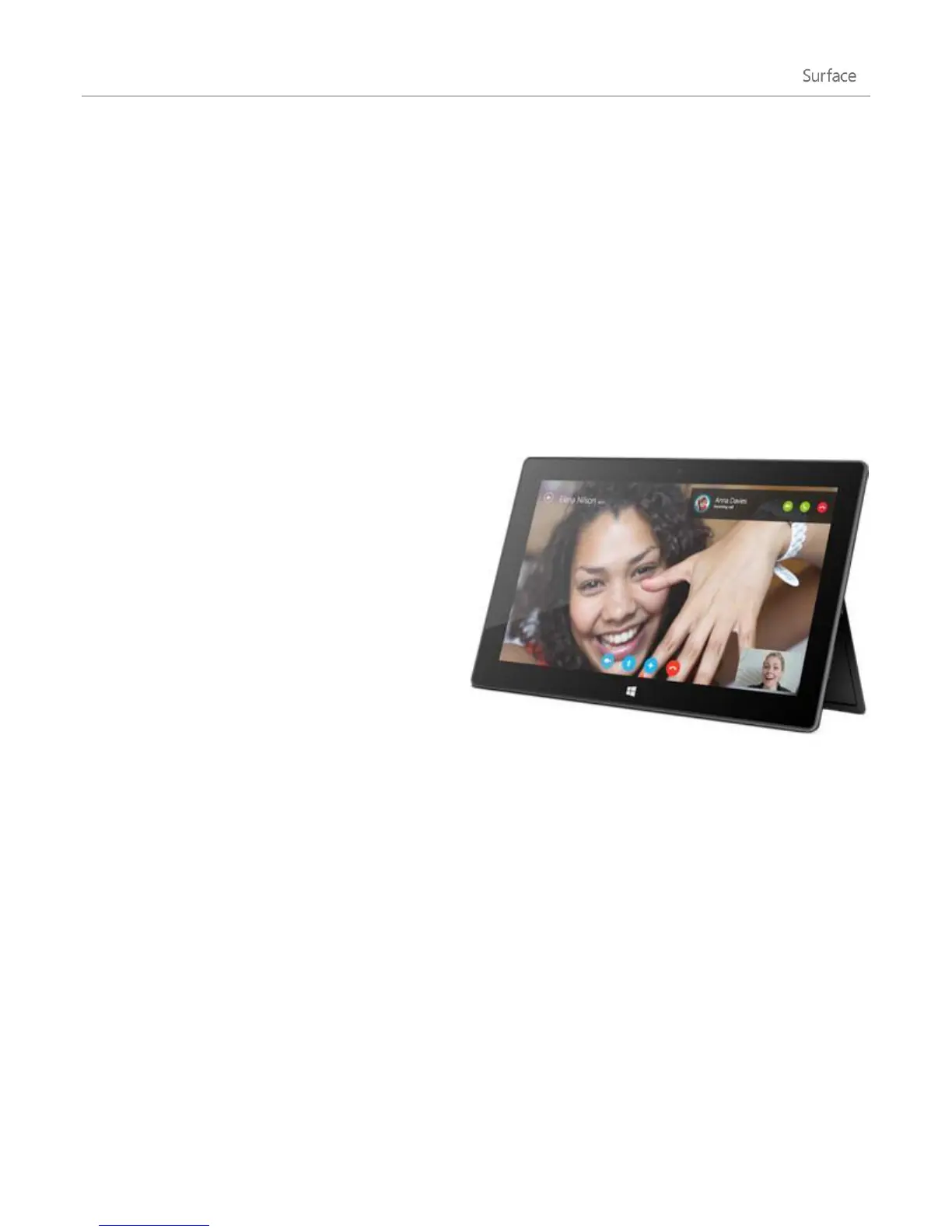
Skype is the always-on app that makes staying in
touch with your contacts easier than ever. Stay
informed about what’s happening with your friends
through video and voice calls and instant messaging,
all from one app.
You can stay in touch with anyone, on almost any
device, pretty much anywhere in the world, for free.
You can also call landlines and mobile phones for a
low cost.
Set up Skype
1. Install the Skype app from the Windows Store:
Open the Store app and type Skype. Then tap or click Skype from the search results, and tap or click
Install.
2. Open the Skype app.
3. Follow the steps on this Skype webpage: How do I sign in to Skype for Windows 8. If you choose to merge
your Skype and Microsoft accounts, your Messenger friends will be automatically added to your existing
list of contacts.
To add more contacts to Skype, see the Adding contacts topic on Skype.com.












 To Next Page