©2013 Microsoft Page 90
Be ready with reminders
To add calendar notifications to your lock screen:
1. Open the Settings charm, tap or click Change PC settings,
then tap or click Personalise.
2. Under Lock screen apps, tap or click +, then tap or click
Calendar.
3. Tap or click Notifications (on the left), then make sure notifications are on for the Calendar app.
To learn more, see Calendar app for Windows: FAQs on Windows.com. For info on how to get notified about
upcoming events, see How to manage notifications for Mail, Calendar, People, and Messaging on Windows.com.
Camera
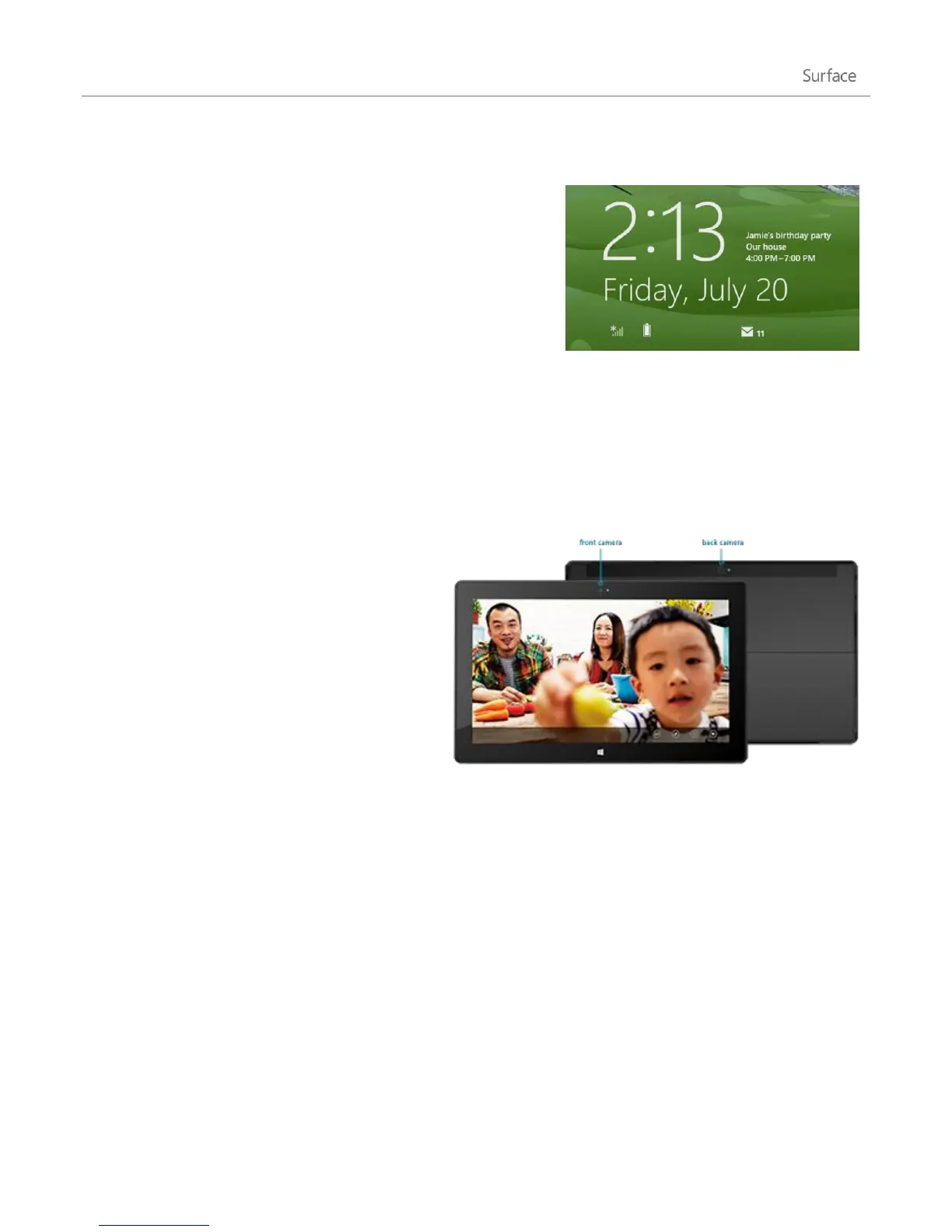
Surface has two cameras. You can use the front
camera to have a video chat with a friend, and the
rear-facing camera to record meetings and events
hands-free. You can also use either camera to take
pictures.
A privacy light appears when either camera is on,
so there are no surprises. Both cameras are fixed
focus, so you don’t need to worry about focusing.
The cameras capture video in 720p HD, with a 16:9
aspect ratio.
Both cameras take pictures and videos. The rear camera is angled to point straight ahead when Surface is resting
on its kickstand.
Shoot a video
1. From the Start screen, tap or click Camera.
2. Tap or click Video mode. This icon switches between video and photo mode.
3. Tap or click Change camera to switch between the front and rear cameras.
4. Tap the screen to start recording video. When you’re done, tap the screen to stop recording.












 To Next Page