©2013 Microsoft Page 86
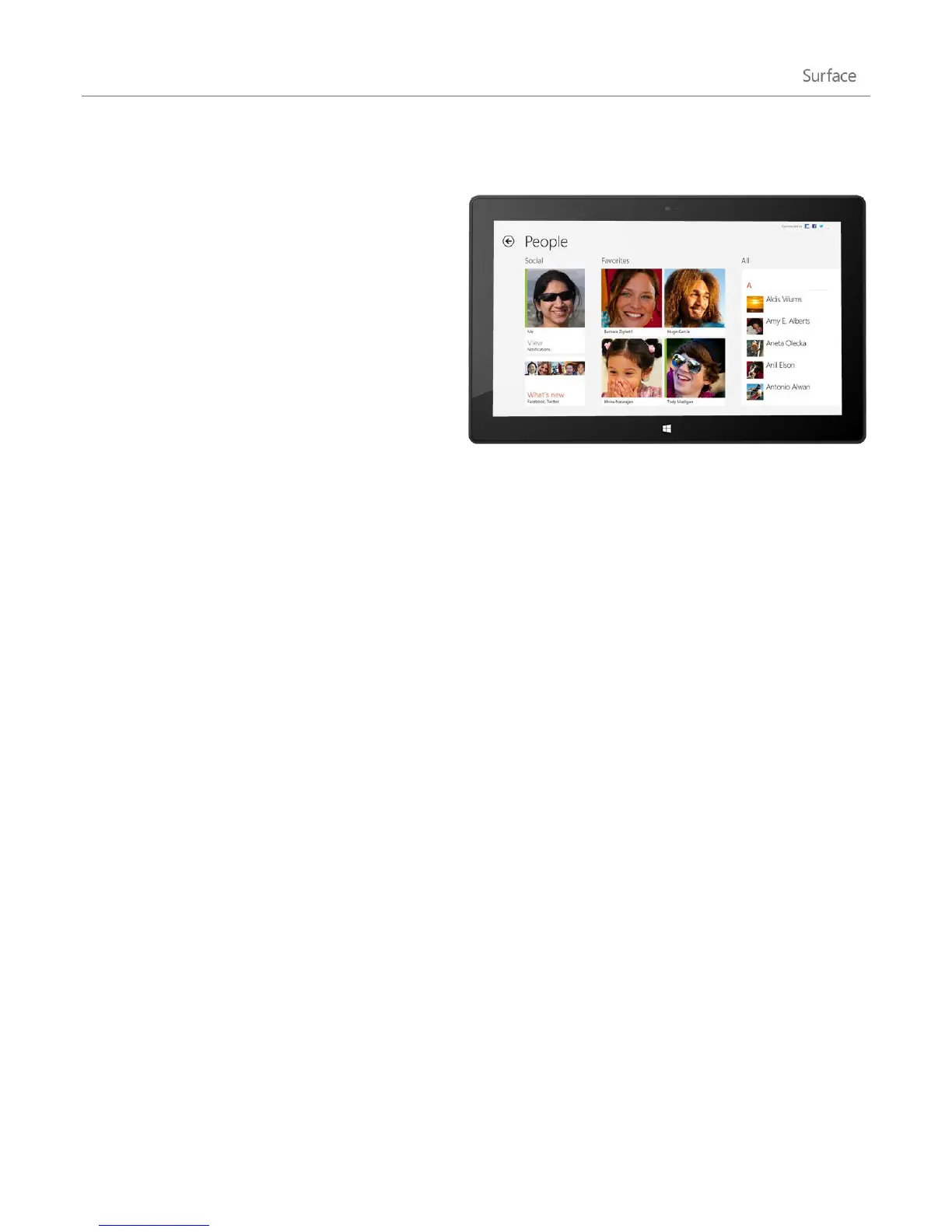
People
The People app is more than just an address book. It
keeps you up to date with your social networks and
helps you stay in touch with the people you care
about most. When you connect your accounts, such
as Facebook, Twitter, and LinkedIn, you’ll get all the
latest updates, Tweets, and pictures in one place.
Comment on an update or retweet a Tweet without
switching apps.
Add people
Here's how to add people from your existing contact
lists and address books:
1. From the Start screen, tap or click People.
2. Open the Settings charm and then tap or click Accounts.
3. Tap or click Add an account.
4. Select the email or social networking account you want to add, and then follow the on-screen instructions.
You'll be asked to sign in with your account password, and you'll see exactly what info is going to be shared
between Microsoft and the account that you're adding. Wait a few minutes, and your contacts will start appearing
in the People app. Depending on the type of account, you might also see profile photos, status updates and other
info.
Tips
To find out how to add contacts one at a time or add a contact from email, see People app for Windows:
FAQ on Windows.com.
If you have questions about linking contacts or changing which contacts you see, see People app for
Windows: FAQ on Windows.com.
Note As of 30 January 2013, Google no longer supports new EAS (Exchange ActiveSync) connections in some
scenarios so how you add contacts to the People app might change. For more info, see How to sync Google
services with Windows on Windows.com.












 To Next Page