©2013 Microsoft Page 58
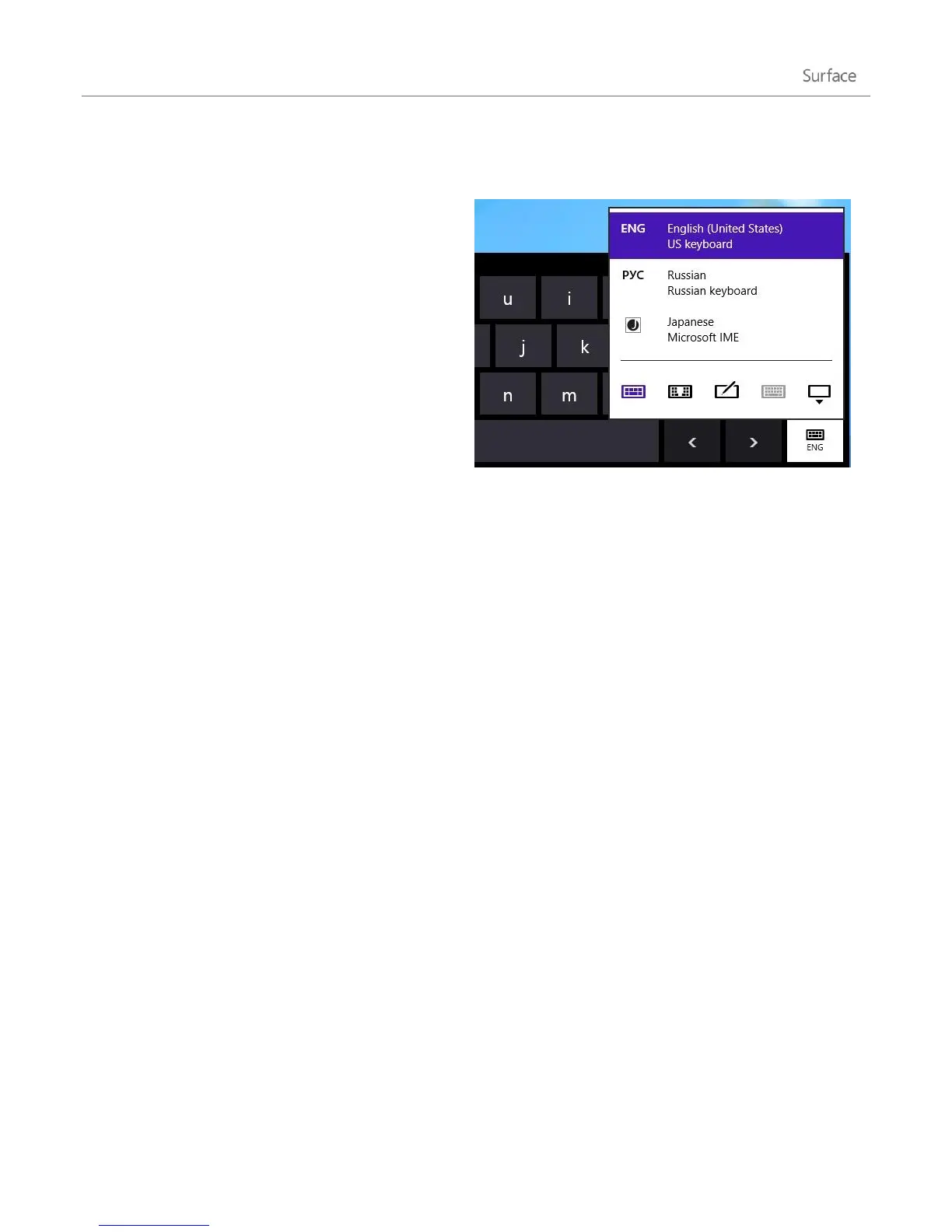
Add languages
You can add languages so that you can read and type
in different languages. Once you add a language, you
can choose your display language—this is the
language you see most often in Windows and in your
apps—and switch between different languages as you
type.
To learn more how to add a language and
type in different languages, see Languages in
Windows RT on Windows.com.
If you want to work with different languages in
the Office apps, see Office 2013 language
options on Office.com.
Customise the desktop
Change the desktop to suit your style and preferences.
Increase the size of desktop items
You can make text and other items on the desktop bigger if you’d like. Here’s how:
1. Go to the Start screen and type make text.
2. Tap or click Settings, then choose Make text and other items larger or smaller from the search results.
3. Choose Medium - 125% and tap or click Apply.
Themes and desktop backgrounds
You can change the desktop background, colour, and sounds. Here’s how:
1. Open the Search charm, type personalisation, and then tap or click Settings.
2. Tap or click Personalisation.
3. Choose a theme or change the Desktop Background, Colour, and Sounds individually.












 To Next Page