©2013 Microsoft Page 29
Touch, keyboard, mouse and pen
With Surface, you can easily switch between touch, keyboard, mouse, and pen. Use whichever you want, when
you want.
Touch
You can use your fingers to interact with Surface. For example, drag your finger across the Start screen to scroll
and tap a tile to open it.
To learn about using touch, be sure to read the Touch: tap, slide, and beyond topic in this guide.
To learn how to use the on-screen touch keyboard, see the On-screen keyboard topic.
Keyboard
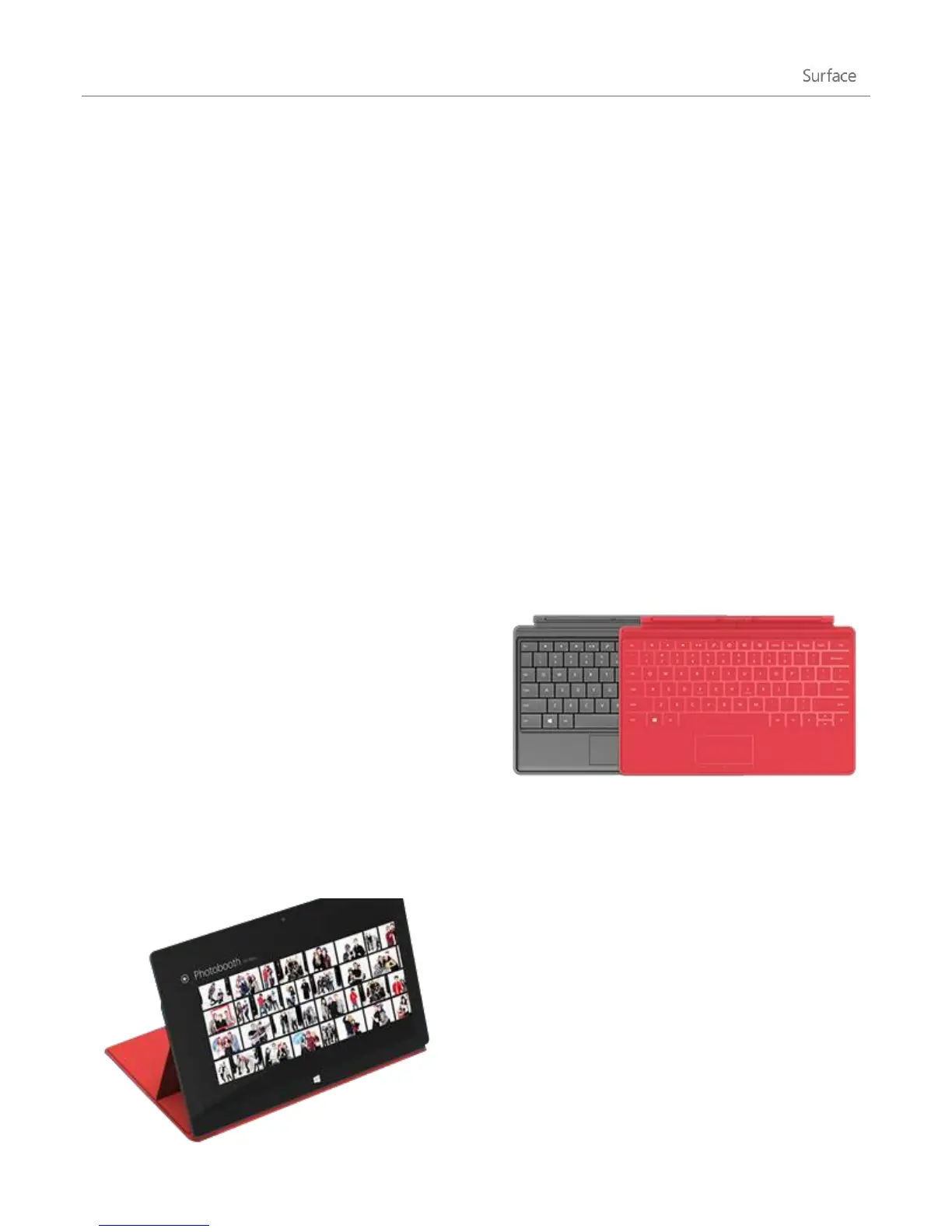
You can choose from two keyboard covers for your Surface:
Touch Cover or Type Cover.
Both keyboards magnetically attach to Surface. To attach
Touch Cover or Type Cover, simply bring the two close
together. When Touch Cover gets close, it aligns and snaps
into place.
Once connected, the keyboard cover stays put. You can
easily remove it if you’d like. Just pull it away.
When you fold Touch Cover or Type Cover back behind the touchscreen, the keyboard is disabled. This way you
can’t accidentally type on the keyboard.
To type text when the cover is folded back, use the on-
screen keyboard. Tap in a text field or other area where you
can type and the on-screen keyboard appears. For more
info, see the Use the on-screen keyboard section in this
guide.
When you close Touch Cover, the screen turns off. The
cover helps protect the touchscreen while you’re on the
move. When you open the cover, Surface wakes up.












 To Next Page