©2013 Microsoft Page 50
Uninstall an app
If you’re not using an app you can uninstall it. Here’s how:
1. Find the app that you want to remove. You can
do this by finding the app tile on the Start
screen or by using Search.
2. Swipe down or right-click on the app to select
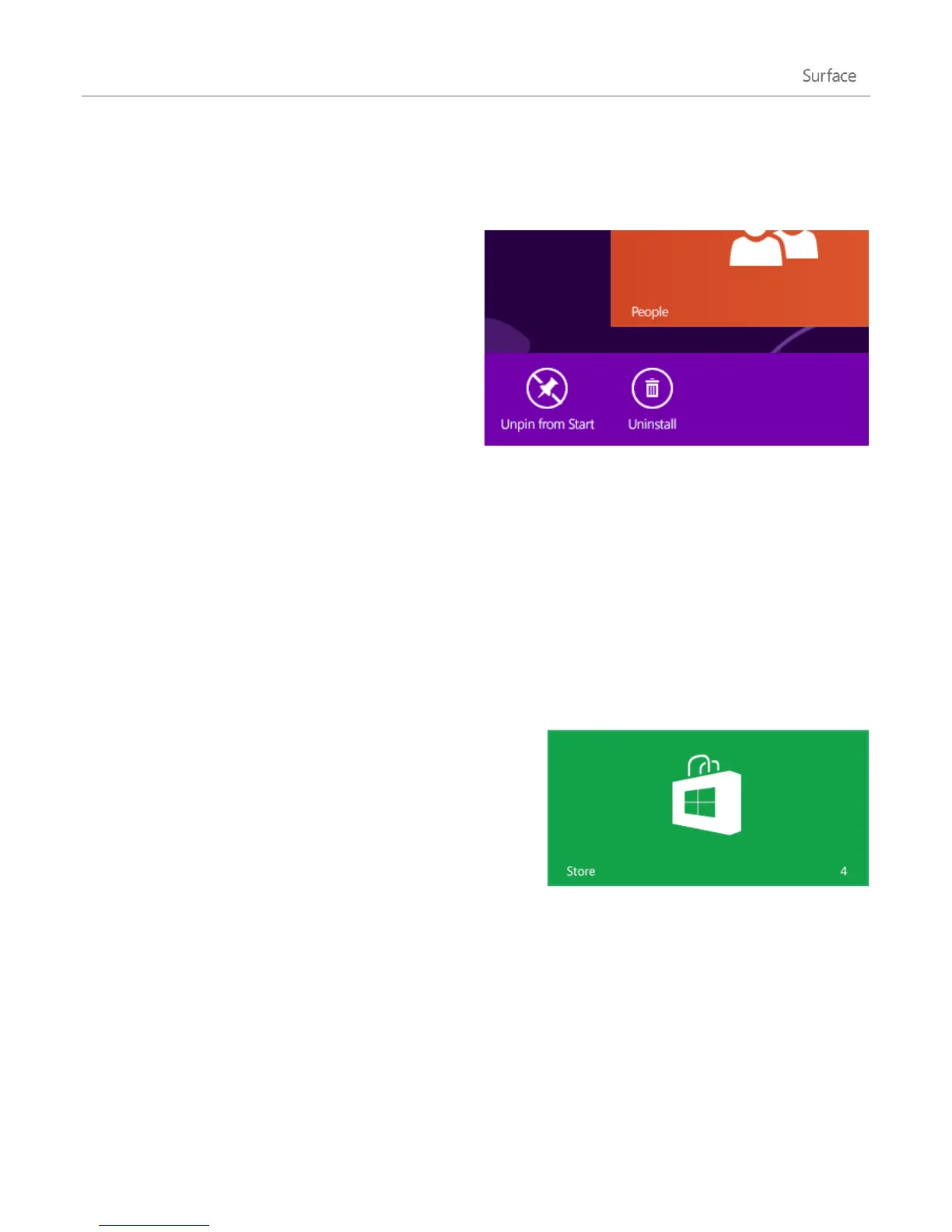
it. When you do this, app commands appear
along the bottom of the screen.
3. Tap or click Uninstall.
Tips
To see your installed apps, go to Start and swipe down from the top edge of the screen (or right-click),
then tap or click All apps.
If you uninstall a built-in app, such as Music, you can reinstall it from the Store. The Mail, Calendar,
People, and Messaging apps appear in the Store as a single app, called Mail, Calendar, People, and
Messaging.
Office apps can’t be uninstalled.
App updates
Apps are periodically updated by app developers and the Store
tile tells you when updates are available.
For example, a “4” on the Store tile means that four of your apps
have updates.
To install app updates:
1. From the Start screen, tap or click Store.
2. Tap or click Updates in the upper-right corner.
3. Tap or click Install to install updates for the selected apps.












 To Next Page