©2013 Microsoft Page 17
Get to know Surface
Now that you know the basics, let’s go a little deeper.
Power states: On, off, standby, and restart
Here’s what you need to know about the Surface power states.
On, off, standby, and restart
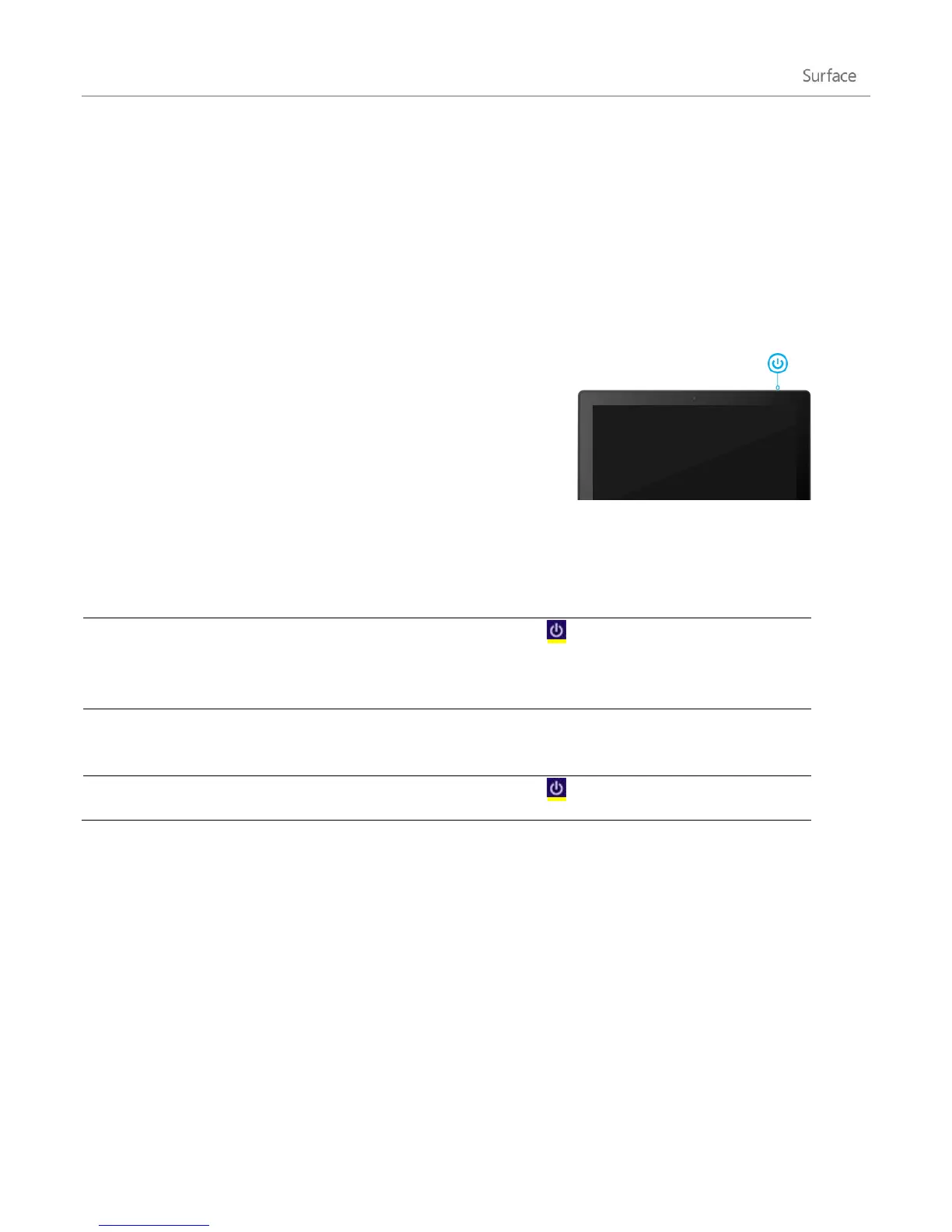
When Surface is off, press and release the power button. If nothing happens,
Surface might need to be recharged. Connect the power supply and then press the
power button again.
Open the Settings charm, tap or click Power , and then choose Shut down. You
can also tap or click the Power icon on the sign in screen (lower-right corner) to
quickly shut down.
When Surface is on, press and release the power button or close Type Cover or
Touch Cover.
Open the Settings charm, tap or click Power , and then choose Restart.
Standby
There's really no need to turn off (shut down) Surface completely. If you don’t use Surface for a few minutes the
screen turns off and locks, just like a smartphone. When this happens, Surface goes into connected standby mode.
This means that Surface stays connected to your wireless network, waiting for you to use it. App notifications
appear on the lock screen, so you can see quickly see updates such as how many new email messages you have.











 To Next Page