©2013 Microsoft Page 98
Call and chat
Call To start a call, tap or click a contact and then, tap or click the call or video call button . To call a mobile
phone or landline, tap or click the call button on the Skype home screen. (Skype credit or a monthly
subscription required.) For more info, see Calling mobiles and landlines on Skype.com.
Chat To start chatting, tap or click a contact and then start typing.
For help with Skype, see Finding your way around Skype on Skype.com.
Skype tips
To change your Skype settings or access Help, open the Settings charm from Skype.
To switch between your front and rear-facing cameras while in a video call, tap the webcam image.
When you pin someone to your Start screen, you can tap or click their picture to video call, chat with, or
SMS them using Skype. To find out how to pin someone to Start, see Pin a contact to Start in this guide.
SkyDrive
With SkyDrive, you'll never be without the documents, photos, and
videos that matter to you. Your Microsoft account includes 7 GB of free
cloud storage that’s accessible from any PC, Mac, iPad, or phone. By
default, documents that you create with Office 2013 apps are saved on
SkyDrive.
Use the SkyDrive app to upload or access the files that you saved on your
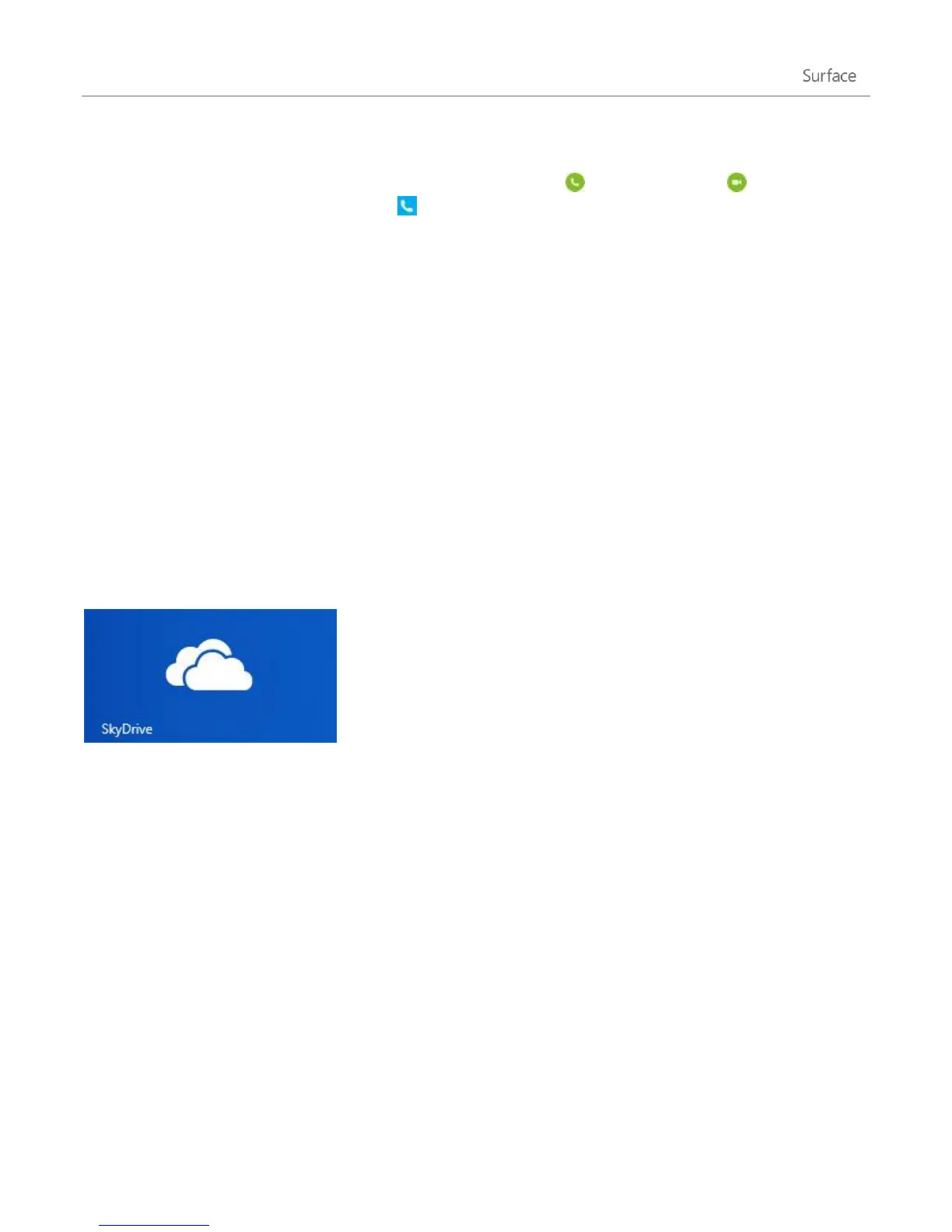
SkyDrive. To do this, go to the Start screen and tap or click SkyDrive.
All of the files that you’ve saved on your SkyDrive appear. Tap or click a folder name to see the contents. Tap or
click a file to open it. Office files open in Office apps and music files open in Xbox Music.
Swipe down from the top edge of the screen to see the app commands.
Note The SkyDrive app doesn’t automatically sync your files across your computers. To do this, install the free
SkyDrive desktop app on a computer running Windows 7, Windows 8, or Mac OS X Lion.
Tips
To select a file or folder swipe down or right-click it.
Pictures that you upload to SkyDrive also appear in the Photos app.
Need help with SkyDrive? From the SkyDrive app, open the Settings charm and then tap or click Help.












 To Next Page