©2013 Microsoft Page 24
Tips
To quickly pause audio, press the volume rocker and then tap the on-screen pause button.
To quick mute audio, press the mute key on Touch Cover or Type Cover (F1).
Media keys on Type Cover: Mute, volume down, volume up, and play/pause
Add sound accessories
The headset jack works for both audio output and microphone input. You can plug headphones or a headset with
a microphone into the headset jack or the USB port. For bigger sound, connect an external USB or Bluetooth
speaker. For more info, see the Add, view, and manage your devices section in this guide.
Battery and power
Surface RT has an internal lithium-ion battery with up to 8 hours of battery life.
If you don’t use Surface for a few minutes the screen turns off and locks, just like a smartphone. When this
happens, Surface goes into connected standby mode. This means that Surface stays connected to the Internet,
waiting for you to use it.
How much battery charge is left?
The battery status appears in a few different places.
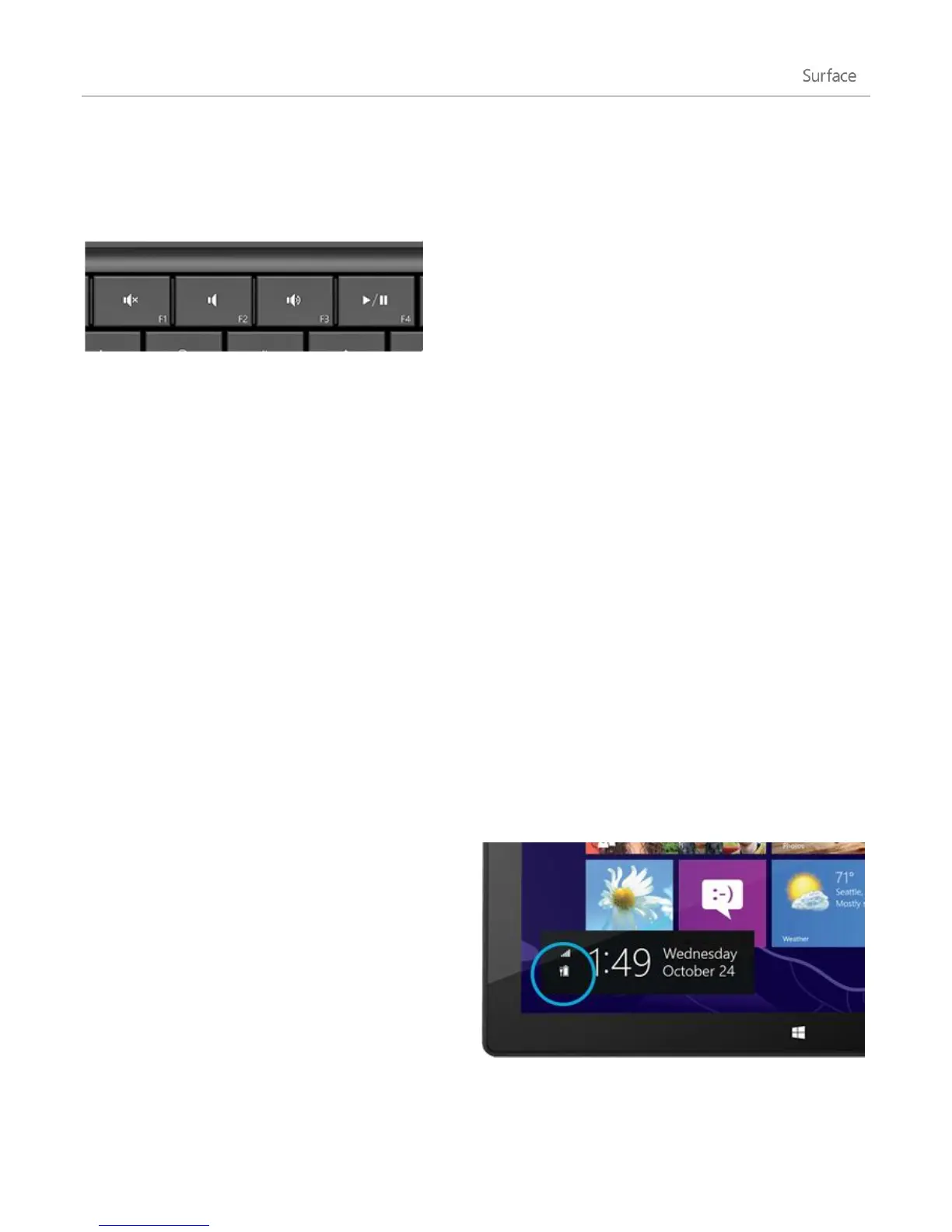
Lock screen When you wake up Surface, the
battery status appears on the lock screen (lower-
left corner).
Charms When you swipe in from the right-edge of
the screen, the battery status appears in the lower-
left corner of the screen (see picture).












 To Next Page