©2013 Microsoft Page 32
Here are the settings you can change in the Trackpad Settings app:
Turns the trackpad on or off.
Tap one finger to left-click, two fingers to right-click, and tap and
slide your finger to select text.
Scroll vertically or horizontally using two fingers.
Flips or reverses the scrolling direction.
Trackpad Settings app doesn’t work
If the Trackpad Settings app doesn’t detect your Touch Cover or Type Cover, do the following:
1. Go to the Start screen, type update, tap or click Settings, and then tap or click Check for updates.
2. Open the Search charm, type devices, and then tap or click Settings.
3. Tap or click Devices and Printers in the search results.
4. Tap Refresh three times (circular arrow next to the search box).
5. Try using the Trackpad Settings app again.
Mouse
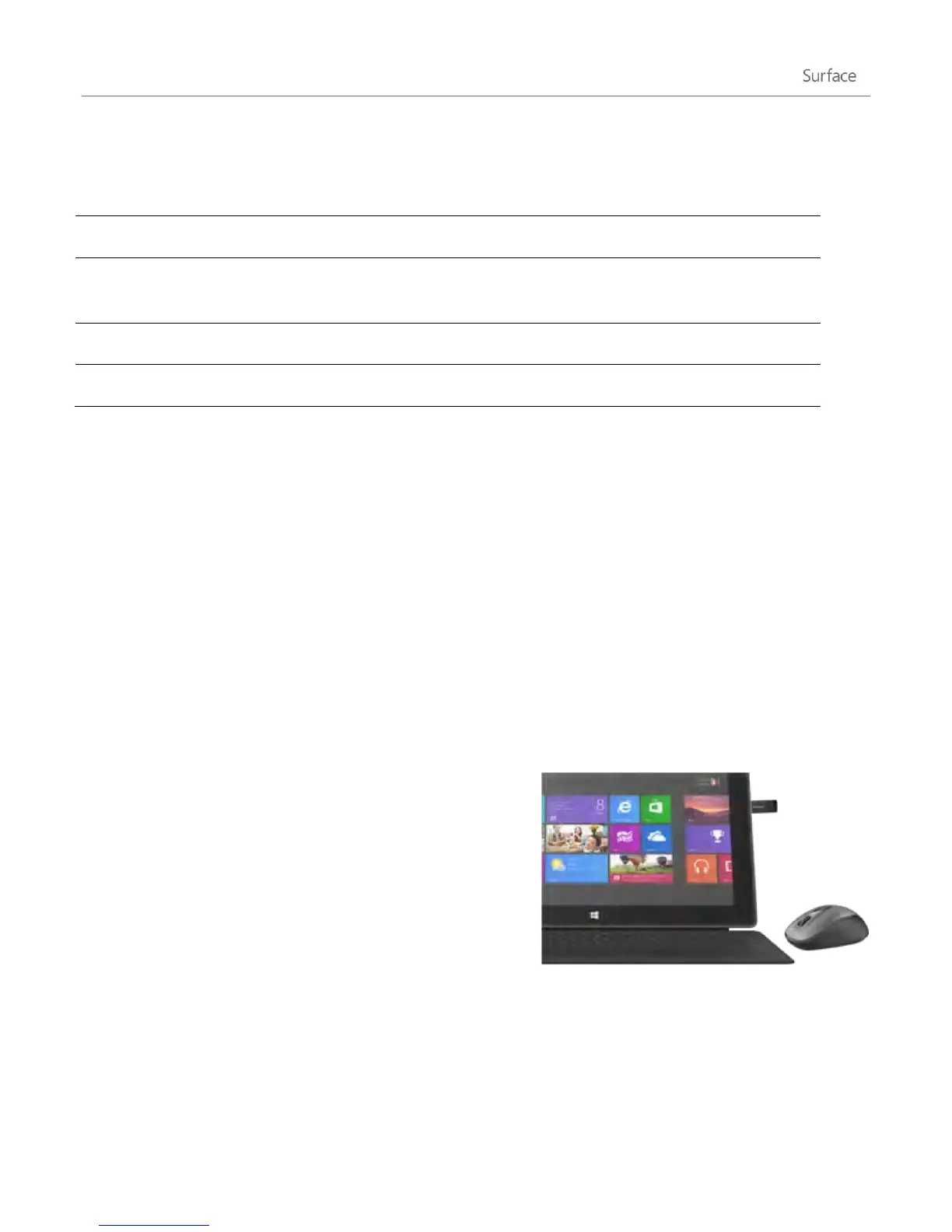
You can use the trackpad on Touch Cover or Type Cover when
you need a mouse, or you can connect a USB or Bluetooth
mouse.
To use a USB mouse, plug the transceiver into the USB
port on your Surface.
To use a mouse with Bluetooth, see the Add a Bluetooth
device section in this guide.
Make sure your mouse is certified for Windows RT.












 To Next Page