©2013 Microsoft Page 31
Trackpad
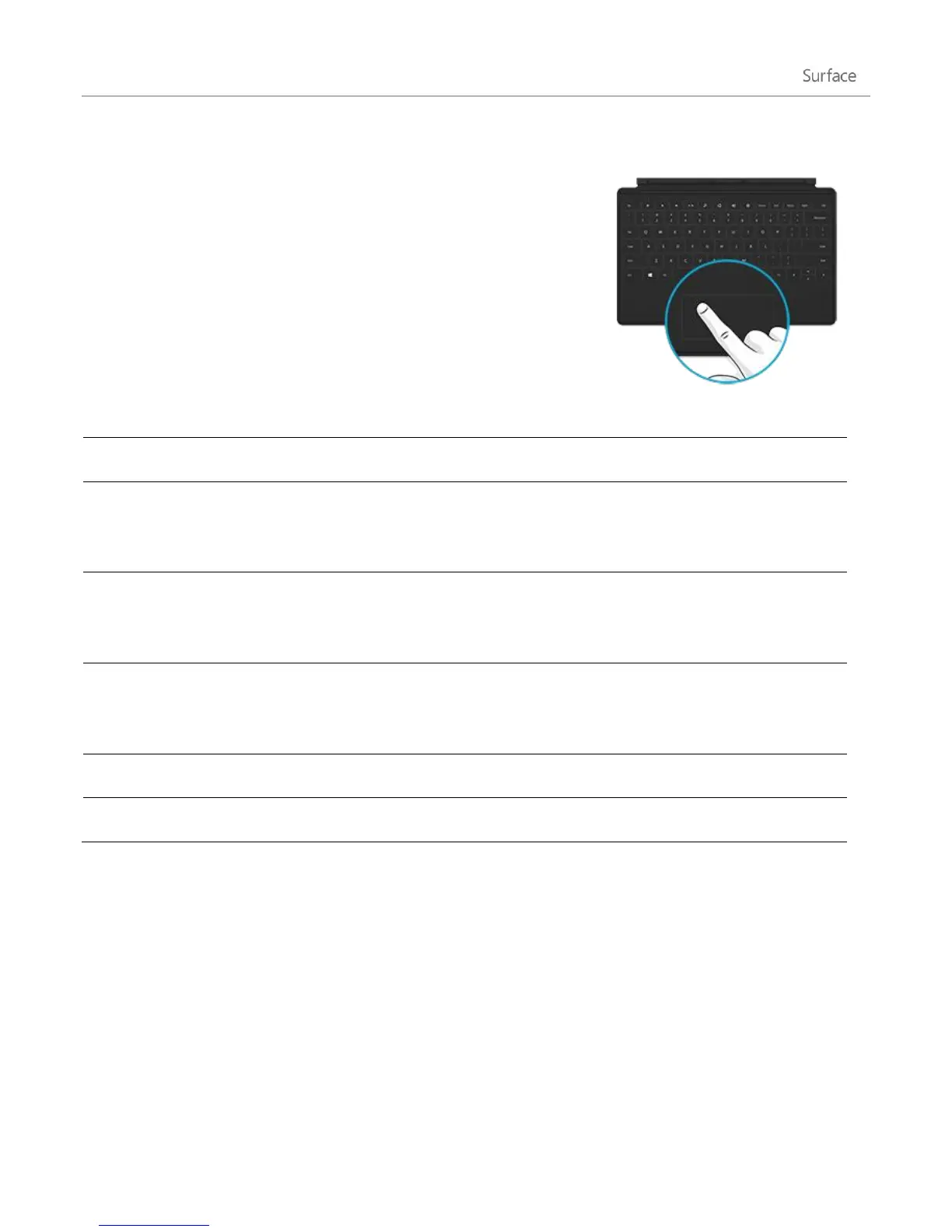
Both Touch Cover and Type Cover include a trackpad that you can use like
a mouse. Just like a laptop, you can drag your finger on the trackpad to
move the on-screen pointer.
Trackpad gestures
Move the on-screen pointer
Drag your finger on the trackpad.
Tap one finger anywhere on the trackpad.
-or-
Press the left trackpad button.
Tap two fingers anywhere on the trackpad.
-or-
Press the right trackpad button.
Hold the left trackpad button down and then slide a finger in any direction.
-or-
Tap, then tap and slide one finger in any direction.
Slide two fingers horizontally or vertically.
Tap two fingers anywhere on the trackpad.
How do I change the trackpad settings?
A Trackpad Settings app is available in the Windows Store. To install the app:
1. Open the Store app, and then type trackpad settings.
2. Tap or click Trackpad Settings from the search results and then tap or click Install.
3. Once installed, open the Trackpad Settings app.












 To Next Page