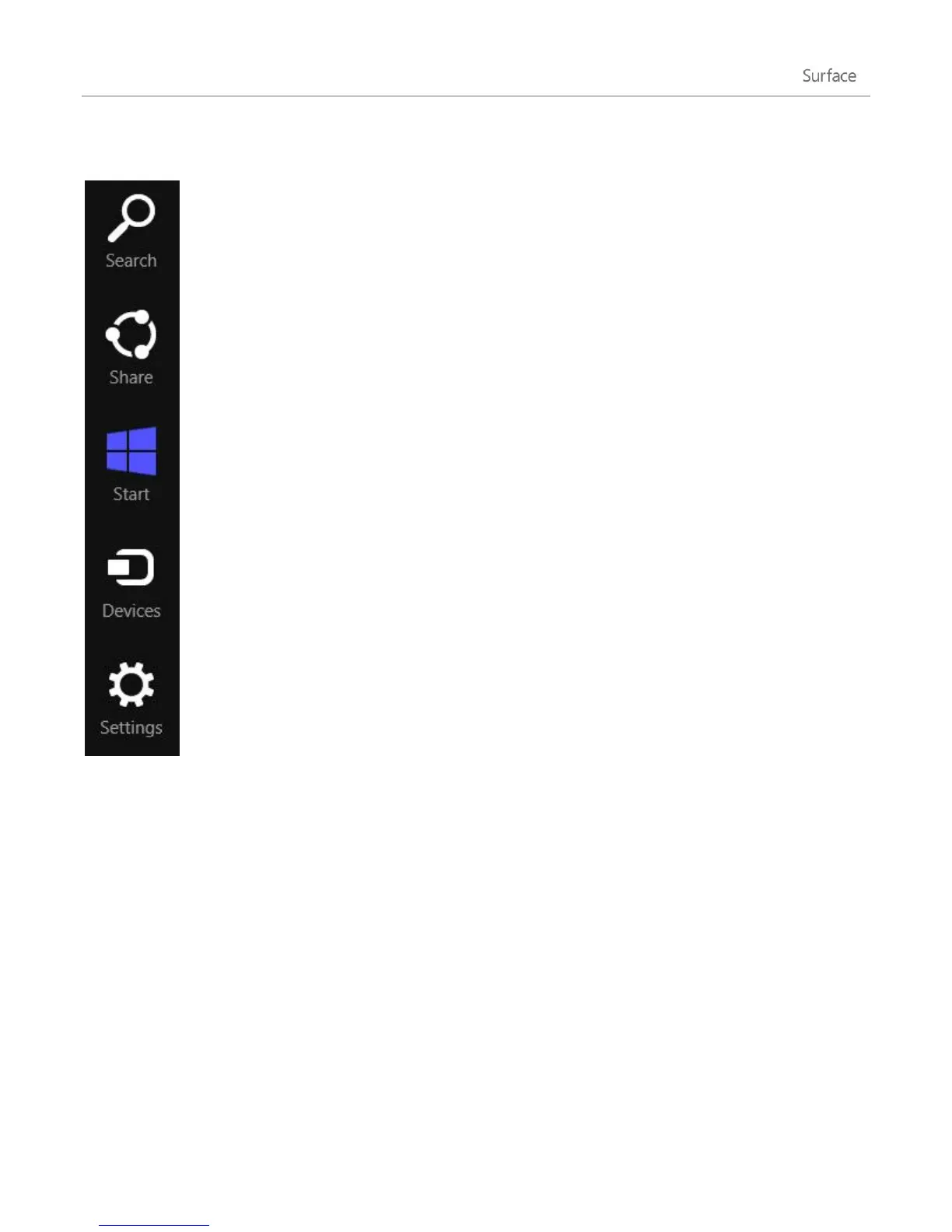
Search Search for anything. Search the app you're in, another app, or search Surface for an
app, setting, or file. For more info, see the How to search section in this guide.
Share Share files and info with people you know or send info to another app without leaving
the app you're in. You can email photos to your mum or send a link to a note-taking app like
OneNote. For more info, see the Share photos, links, and more section in this guide.
Start Go to your Start screen. Or if you're already on Start, you can use this charm to go
back to the last app you were using.
Devices Use devices that are connected to your Surface, both wired and wireless. You can
print from an app or stream your latest home movie to your TV.
Settings Change settings for apps and Surface.
When you open Settings, the items in the upper-right corner change depending on where
you are. For example, if you open Settings from an app, you’ll see settings for that app.
When you open Settings, the items in lower-right corner are always the same. Here you’ll find
PC settings such as network connection, volume, brightness, notifications, power (shutdown
and restart), and keyboard. For more info, see the Change your settings section in this guide.












 To Next Page