©2013 Microsoft Page 68
USB flash drive or hard drive
You can insert a USB flash drive or external storage device in to the USB port on Surface.
To open files from a USB flash drive or external hard drive:
1. Insert a USB flash drive or hard drive into the USB port on your Surface (along the right edge).
2. Tap or click the notification that appears in the upper-right corner of the screen.
3. Tap or click Open folder to view files. File Explorer opens showing you the files on your USB flash drive
or hard drive.
File Explorer (previously called Windows Explorer) is the app you’ll use to browse, copy, and move files on your
Surface. For more info, see the Files and folders section in this guide.
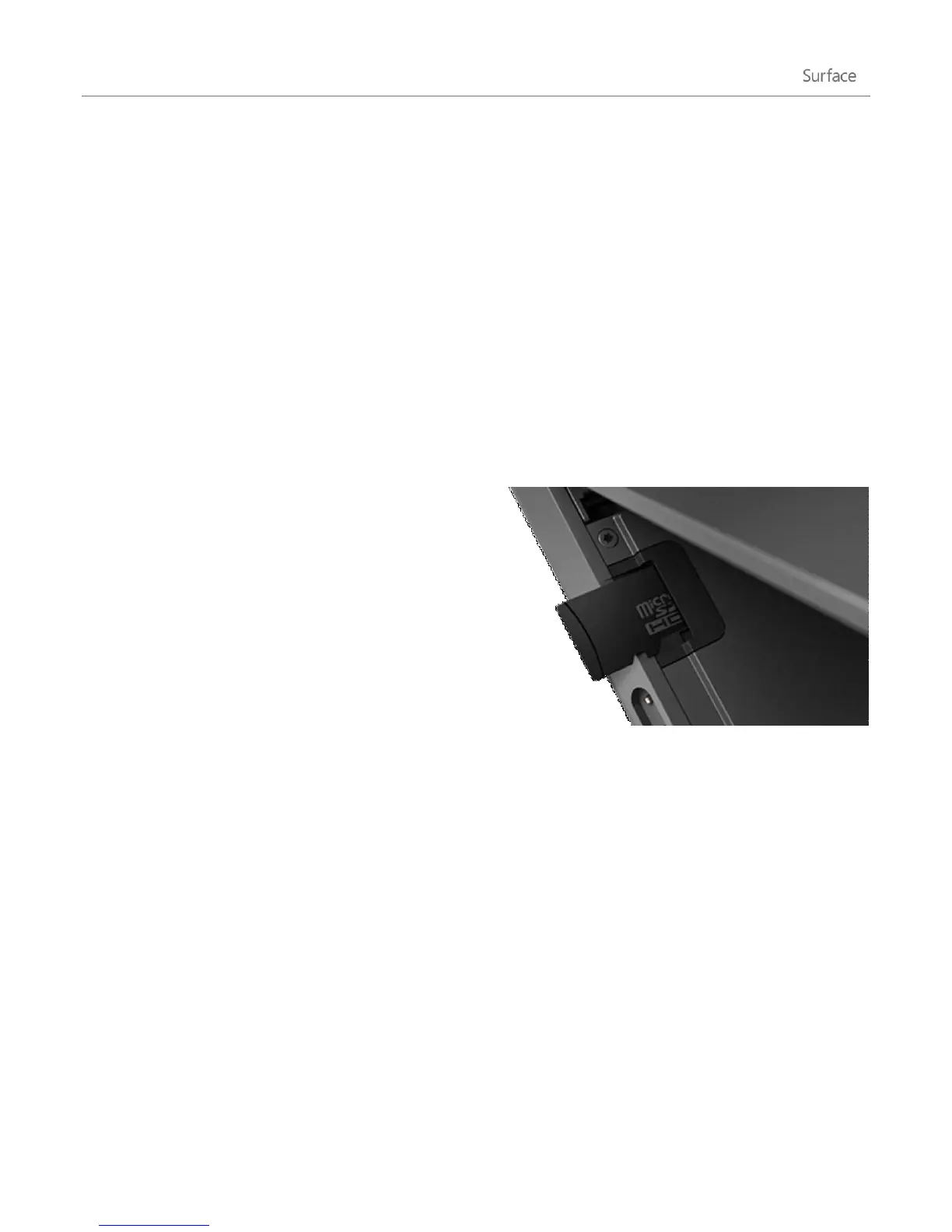
microSD memory card
The microSD card slot lets you add up to 64 GB of storage
to Surface. You can use a microSD, microSDHC, or
microSDXC card.
Flip out the kickstand to access the card reader.
SkyDrive: Cloud storage
Store your documents, music, videos and pictures in the
cloud by using SkyDrive. Surface includes a SkyDrive app
that you can use to upload and open files on your SkyDrive.
Your Microsoft account includes 7 GB of free storage on SkyDrive—that’s enough for over 20,000 Office
documents or 7,000 photos.
To learn more about SkyDrive, see the SkyDrive section in this guide.












 To Next Page