©2013 Microsoft Page 76
Notes
Office Home & Student 2013 RT has almost the same features as Office Home & Student 2013 on
Windows 7 or Windows 8, but there are some differences. To learn about the differences, go to
Office.com/OfficeRT.
If you have Microsoft Office Home & Student 2013 RT Preview version, Office should update to the final
version through Windows Update (free download; ISP fees apply). If the update doesn’t happen, see the
Update to the final Office release topic below.
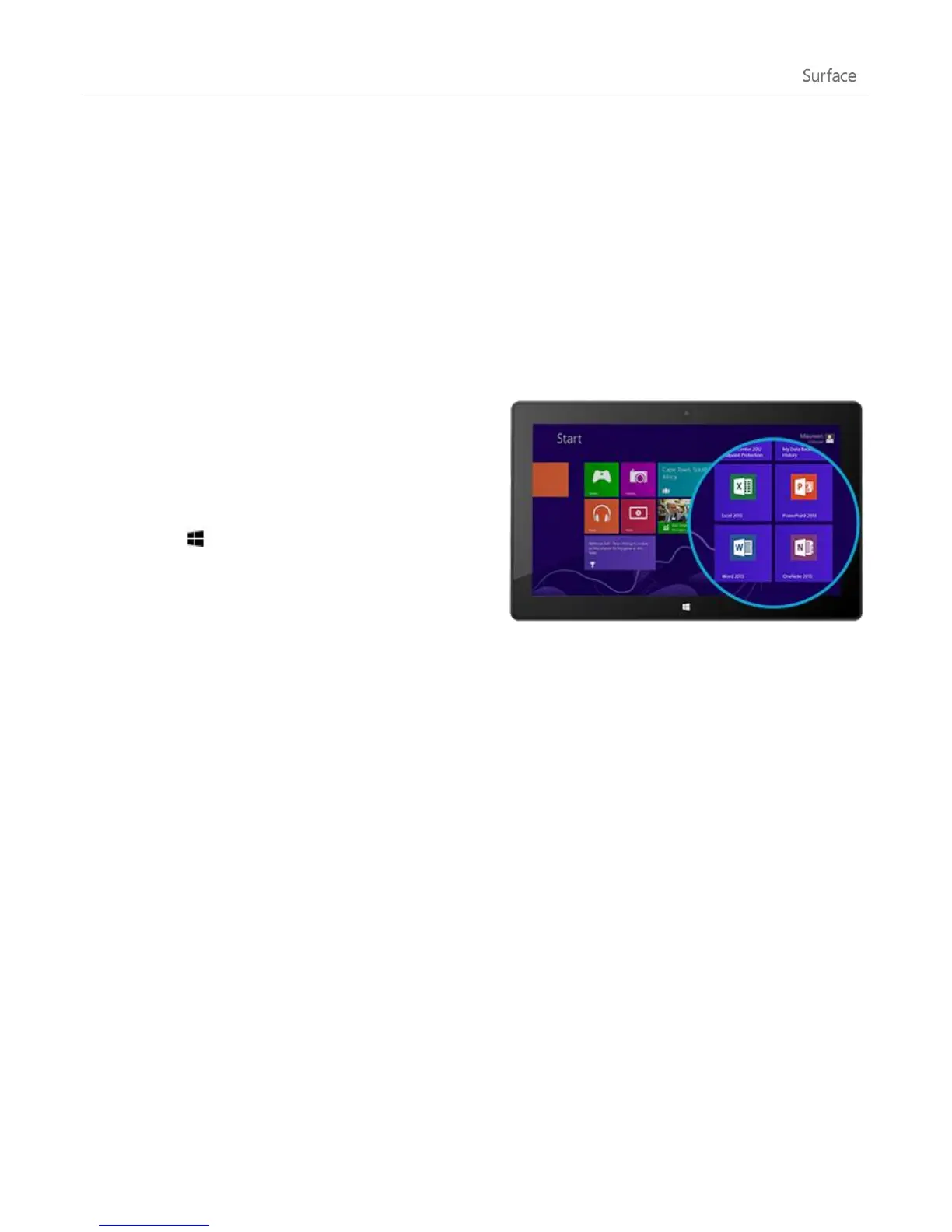
Start an Office app
To start an Office app, go to the Start screen and find the
app tile or type the app name (for example, type Word
and press Enter).
You can also start Office apps from the desktop. To do
this, go to the Start screen and tap or click Desktop (or
Windows logo key + D). Once at the desktop, the
Office apps appear on the taskbar. Tap or click an Office
app on the taskbar.
To learn how to pin and unpin apps from the Start screen
or the taskbar, see the Personalise your Surface section in this guide.
Office Quick Start Guides
If you’re new to Office 2013, you can download free Quick Start Guides to help you get started. These printable
guides have useful tips, shortcuts, and screenshots to help you find your way around. Go to Office.com and search
for quick start guide or use the following links:
Word 2013 Quick Start Guide
Excel 2013 Quick Start Guide
PowerPoint 2013 Quick Start Guide
OneNote 2013 Quick Start Guide












 To Next Page