©2013 Microsoft Page 83
Using Mail
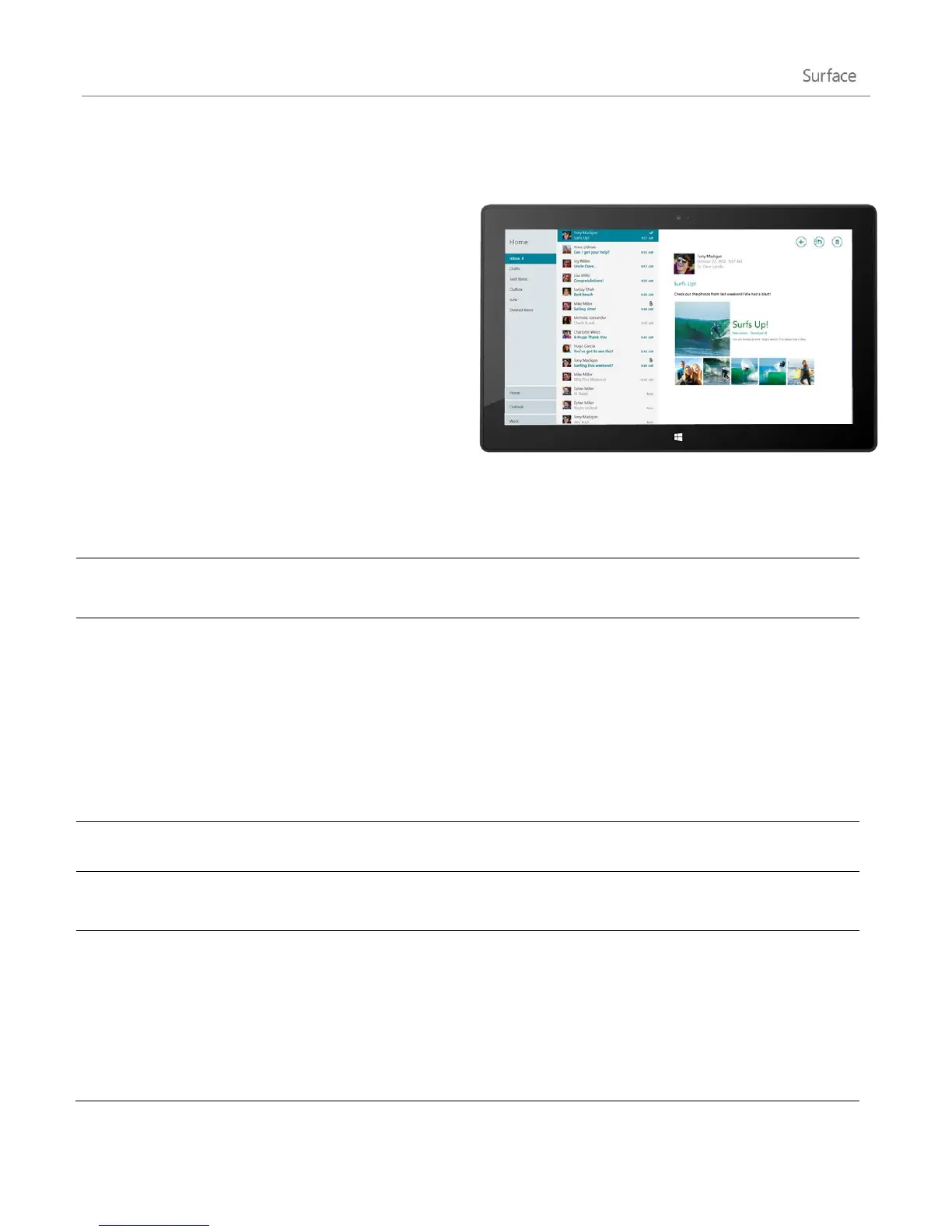
The Mail app has three panes:
The left pane shows you your email folders
and accounts (in the lower-left corner). Tap or
click a folder or account to switch to it.
The middle pane shows you messages for the
selected email account.
The right pane is the reading pane, showing
you the content of the selected email
message.
Here’s how to do some things in Mail:
*To use all of these features, install the latest version of the Mail app from the Windows Store.
Swipe down from the top of the screen or right-click to see commands
in the Mail app.
With touch Swipe across each message (in the middle pane) that
you want to select.
With a mouse or the trackpad Right-click each message that you
want to select.
To select a group of continuous messages, hold down the Shift key and
the press the Up arrow or Down arrow key.
To clear a message, swipe across the message or right-click it.
Reply, Reply all, or Forward
Tap or click the Reply icon in the upper-right corner.
Select one of more messages and then tap or click the Trash icon in the
upper-right corner.
With touch Tap a word then drag the circles at each end of the
word to extend the selection. Tap the selected text, then tap Copy
or Copy/Paste on the app commands bar.
With a mouse or the trackpad Select text and then right-click to
choose Copy or Paste.
With the keyboard Press Ctrl+C for Copy and Ctrl+V for Paste.












 To Next Page