87 / 99 MINDEO Electronics Technology Ltd.
7.1.5.1 Coding Format Diagram
You can choose from the following three encoding formats:
1) UTF-8
2) GBK
3) UTF-16
4) windows-1251
5) windows-1250
6) KOI8R
7) UTF-8 & GBK
When you change this function, the coding format of scanning result will be changed to the option you select. If you
get garbled characters when scan some barcodes (for example, the result contains Chinese characters), in
many cases, it is resulted by the encoding forma. Please try to modify the encoding format to GBK or
other encoding formats.
7.1.6 Label Formatting
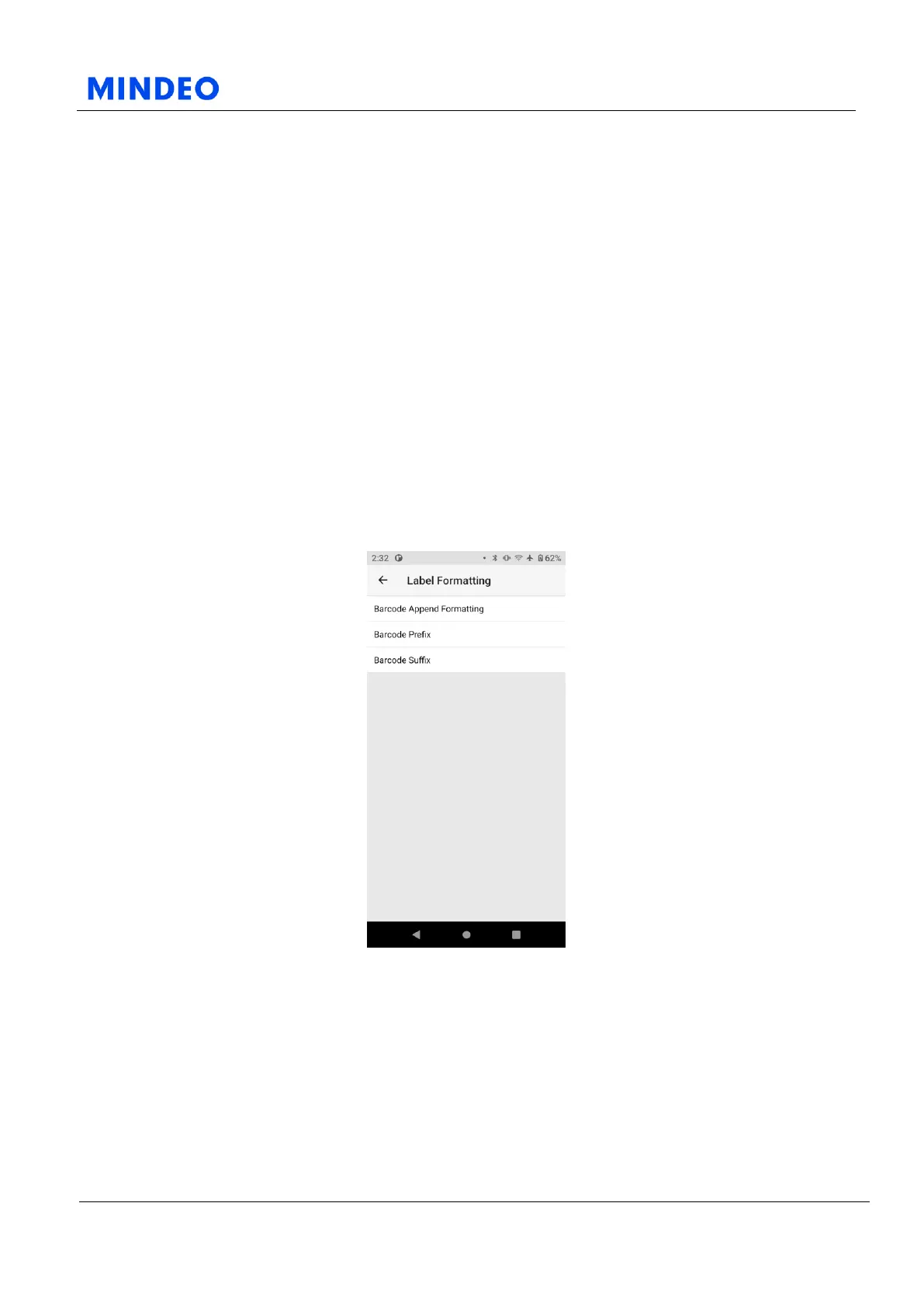
7.1.6.1 Label Formatting Diagram
On this page, you can perform additional processing on the barcode in the scanning result, you can add
barcode prefix, barcode suffix or add barcode prefix and barcode suffix at the same time.
For example, if you want to set suffix “Enter” and prefix “F7”, please follow the procedures below:
1) Set Barcode End Character to “Enter” in Decode Mode page;
2) Set Barcode Append Formatting to “Prefix” in Label Formatting page;
3) Set Barcode Prefix to “F7” in Label Formatting page.



 To Next Page